Why Does My Computer Keep Freezing? 11 Easy & Proven Fixes
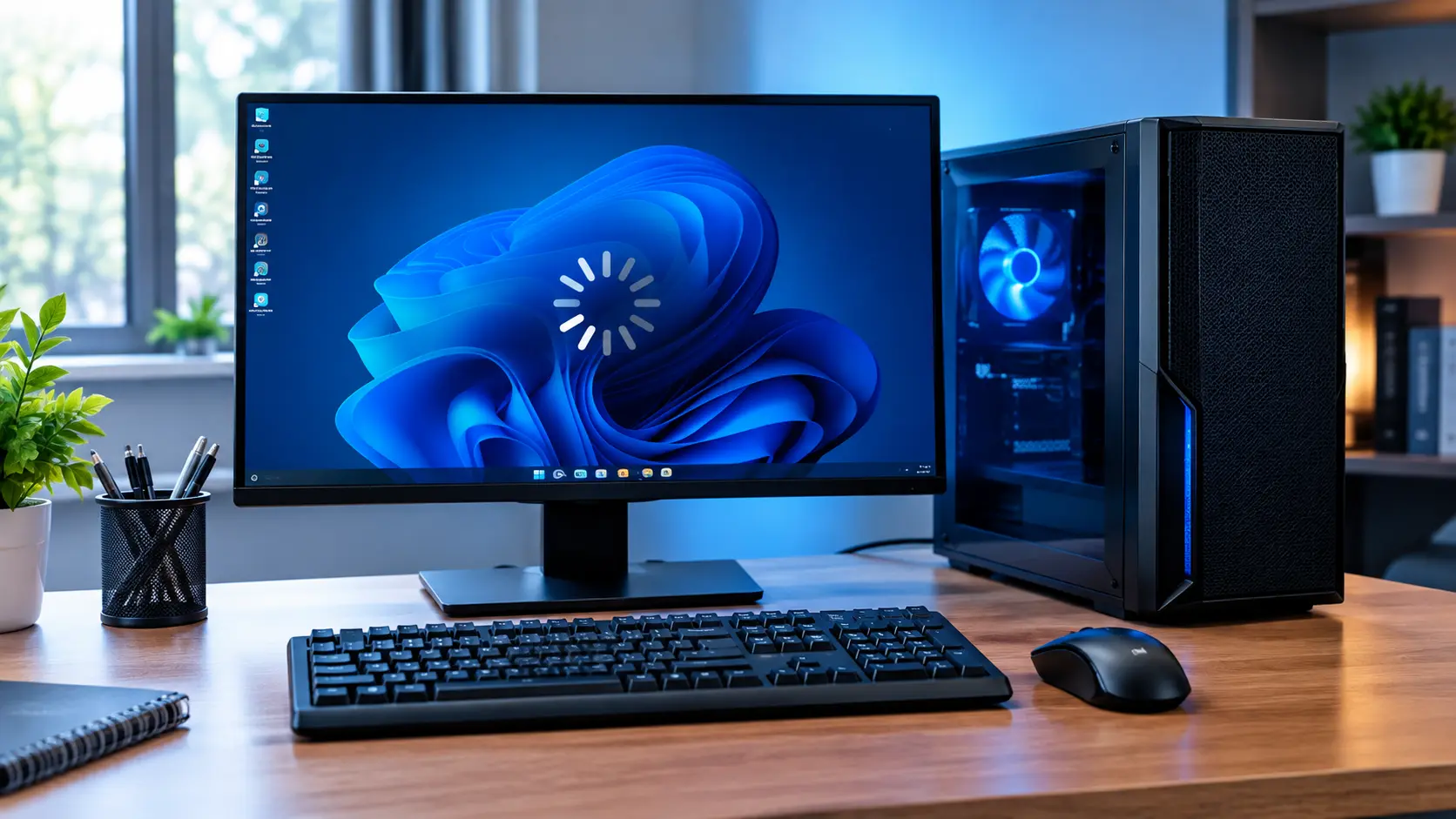
If you keep wondering why does my computer keep freezing, the short answer is overheating, faulty RAM, outdated drivers, or too many programs running at once. Start by checking resource usage and temperature, then update drivers, scan for malware, and test your RAM if the freezing continues.
This guide explains what’s going wrong, how to identify the type of freeze you’re dealing with, and 11 proven fixes that match your problem. We’ve tested each step against real-world causes, so you get answers that work instead of generic advice. By the end, you’ll know exactly what to check first.
Why Does My Computer Keep Freezing?
A computer usually freezes because something is overloading its resources or a system component isn’t responding properly. The most common causes include:
- Overheating: dust buildup or blocked vents cause the CPU or GPU to throttle or lock up
- RAM problems faulty or overloaded memory can trigger random freezes
- High CPU, memory, or disk usage: too many background programs competing for resources
- Outdated or faulty drivers, especially graphics and chipset drivers
- Corrupted system files: damaged Windows files can cause unpredictable freezing
- Storage problems a failing SSD or hard drive struggling to read or write data
- Malware some infections quietly eat up system resources in the background
- Software conflicts two programs fighting over the same resources
- Low free storage space: Windows needs breathing room to manage memory properly
- Aging hardware: components nearing the end of their working life
Most articles stop right here and hand you a random list of ten fixes. That’s not enough, because the right fix depends entirely on how your computer is freezing. Let’s figure that out first.
First, Identify What Is Freezing
Before you can permanently stop your computer from freezing, it helps to understand why your computer keeps freezing in your specific situation, since not every freeze has the same cause.
Before trying any fix, take thirty seconds to notice exactly what’s happening on your screen. This one step saves you from wasting time on fixes that don’t match your actual problem.
Only One App Is Frozen
If everything else on your screen still responds normally, but one program is stuck, this is almost always an application issue, not a system-wide problem. The fix is usually as simple as closing that one program through Task Manager.
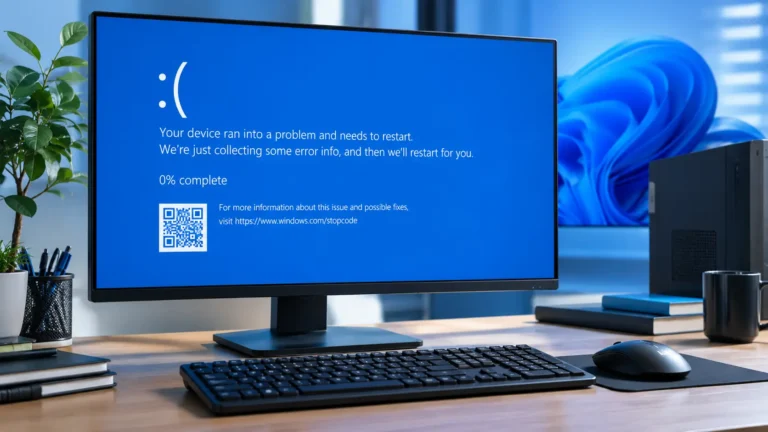
The Whole Computer Is Frozen
This is one of the most common versions of why does my computer keep freezing, and it usually points to something deeper than a single app
If your entire screen is locked and nothing responds at all, including the mouse and keyboard, this points to a deeper system-level issue. This is often tied to drivers, corrupted files, or a hardware problem starting to show itself.
The Mouse Still Moves
This is a very specific and surprisingly common pattern. If your cursor still moves but everything else on screen is unresponsive, the issue is often related to Windows Explorer, a graphics driver, or an app that’s consuming too many resources without fully crashing the system.
The Computer Freezes While Gaming
If freezing only happens during games, look closely at your GPU temperature, graphics drivers, and available RAM. Gaming pushes your hardware harder than almost anything else you do on a computer, so this pattern usually points to overheating or an outdated driver rather than a general system fault.
The Computer Freezes After an Update
If the freezing started right after a Windows update or a new driver installation, that update is your first suspect. This is one of the easiest patterns to trace back to its cause, since the timing tells you exactly where to start looking.
How to Fix a Computer That Keeps Freezing
Now that you’ve identified your pattern, work through these fixes in order. We’re starting with the least disruptive steps first, the same approach Microsoft recommends in its own recovery guidance.
1. Restart the Computer Safely
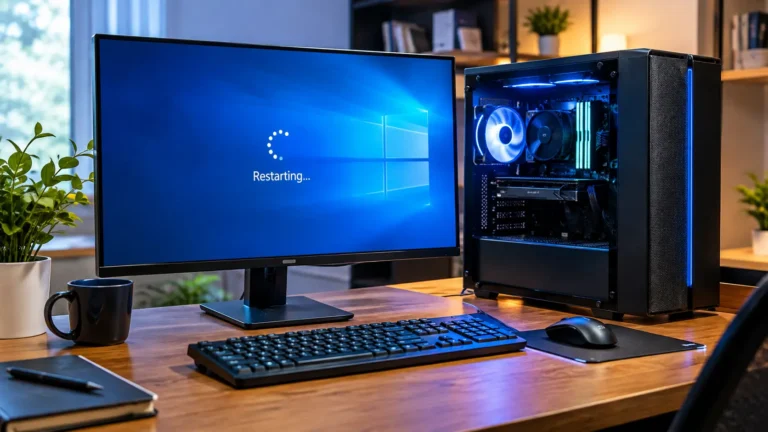
If your system is still partially responsive, try Ctrl + Alt + Delete to open Task Manager and close the frozen program. If nothing responds at all, hold the power button for 10 seconds to force a shutdown, then turn it back on. This clears temporary memory issues that cause a lot of one-time freezes.
2. Check CPU, Memory, and Disk Usage
Open Task Manager and click the Performance tab. Watch your CPU, Memory, and Disk usage while using the computer normally.
- If any of these consistently sit near 100%, that’s likely your freezing culprit
- Close background programs you don’t actually need running
- Check the Startup tab and disable unnecessary programs from launching automatically
3. Update Windows and Device Drivers
Outdated drivers, especially graphics drivers, are one of the most common causes of freezing.
- Go to Settings > Windows Update and install any pending updates
- Open Device Manager and check for driver updates under Display Adapters
- For graphics cards, download the latest driver directly from NVIDIA, AMD, or Intel’s official site instead of relying only on Windows Update
4. Check for Overheating
If you’re trying to figure out why does my computer keep freezing specifically during heavy use, overheating should be your first check.
Overheating causes your system to throttle performance or freeze entirely to protect the hardware from damage. This is a real and common cause, despite what some guides claim about hardware rarely being responsible.
- Make sure vents aren’t blocked, and the laptop isn’t sitting on a soft surface like a bed or couch
- Clean out dust from fans and vents if it’s been a while since the last cleaning
- Use a monitoring tool to check your CPU and GPU temperatures while under load
If temperatures climb well above normal ranges during regular use, that’s a strong sign overheating is your issue.
5. Test Your RAM
Faulty RAM often causes random, unpredictable freezes that don’t follow any clear pattern.
- Search for Windows Memory Diagnostic in the Start menu
- Select “Restart now and check for problems”
- Let your computer restart and run the test automatically
If it reports errors, one of your RAM sticks may need replacing.
6. Check Your SSD or Hard Drive
A failing drive can cause freezes, especially when the system tries to read or write data.
- Open Command Prompt as an administrator
- Type chkdsk C: /f and press Enter
- Restart your computer if prompted to complete the scan
If chkdsk reports bad sectors or errors, your drive may be nearing the end of its life.
7. Scan for Malware
Some malware runs silently in the background, quietly consuming resources until your system locks up completely.
- Open Windows Security
- Go to Virus & threat protection
- Run a full scan, not just a quick scan
A full scan takes longer, but it checks every file, which a quick scan simply skips over.
8. Repair Corrupted Windows Files
Corrupted system files can cause freezing that seems to happen for no clear reason at all.
- Open Command Prompt as an administrator
- Type sfc /scannow and press Enter, then let it finish completely
- Follow that with DISM /Online /Cleanup-Image /RestoreHealth
These two commands repair damaged files that Windows relies on to run smoothly.
9. Try Safe Mode or a Clean Boot
If your computer only freezes normally but runs fine in Safe Mode, a background program or driver is likely the cause.
- Restart your computer and enter Safe Mode from the recovery menu
- If it doesn’t freeze in Safe Mode, boot normally and try a Clean Boot instead, which starts Windows with only essential services running
- Slowly re-enable programs one at a time until the freezing returns, which tells you exactly what’s causing it
10. Check Recent Updates or Software
If freezing began right after installing something new, that’s your first suspect.
- Go to Settings > Windows Update > Update History and check for recently installed updates
- Consider uninstalling a recent update if freezing started right after it
- Check Control Panel for any newly installed programs around the same time
11. Know When the Problem May Be Hardware
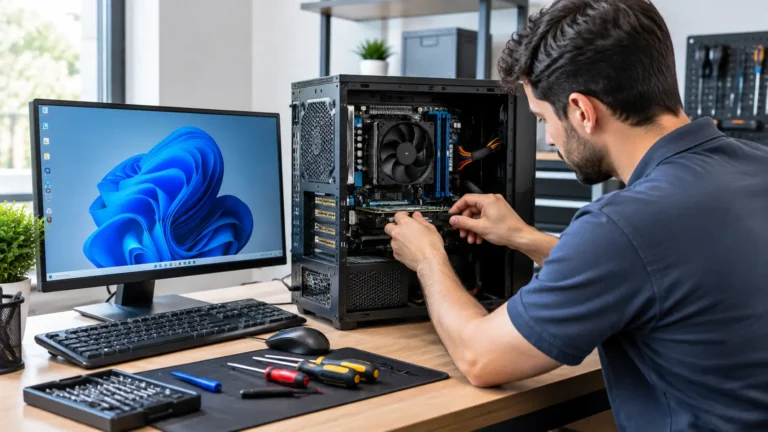
If you’ve worked through every fix above and freezing continues, this points toward a hardware issue, possibly your motherboard, power supply, or a component that’s simply aging out. At this point, further DIY troubleshooting has diminishing returns, and it’s worth getting a professional diagnosis.
What to Do If Your Computer Freezes Again

If freezing comes back after you’ve tried these fixes, a few things are worth doing next:
- Back up your important files immediately. Before trying anything more advanced, protect your data first.
- Note the exact pattern. Does it freeze at the same time, during the same activity, or completely randomly? This detail matters if you need professional help later.
- Check Windows Event Viewer. It logs system errors around the time of each freeze, which can point directly to the failing component or driver.
- Try a System Restore to a point before the freezing started, if you have restore points available.
When Should You Get Professional Computer Repair?
If you’ve gone through every software fix and the freezing continues, especially if it’s paired with overheating, unusual noises, or a drive that’s failing diagnostic tests, it’s time to get a professional opinion rather than keep guessing on your own.
A technician can run deeper hardware diagnostics than most home tools allow, and catching a failing component early is almost always cheaper than waiting until it fails completely.
Here are some quick answers to common questions people ask alongside ” Why does my computer keep freezing.
FAQS:
1. Can a frozen computer cause permanent damage?
A frozen computer alone usually will not cause permanent damage if you shut it down properly. But repeated hard shutdowns or ignoring overheating over time can slowly harm your hardware.
2. Does freezing mean I need to buy a new computer?
No, freezing does not always mean you need a new computer. Most freezing problems come from software, drivers, or overheating, and these can often be fixed for free.
3. Should I worry if my computer freezes only once?
No, a single freeze is usually nothing to worry about and can happen occasionally. Start paying attention only if it becomes a regular pattern.
4. How long should you wait before force restarting a frozen computer?
Wait about 1 to 2 minutes before force restarting, since Windows may just be finishing a background task. If nothing changes after that, it is safe to force a restart.
5. What is the difference between a computer freeze and a crash?
A freeze means your computer stops responding but stays on, while a crash means it shuts down or restarts on its own. Freezes usually need a manual restart, but crashes often happen automatically.
Conclusion
If you were asking why does my computer keep freezing, the answer is rarely a mystery once you spot the pattern. Whether it is overheating, a driver issue, or a failing drive, working through these fixes in order gets you to the real cause faster than guessing. If freezing continues after trying everything, that is a clear sign to get a professional diagnosis.
Written by: Sahil Ansari
Author: