How To Keep a Gaming Laptop Cool? (Ultimate Guide 2026)
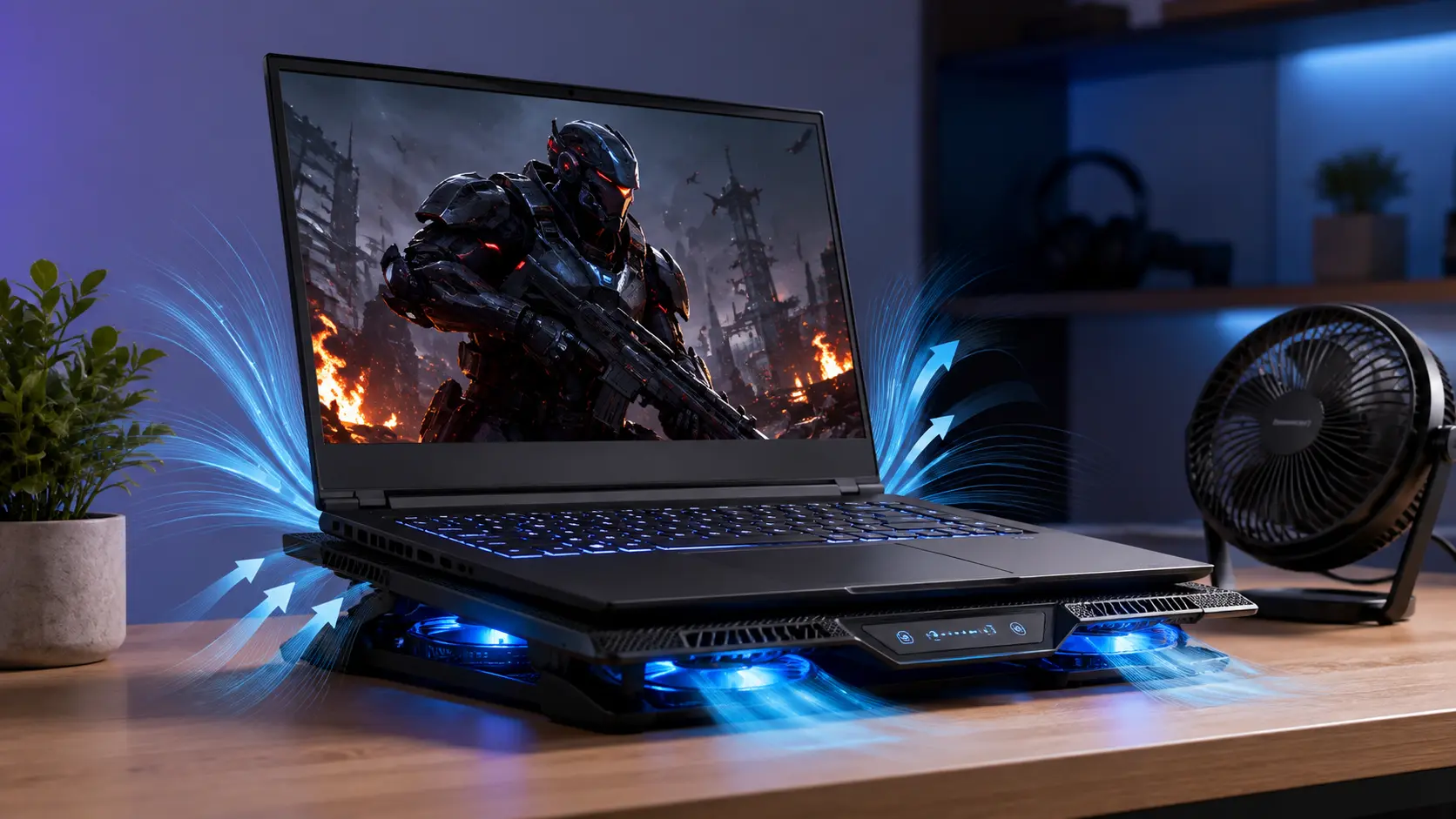
Keep your gaming laptop on a hard, flat surface, clean the air vents regularly, use a cooling pad, and close unused apps before gaming. These simple steps improve airflow, reduce heat, prevent overheating, and help your laptop run smoothly for years.
This guide explains easy, practical tips to prevent overheating, improve airflow, and help your gaming laptop perform better and last longer.
How To Keep a Gaming Laptop Cool?
The best way to keep a gaming laptop cool is to improve airflow, reduce unnecessary workload, and maintain the cooling system regularly. Gaming laptops use fans, heat pipes, and vents to remove heat from the CPU and GPU. When these parts cannot release heat properly, temperatures increase.
Some effective ways to keep your gaming laptop cool include:
- Place your laptop on a hard and flat surface.
- Keep air vents clear so cool air can enter, and hot air can escape.
- Clean dust from fans and cooling vents regularly.
- Use a cooling pad for better airflow.
- Reduce graphics settings in demanding games.
- Close unnecessary background programs.
- Keep your room temperature comfortable.
- Update drivers and system software.
A combination of these methods can help your laptop maintain better temperatures during gaming.
What Is the Best Way to Keep a Gaming Laptop Cool?
The best way to keep a gaming laptop cool is to improve ventilation and prevent heat from building up inside the system. The laptop needs enough space around its air vents to remove hot air efficiently.
Here are the most effective cooling methods:
Use a cooling pad
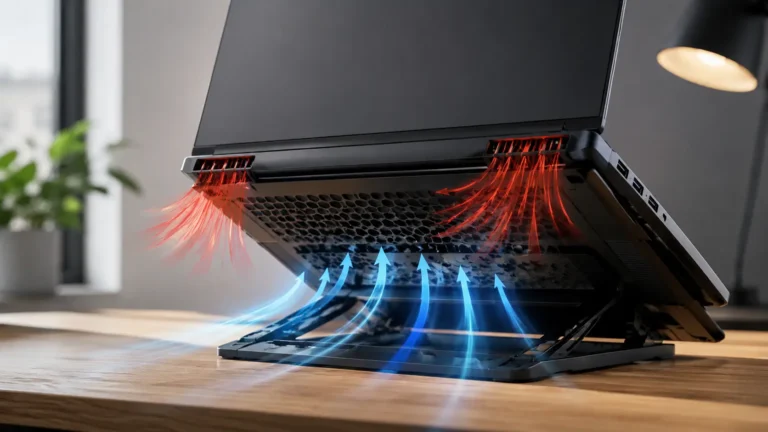
A cooling pad can provide extra airflow underneath your gaming laptop. It helps the built-in fans remove heat more effectively, especially during long gaming sessions.
2. Lift the back of the laptop slightly
Raising the back edge of your laptop improves airflow under the device. Even a small gap can help the fans pull in cooler air.
3. Clean dust regularly
Dust buildup blocks airflow and makes fans work harder. Cleaning the vents and fans every few months can improve cooling performance.
4. Control game settings
Running every game at maximum settings increases CPU and GPU temperatures. Lowering graphics settings slightly can reduce heat without affecting your gaming experience too much.
5. Avoid soft surfaces
Using a gaming laptop on a bed, pillow, or sofa can block air vents. Always use it on a desk or another hard surface.
Is It Normal for a Gaming Laptop to Get Hot?
Yes, it is normal for a gaming laptop to get warm during gaming. Gaming laptops contain powerful processors and graphics cards that generate heat when handling demanding tasks.
During normal gaming, many gaming laptops reach temperatures between 70°C and 85°C. This range is generally considered safe for most modern devices.
However, temperatures consistently above 90°C may indicate a cooling problem. High temperatures for long periods can lead to performance drops, sudden shutdowns, and reduced hardware lifespan.
Signs that your gaming laptop may be getting too hot include:
- Fans running all the time loudly.
- Games suddenly becoming slower.
- FPS drops during gameplay.
- The laptop shutting down unexpectedly.
- The keyboard area becoming extremely hot.
Regular temperature monitoring can help you identify problems before they become serious.
Why Is It Important to Keep a Gaming Laptop Cool?
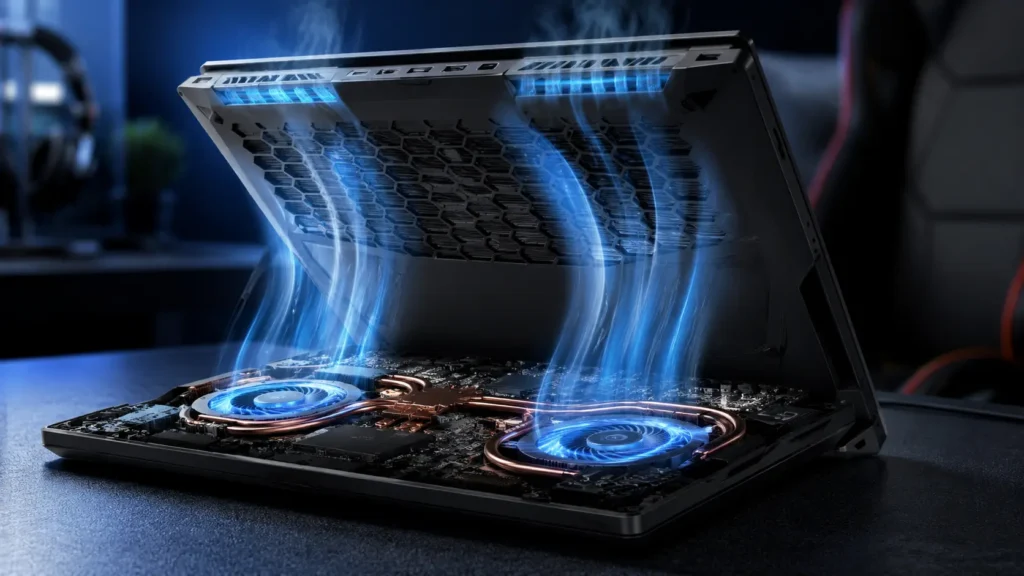
Keeping your gaming laptop cool is important because heat directly affects performance, reliability, and the lifespan of internal components.
Modern gaming laptops contain expensive parts like the CPU, GPU, SSD, and motherboard. Excessive heat puts extra stress on these components and can reduce their efficiency over time.
A cooler gaming laptop provides smoother gameplay, fewer performance issues, and better overall reliability.
Better Gaming Performance
Temperature has a direct impact on gaming performance. When the CPU or GPU becomes too hot, the laptop may automatically reduce its speed to protect itself.
This process is called thermal throttling. It lowers processing power, which can cause:
- Lower FPS during games.
- Game stuttering.
- Longer loading times.
- Unstable performance.
Keeping temperatures under control allows your hardware to run closer to its full potential.
Longer Laptop Lifespan
High temperatures can slowly damage internal components. Continuous heat exposure affects parts like the battery, processor, graphics card, and motherboard.
A cooler laptop experiences less stress, which can help extend its useful life.
Regular maintenance, proper airflow, and good cooling habits are simple ways to protect your investment.
Prevents Thermal Throttling
Thermal throttling happens when your laptop detects unsafe temperatures and reduces performance to prevent damage.
While this safety feature protects your hardware, it can negatively affect gaming.
For example, a game may run smoothly at 100 FPS initially but drop to 50 FPS after the laptop heats up. Improving cooling helps prevent these sudden performance drops.
What Causes a Gaming Laptop to Overheat?
Gaming laptops can overheat for many reasons. Some problems are caused by hardware limitations, while others happen because of poor maintenance or usage habits.
Understanding the common causes of overheating can help you fix temperature problems faster.
Dust Blocking the Cooling System
Dust is one of the most common causes of gaming laptop overheating.
Over time, dust collects inside air vents, fans, and cooling systems. This blocks airflow and prevents heat from escaping properly.
When fans cannot move enough air, the CPU and GPU temperatures increase.
To prevent dust problems:
- Clean air vents regularly.
- Use compressed air carefully to remove dust.
- Avoid using your laptop in dusty environments.
Poor Airflow Around the Laptop
Gaming laptops need proper airflow to work efficiently. Blocking the bottom vents or side exhaust areas can trap heat inside the device.
Common airflow mistakes include:
- Using the laptop on a bed or blanket.
- Keeping it close to walls.
- Covering ventilation areas.
Always place your laptop on a hard surface with enough space around the vents.
High Graphics Settings
Modern games can push your hardware to its limits. Running games at ultra graphics settings increases the workload on your GPU and CPU.
Higher workloads create more heat.
If temperatures become too high, try reducing:
- Shadow quality.
- Ray tracing effects.
- Resolution settings.
- Texture quality.
Small graphics adjustments can significantly reduce heat.
Too Many Background Programs
Programs running in the background consume system resources and create extra workload.
Apps like browsers, launchers, recording software, and unnecessary startup programs can increase CPU usage.
Before gaming, close apps you do not need to free up resources and reduce heat production.
Old Thermal Paste
Thermal paste helps transfer heat between the processor and cooling system. Over time, thermal paste can dry out and become less effective.
Old thermal paste may cause higher temperatures because heat cannot move away from the CPU and GPU efficiently.
Replacing thermal paste can improve cooling, but it should be done carefully or by a professional if you are not experienced.
Hot Room Temperature
The environment around your laptop also affects cooling.
If your room is already hot, your laptop cannot pull in cool air effectively. This can increase internal temperatures during gaming.
Try to:
- Use your laptop in a cooler room.
- Improve room ventilation.
- Avoid direct sunlight.
A cooler environment helps your laptop maintain better performance.
What Temperature Is Safe for a Gaming Laptop?
Knowing the safe temperature range of your gaming laptop helps you understand whether your device is running normally or overheating.
Gaming laptops usually run warmer than regular laptops because they contain powerful CPUs and GPUs designed for demanding games. Some heat during gaming is expected, but extremely high temperatures for long periods can cause performance issues.
The safe temperature depends on what you are doing on your laptop.
Normal Temperature While Idle
When your gaming laptop is turned on but not running heavy tasks, temperatures should usually stay between 35°C and 50°C.
Idle temperatures can change depending on:
- Room temperature.
- Background applications.
- Laptop model.
- Cooling system design.
If your laptop reaches very high temperatures while doing nothing, it may indicate problems like dust buildup, poor airflow, or unnecessary background processes.
Safe Temperature During Gaming
During gaming, it is normal for a gaming laptop to become much warmer. Most gaming laptops operate safely between 70°C and 85°C while playing demanding games.
Heavy games such as AAA titles can push the CPU and GPU closer to their limits. Short periods of higher temperatures are usually not a major concern.
However, if your laptop regularly stays above 90°C, you should check the cooling system and improve airflow.
Maximum Safe Temperature Before Overheating
Most modern gaming laptop processors are designed to handle high temperatures, but running near maximum limits for long periods is not ideal.
Temperatures around 90°C or above may cause:
- Thermal throttling.
- Reduced gaming performance.
- Loud fan noise.
- Faster hardware wear.
If your gaming laptop frequently reaches these temperatures, you should take steps to improve cooling.
Gaming Laptop Temperature Guide Table
| Laptop Status | Safe Temperature |
|---|---|
| Idle | 35°C to 50°C |
| Normal Use | 45°C to 60°C |
| Gaming | 70°C to 85°C |
| High Temperature | 85°C to 90°C |
| Too Hot | Above 90°C |
These numbers are general guidelines. Different laptop brands and hardware models may have slightly different temperature limits.
How To Keep a Gaming Laptop Cool in Different Situations?
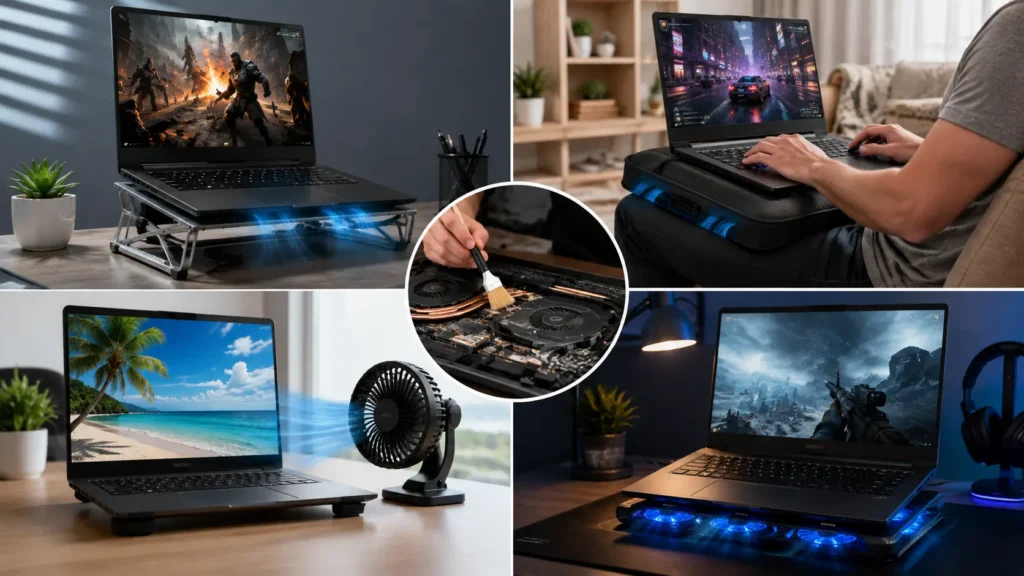
A gaming laptop does not produce the same amount of heat in every situation. Temperature changes depending on the type of game, workload, charging condition, and environment.
Using the right cooling methods for each situation can help maintain better performance.
While Playing AAA Games
AAA games are some of the most demanding workloads for a gaming laptop. Games with high resolution, advanced graphics, and ray tracing can put heavy pressure on the CPU and GPU.
To keep temperatures lower while playing demanding games:
- Use a cooling pad.
- Reduce unnecessary graphics settings.
- Enable performance modes only when needed.
- Keep the laptop connected to proper ventilation.
- Monitor CPU and GPU temperatures.
You do not always need maximum graphics settings. Balanced settings can provide smoother gameplay with lower temperatures.
During Competitive Online Gaming
Competitive games such as shooters and esports titles usually focus more on high FPS and low input delay.
Although these games may not always be as demanding as AAA games, long sessions can still create heat.
For competitive gaming:
- Keep stable airflow around the laptop.
- Use performance settings carefully.
- Avoid running unnecessary apps.
- Monitor temperatures during long matches.
Stable temperatures help maintain consistent FPS and reduce sudden performance drops.
While Charging
Gaming while charging is common because gaming laptops often need maximum power from the charger.
However, charging already creates additional heat, and gaming increases the workload further.
To keep temperatures under control while charging:
- Use the original charger.
- Keep vents clear.
- Avoid placing the laptop on soft surfaces.
- Use a cooling pad during long sessions.
Some heat while charging is normal, but extreme heat should not be ignored.
During Long Gaming Sessions
Long gaming sessions can slowly increase internal temperatures because heat builds up over time.
To maintain cooling during extended gameplay:
- Take short breaks.
- Clean dust regularly.
- Keep the room cool.
- Check temperature levels.
- Avoid blocking air vents.
A few simple habits can prevent overheating during hours of gaming.
In Hot Weather
Room temperature has a direct effect on your laptop’s cooling ability. During hot weather, your laptop may run several degrees warmer.
To reduce heat in hot conditions:
- Use your laptop in an air-conditioned room if possible.
- Improve room airflow.
- Keep the laptop away from sunlight.
- Avoid using it in closed spaces.
A cooler environment allows your laptop fans to work more effectively.
When Should You Worry About a Hot Gaming Laptop?
A warm gaming laptop is normal, but extreme temperatures can indicate a problem. Knowing the warning signs helps you take action before serious damage occurs.
Warning Signs of Overheating
Your gaming laptop may be overheating if you notice:
- Fans running at maximum speed frequently.
- Sudden FPS drops.
- Games freezing or stuttering.
- Unexpected shutdowns.
- Extremely hot areas around the keyboard.
- Slow system performance.
- The laptop becoming hot even during light tasks.
These signs usually mean the cooling system needs attention.
Problems Caused by High Temperature
Excessive heat can create several problems, including:
Reduced Performance
High temperatures force the laptop to lower hardware speed to protect itself. This results in slower performance and unstable gaming.
Shorter Hardware Lifespan
Constant exposure to high heat can affect important components like the battery, processor, graphics card, and motherboard.
Battery Problems
Heat can reduce battery health over time. Gaming laptops already produce significant heat, so additional temperature stress can affect battery performance.
System Crashes
Severe overheating may cause freezing, sudden shutdowns, or unexpected restarts.
When to Get Professional Repair
You should consider professional help if:
- Temperatures remain extremely high after cleaning.
- Fans stop working properly.
- The laptop shuts down frequently.
- You hear unusual fan noises.
- Cooling performance suddenly becomes worse.
A technician can inspect the cooling system, replace thermal paste, and repair damaged components if needed.
How To Keep a Gaming Laptop Cool?
Keeping a gaming laptop cool does not always require expensive upgrades. Simple maintenance and better usage habits can significantly improve temperatures.
Use a Cooling Pad
A cooling pad is one of the easiest ways to improve laptop airflow.
It uses additional fans to push cool air toward the bottom of your laptop. This can help reduce temperatures during demanding gaming sessions.
A cooling pad is especially useful for laptops with limited ventilation space.
Place the Laptop on a Hard Surface
Always use your gaming laptop on a hard, flat surface such as a desk.
Soft surfaces like beds, blankets, and sofas can block air vents and trap heat.
A proper surface allows fans to pull in fresh air and release hot air more efficiently.
Clean the Fans and Air Vents
Dust buildup reduces cooling performance over time.
Regular cleaning helps maintain proper airflow.
Recommended maintenance:
- Clean external vents regularly.
- Remove dust carefully.
- Check fans if temperatures increase.
For heavy users, cleaning every few months can help prevent overheating problems.
Close Unused Background Apps
Background applications increase CPU and RAM usage, creating extra heat.
Before starting a game:
- Close unnecessary browser tabs.
- Exit unused software.
- Disable unwanted startup programs.
This gives more resources to your game and reduces system workload.
Lower Graphics Settings
High graphics settings increase GPU usage and heat production.
If your laptop becomes too hot, adjust settings like:
- Resolution.
- Shadows.
- Ray tracing.
- Texture quality.
Lower settings can reduce temperatures while keeping gameplay smooth.
Keep the Room Cool
Your laptop depends on surrounding air for cooling.
A cooler room helps your fans work more efficiently.
Simple steps include:
- Improve ventilation.
- Use a fan or air conditioner.
- Avoid direct sunlight.
Update Drivers and BIOS
Manufacturers release updates that can improve performance, stability, and power management.
If your gaming laptop uses NVIDIA graphics, download the latest graphics drivers from the official NVIDIA driver page.
Updating:
- Graphics drivers.
- Chipset drivers.
- BIOS firmware.
May help your laptop manage heat more effectively.
If your gaming laptop uses NVIDIA graphics, download the latest graphics drivers from the official NVIDIA driver page.
Replace the Thermal Paste When Needed
Thermal paste loses effectiveness over time. If your laptop has been used for several years and temperatures keep increasing, replacing the thermal paste may help.
This process requires opening the laptop, so it should be done carefully.
If you are not comfortable doing it yourself, getting professional assistance is safer
Steps to Reduce Gaming Laptop Heat
Follow these simple steps to lower your gaming laptop temperature:
- Place your gaming laptop on a hard, flat surface.
- Clean the air vents and cooling fans regularly.
- Use a quality cooling pad for better airflow.
- Close apps you are not using.
- Lower game graphics if temperatures become too high.
- Monitor your laptop temperature while gaming.
These small changes can make a noticeable difference in cooling performance.
These simple habits can make it easier to understand How To Keep a Gaming Laptop Cool during long gaming sessions.
Gaming Laptop Temperature Guide
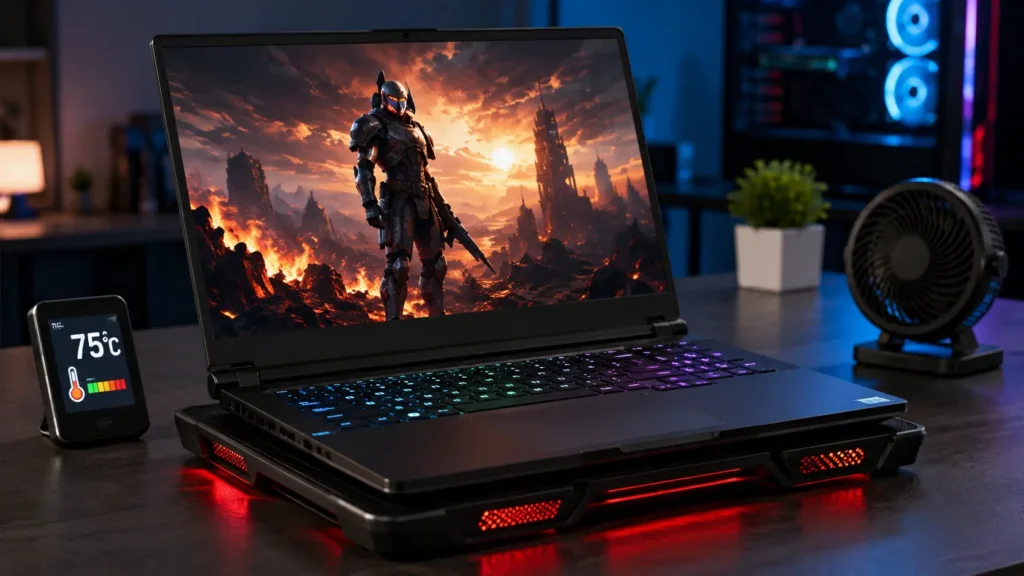
Understanding your gaming laptop temperature helps you know whether your device is running normally or facing overheating issues.
Every gaming laptop has different cooling systems and hardware, so temperatures can vary between models. However, the following table gives a general idea of safe temperature ranges during different activities.
Safe Temperature Table
| Laptop Status | Safe Temperature |
|---|---|
| Idle | 35°C to 50°C |
| Normal Use | 45°C to 60°C |
| Gaming | 70°C to 85°C |
| High Temperature | 85°C to 90°C |
| Too Hot | Above 90°C |
Idle Temperature
When your laptop is only running basic tasks, such as browsing the internet or sitting on the desktop, temperatures between 35°C and 50°C are generally normal.
Higher idle temperatures may happen because of:
- Background applications.
- Poor ventilation.
- Dust inside the cooling system.
- A warm room.
Normal Use Temperature
For everyday tasks like watching videos, using office apps, or browsing websites, temperatures around 45°C to 60°C are usually acceptable.
Your laptop should not feel extremely hot during light activities.
Gaming Temperature
Gaming creates much more heat because the CPU and GPU work harder.
Temperatures between 70°C and 85°C during gaming are common for many gaming laptops.
Demanding games may push temperatures slightly higher, especially during long sessions.
High Temperature
When temperatures reach 85°C to 90°C, your laptop is working under heavy stress.
Occasional spikes may not be a problem, but continuous operation in this range means you should improve cooling.
Check:
- Airflow.
- Fan performance.
- Dust buildup.
- Graphics settings.
Too Hot Temperature
Temperatures above 90°C are a warning sign.
If your laptop regularly reaches this level, check the manufacturer’s temperature specifications and look for signs of thermal throttling, reduced performance, fan problems, or unexpected shutdowns.
Taking cooling steps early can prevent bigger problems.
Knowing How To Keep a Gaming Laptop Cool can help you reduce heat, maintain stable performance, and protect your laptop over time.
Final Verdict:
Keeping a gaming laptop cool is important for smooth gaming performance, longer hardware life, and a better overall experience.
Gaming laptops naturally produce heat because they contain powerful processors and graphics cards. A certain amount of warmth is completely normal, especially during demanding games. The goal is not to remove all heat but to help your laptop manage it properly.
The most effective ways to keep a gaming laptop cool are:
- Use a cooling pad for better airflow.
- Keep the laptop on a hard surface.
- Clean fans and vents regularly.
- Avoid blocking ventilation areas.
- Close unnecessary background programs.
- Adjust graphics settings when temperatures get too high.
- Keep your gaming area cool.
- Monitor CPU and GPU temperatures.
- Replace old thermal paste when needed.
A well-maintained gaming laptop can provide stable performance for years. Small habits like cleaning dust, improving airflow, and managing settings can prevent overheating and help your device run at its best.
If your gaming laptop regularly reaches temperatures above 90°C, slows down, or shuts off unexpectedly, it is important to check the cooling system and fix the issue before it causes permanent damage.
By following the right cooling practices, you can enjoy smoother gameplay, better FPS stability, and a longer-lasting gaming laptop.
FAQS:
1. Can Dust Make a Gaming Laptop Overheat Faster?
Yes, dust can block the fans and air vents, reducing airflow inside the laptop. This traps heat, makes your gaming laptop overheat faster, and can lower gaming performance over time.
2. Does Closing Background Apps Help Keep a Gaming Laptop Cool?
Yes, closing background apps reduces CPU and RAM usage, which helps lower heat. It can keep your gaming laptop cooler and improve gaming performance.
3. Should You Turn Off Your Gaming Laptop After Long Gaming Sessions?
Yes, turning off your gaming laptop after long gaming sessions lets it cool down and gives the internal parts a chance to rest. This can help reduce heat and support long-term performance.
4. How Long Can You Safely Play Games on a Gaming Laptop Without a Break?
You can play as long as your gaming laptop maintains safe temperatures and stable performance. During long gaming sessions, monitor CPU and GPU temperatures and take a break if the laptop becomes unusually hot.
5. Which Laptop Cooling Accessories Work Best for Gaming?
A cooling pad, laptop stand, and external cooling fan work best for gaming. They improve airflow, reduce heat, and help keep your gaming laptop cool during long gaming sessions.
Conclusion
Keeping your gaming laptop cool is simple if you follow the right habits. Clean the fans regularly, use a cooling pad, keep the laptop on a hard surface, and close unused apps. These easy steps reduce heat, improve gaming performance, prevent overheating, and help your gaming laptop last longer while running smoothly.
Written By