Windows 11 Won’t Boot? 10 Proven Ways to Fix It
Windows 11 won’t boot? Start by checking power, cables, and connected devices. Then try Startup Repair, Safe Mode, System Restore, or uninstalling recent updates. If these fail, check the drive and run Windows recovery tools to repair damaged system files.
In this guide, you’ll learn safe ways to find the cause and get Windows 11 running again. Start with the simple checks first, then move to repair tools if needed. Follow each step carefully to avoid making the problem worse.
What Happens When Windows 11 Won’t Boot?
The first step is to notice exactly where startup stops. Different symptoms can point to different problems.
Windows 11 Shows a Black Screen
A black screen does not always mean Windows itself is damaged. If your computer powers on but nothing useful appears on the screen, see our guide on Computer Turns On, but Nothing Happens. The computer may be running while the display driver, monitor connection, or Windows startup process has failed.
If you can see the BIOS or UEFI screen before the display goes black, the computer is at least starting at the firmware level.
Windows 11 Gets Stuck on the Logo or Spinning Dots
If the Windows logo appears but the spinning dots continue without reaching the desktop, Windows may be having trouble loading a driver, system file, update, or storage device.
Safe Mode, Startup Repair, System Restore, or removing a recent update can help.
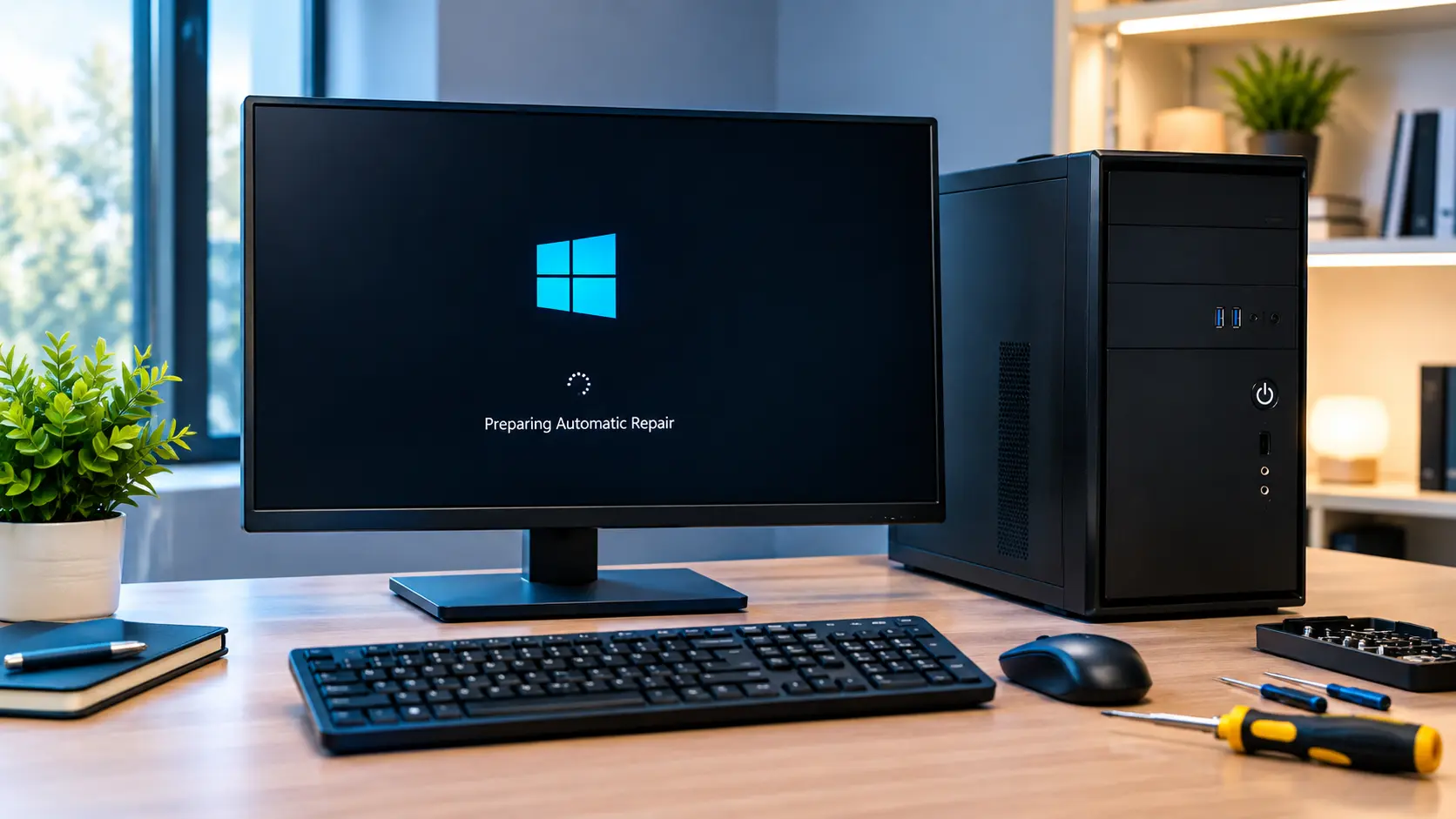
Windows Keeps Starting Automatic Repair
Windows Recovery Environment can start after several unsuccessful boot attempts. It gives you access to repair tools without loading the normal Windows desktop.
You may see options such as Startup Repair, System Restore, Uninstall Updates, Safe Mode, and Command Prompt.
Windows Shows a Boot Error or Blue Screen
A blue screen or message such as INACCESSIBLE_BOOT_DEVICE can provide an important clue. It may be linked to storage, drivers, Windows files, or the boot configuration.
Write down the exact error before trying another fix.
Your SSD or Boot Drive Is Not Detected
If your SSD does not appear in BIOS or UEFI, Windows troubleshooting may not be enough. The problem could be with the SSD, its connection, the motherboard slot, or another hardware component.
Before You Fix Windows 11, Protect Your Files
Before using advanced repair tools, think about your personal data. A repair is one thing, but losing important files can be much harder to fix.
Disconnect Unnecessary USB Devices
Remove USB drives, external storage, memory cards, printers, and other devices that are not needed to start the PC.
Then restart the computer with only the basic keyboard, mouse, display, and power connections.
Keep Your BitLocker Recovery Key Ready
If BitLocker or device encryption is enabled, Windows may ask for your recovery key during recovery.
Keep your BitLocker recovery key available before making major changes. Without it, access to an encrypted drive can become difficult.
Do Not Reset or Reinstall Windows Too Early
A reset or clean installation should not be your first move.
Try Startup Repair, update removal, Safe Mode, System Restore, and other less disruptive options before choosing a complete reinstall.
When You Should Rescue Your Files First
If the SSD is disappearing, showing errors, or behaving strangely, protect your files before running repeated repair commands.
This is especially important when your important documents or photos exist only on that drive.
How to Fix Windows 11 Won’t Boot
Work through these fixes in order. Start with the simple options and move to advanced repairs only when necessary.
1. Perform a Safe Power Cycle and Remove External Devices
Shut down the computer completely. Disconnect unnecessary external devices and wait briefly before turning it back on.
If the computer still shows no sign of power, read our guide on How to Fix a Computer That Won’t Turn On for more troubleshooting steps.
If Windows starts afterward, reconnect your devices one at a time. This can help you find a device that was interfering with startup.
2. Enter the Windows Recovery Environment
Windows Recovery Environment, or WinRE, contains several tools for computers that cannot start normally.
If Windows fails to start repeatedly, WinRE may open by itself. You can also access recovery tools from Windows installation media.
Once you reach the recovery screen, select:
Troubleshoot > Advanced options
You can then choose the repair tool that matches your problem.
3. Run Startup Repair
Go to:
Troubleshoot > Advanced options > Startup Repair
Startup Repair checks common startup problems automatically. It can help with issues involving startup files, boot configuration, system files, and certain driver problems.
Allow the repair to finish before restarting the computer.
4. Uninstall the Latest Windows Update
If the problem appeared soon after Windows installed an update, try removing the recent update.
Go to:
Troubleshoot > Advanced options > Uninstall Updates
Depending on your system, Windows may offer an option to remove the latest quality update or a recent feature update.
5. Start Windows 11 in Safe Mode
Safe Mode loads Windows with a smaller set of drivers and services. This makes it useful when a recently installed driver or program is causing startup trouble.
Go to:
Troubleshoot > Advanced options > Startup Settings > Restart
After the computer restarts, select the Safe Mode option.
If Windows works in Safe Mode, think about what changed shortly before the problem started.
If Windows starts normally but you later have network problems, see How to Fix WiFi Not Working on a Computer for WiFi troubleshooting steps.
6. Use System Restore
System Restore can take Windows system settings, drivers, and other system changes back to an earlier restore point.
Go to:
Troubleshoot > Advanced options > System Restore
Choose a restore point from a time when the computer was working correctly.
System Restore normally does not remove personal files, but it can remove recently installed programs, drivers, or system changes.
7. Repair Corrupted Windows System Files
Damaged system files can stop Windows from loading. Windows includes tools such as SFC and DISM for checking and repairing system components.
Run SFC From Windows Recovery
Open Command Prompt from WinRE and first find the drive containing your Windows installation.
The Windows drive may not be C: inside recovery mode.
After confirming the correct drive, an offline SFC command can look like this:
sfc /scannow /offbootdir=C:\ /offwindir=C:\Windows
Change the drive letter if Windows is installed somewhere else.
Check the Windows Image With DISM
DISM can check and repair the Windows image.
For a normally running Windows installation, the command is:
DISM.exe /Online /Cleanup-image /Restorehealth
Offline repair from WinRE uses different paths and options, so do not copy an online command blindly into an offline repair.
Check the Drive With CHKDSK
CHKDSK can check the file system for errors.
For example:
chkdsk C: /f
Confirm that C: is your Windows drive before running the command. Using the wrong drive letter can cause you to check a different partition.
8. Repair Windows Boot Files and BCD
Windows depends on boot files and Boot Configuration Data, also called BCD, to start the operating system.
Check the Windows Partition First
Open Command Prompt and check the available drive letters.
For example:
dir C:\Windows
If that folder does not exist, try another drive letter until you find the Windows installation.
Rebuild the Boot Files When Needed
On UEFI computers, the EFI system partition is important for startup.
After identifying the correct Windows and EFI partitions, bcdboot can recreate the required boot files.
A typical example is:
bcdboot C:\Windows /s S: /f UEFI
Here, C: must be the Windows partition and S: must be the EFI partition. Confirm both before running the command.
9. Check the SSD and UEFI Boot Settings
If Windows repair tools do not solve the problem, check whether the computer can see the storage device.
Check Whether the SSD Appears in BIOS or UEFI
Restart the PC and enter BIOS or UEFI using the key shown by your computer manufacturer.
Look under storage or drive information.
If the SSD is completely missing, the problem may be hardware-related rather than a Windows installation problem.
Check the Windows Boot Manager
If the SSD is visible, check the boot settings.
On a UEFI system, Windows Boot Manager should normally point to the drive containing Windows.
Avoid changing firmware settings unless you know what each setting does.
10. Reset or Repair Windows as a Last Resort
If the normal recovery tools do not work, you may need to consider resetting or reinstalling Windows.
When Reset This PC Makes Sense
Reset this PC can reinstall Windows when serious software problems cannot be repaired through normal recovery tools.
Windows provides different reset choices, so read each option carefully before confirming it.
What Keep My Files Actually Means
Keep My Files does not mean that everything on your computer stays unchanged.
It is intended to keep personal files while removing installed applications and resetting many Windows settings.
Back up important data whenever possible before starting the reset.
When a Windows Reinstallation Is Necessary
A complete installation may be needed when Windows is badly damaged and other recovery methods have failed.
Before doing this, make sure important files are backed up and understand which partitions will be affected.
Windows 11 Won’t Boot After an Update

If the computer worked normally before an update and stopped booting afterward, focus on the recent change first.
Uninstall the Latest Quality Update
Open WinRE and select:
Troubleshoot > Advanced options > Uninstall Updates
Try removing the latest quality update and restart the PC.
Uninstall a Recent Feature Update
If the problem began after a major Windows version update, Windows may provide an option to return to the previous version.
This option is not always available, so use the recovery choices shown on your PC.
Try System Restore if the Update Cannot Be Removed
If update removal does not work, use System Restore if a suitable restore point is available.
Choose one created before the startup problem appeared.
What to Do if the Problem Started After a Major Windows Update
Do not assume the update is the only possible cause.
Try update removal, System Restore, Safe Mode, and system file repair. If the SSD is missing from the BIOS or other hardware symptoms appear, investigate the hardware too.
Windows 11 Won’t Boot With a Black Screen
A black screen can have several causes, so check whether the computer is actually completing the early startup process.
Check Whether the PC Is Actually Starting
Look for signs such as fans running, keyboard lights, or other normal startup activity.
If the computer shows no sign of power, the problem may be outside Windows.
Try the Windows Recovery Environment
If the PC repeatedly fails during Windows startup, use WinRE to access the available repair tools.
Test Safe Mode
Safe Mode can help when a display driver, recently installed program, or system change is responsible for the black screen.
Check a Recent Display Driver or Update
If the black screen appeared after a graphics driver or Windows update, removing that recent change may solve the problem.
When a Black Screen May Point to Hardware
If there is no BIOS display, the SSD is missing, or the computer has unusual power or hardware symptoms, Windows may not be the main cause.
If the computer also shuts down unexpectedly, see our guide on CPU Shuts Down Automatically to check possible hardware- and power-related causes.
Windows 11 Won’t Boot Without Losing Files
Many users are most concerned about their personal files. Start with repair options that are less likely to remove them.
If Windows eventually starts but feels very slow afterward, our guide on How to Fix a Slow Computer in Windows 11 can help you troubleshoot performance problems.
Microsoft also provides different Windows recovery options depending on the type of startup problem.
Which Fixes Usually Leave Personal Files Alone?
Startup Repair, update removal, Safe Mode, and System Restore are generally less disruptive than resetting or reinstalling Windows.
System Restore is designed to restore system changes without normally removing personal files.
When You Should Stop Repair Attempts
Stop if the SSD appears to be failing, important files are not backed up, or every repair attempt produces another error.
More commands are not always better when the storage device itself may be damaged.
What to Do Before Resetting or Reinstalling Windows
Back up important files if you can access them.
If Windows cannot start and the files are valuable, consider recovering the data before performing a reset or clean installation.
When Windows 11 Boot Problems May Be Hardware Related
Windows is not always responsible for a boot failure.
SSD Is Missing From BIOS or UEFI
If the firmware cannot detect the SSD, Windows repair commands cannot fix a drive that the computer cannot see.
Check the drive connection and hardware before continuing with software repairs.
Windows Shows Drive or Storage Errors
Repeated storage errors, an inaccessible boot device message, or a drive that repeatedly disappears can point to a storage problem.
The Problem Started After a Power Failure
A sudden loss of power can expose problems with storage or other hardware.
If the startup problem began immediately after a power event, check the hardware as well as Windows.
Another Connected Drive Is Causing the Boot Problem
Disconnect recently connected external or internal drives and try starting the PC again.
A different drive can sometimes affect boot order or create confusion during startup.
When Should You Stop Trying to Fix Windows 11 Yourself?
Some situations are better handled as a hardware or data recovery problem rather than a Windows repair problem.
If your computer starts but suddenly becomes very slow, see Why Is My Computer So Slow All of a Sudden? for additional troubleshooting steps.
The SSD Is Not Detected
If the BIOS or UEFI cannot detect the SSD, stop repeatedly running Windows repair commands and check the storage hardware.
The Drive Shows Signs of Failure
Frequent errors, disappearing files, repeated drive detection problems, or unusual drive behavior should be taken seriously.
Protect your data before continuing.
Important Files Are Not Backed Up
If your only copy of important files is on the affected computer, make data recovery the priority.
You Keep Getting the Same Boot Error
If Startup Repair, update removal, Safe Mode, System Restore, and suitable file repairs have all failed, repeated changes may not help.
At that point, a qualified technician may be appropriate. You can also read our guide on Computer Repair Technician Near Me to learn what to check before choosing a local computer repair service.
Final Thoughts
When Windows 11 won’t boot, avoid jumping straight to a reset or clean installation. First identify what happens during startup and protect your important files.
Use this order:
Recovery Environment → Startup Repair → Update or Restore → Safe Mode → System File Repair → Boot Repair → Storage Check → Reset or Reinstall
Starting with the safer options gives you a better chance of fixing Windows while keeping your files and avoiding unnecessary changes. If the SSD is not detected or your data is at risk, stop and deal with the storage problem first.
FAQS:
1. Can a Full Windows Drive Prevent Windows 11 From Starting Properly?
Yes, a full Windows drive can cause startup problems when there is not enough free space for Windows to load and work properly.
Free up some space if possible, then restart your PC and check if Windows 11 starts normally.
2. Does Changing the BIOS Boot Order Fix Every Windows 11 Startup Problem?
Changing the BIOS boot order can fix some Windows 11 startup problems, especially when the PC tries to boot from the wrong drive.
It will not fix every startup problem, such as damaged Windows files, a failed SSD, or hardware issues.
3. Should You Create a Windows Recovery Drive Before Another Boot Problem Happens?
Yes, creating a Windows Recovery Drive can help you repair or troubleshoot your PC if Windows 11 stops booting.
It is a good idea to create one before a boot problem happens, so you have a recovery option ready.
4. What Should You Check When Windows 11 Boots but Takes You Back to the Login Screen?
Check for recent Windows updates, damaged system files, or startup problems that may cause Windows 11 to return to the login screen.
You can also try Safe Mode or System Restore to find and fix the problem.
5. How Can You Tell Whether a Boot Problem Started With Windows or Your Computer Hardware?
You can check if your SSD appears in the BIOS and whether Windows Recovery tools can start to find the cause.
If the SSD is missing or the PC shows hardware errors, the problem may be related to the hardware.
Conclusion
When Windows 11 will not boot, start with simple checks before using advanced repairs. Check power, cables, and connected devices, then try Windows Recovery tools, Startup Repair, Safe Mode, or System Restore. If the problem continues, check the SSD and boot settings. Always protect important files before resetting or reinstalling Windows to avoid unnecessary data loss.
Written By Sahil Ansari