How to Fix the Blue Screen of Death on Windows 11: 11 Easy Fixes
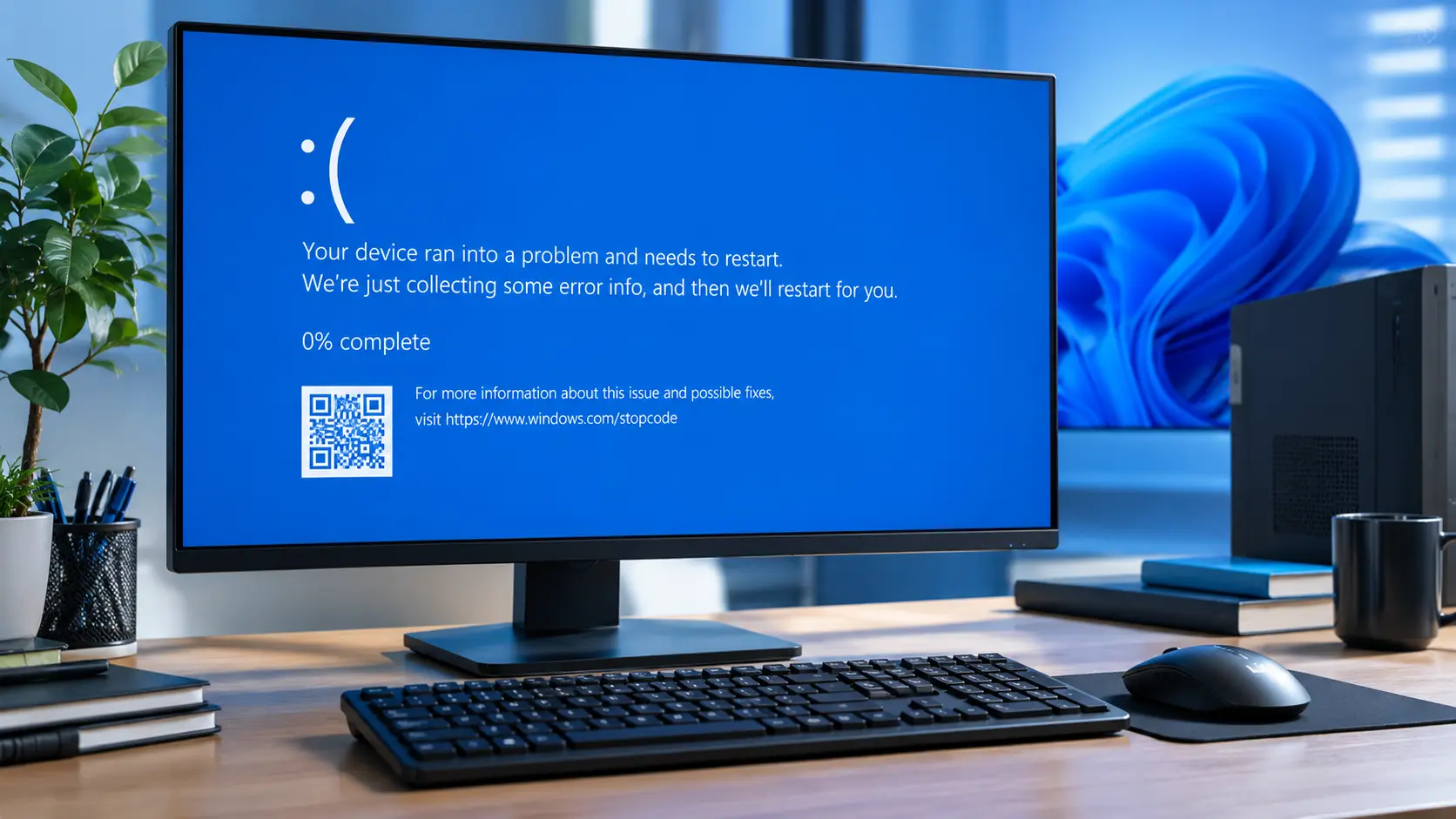
How to Fix the Blue Screen of Death on Windows 11. If Windows 11 shows a Blue Screen of Death (BSOD), start by writing down the stop code, then check for recent Windows or driver changes. Next, try Safe Mode, update or roll back problem drivers, repair Windows system files, and test your RAM if the crashes continue.
This guide explains what the Windows 11 stop code means, how to find the likely cause, and 11 fixes to try in the right order. It also covers blue screens after Windows updates, during startup, and while gaming, so you can choose the right fix without trying everything at random.
What Is the Blue Screen of Death on Windows 11?
The Blue Screen of Death, often called BSOD, happens when Windows hits a problem so serious it cannot keep running safely. Instead of freezing or acting strange, Windows stops everything and shows a blue screen with a short message and a stop code, like MEMORY_MANAGEMENT or DRIVER_IRQL_NOT_LESS_OR_EQUAL.
Windows stops the system when it encounters a serious error that it cannot safely recover from. The stop code can help identify whether the problem may be related to a driver, system files, software, or hardware.
Why Does Windows 11 Show a Blue Screen?
A blue screen usually comes from one of a few common causes. Knowing which one applies to you saves a lot of guessing.
Driver Problems
Outdated or corrupted drivers, especially graphics drivers, are one of the most common reasons for a BSOD. A driver acts as the bridge between Windows and your hardware, and a broken bridge can bring the whole system down.
Corrupted Windows Files
Sometimes a Windows system file gets damaged, often after a bad shutdown or a failed update. When Windows tries to use that damaged file, it can trigger a stop error.
RAM Problems
Faulty memory is a classic cause of random blue screens, since Windows constantly relies on RAM to run everything smoothly. A single failing RAM stick can cause crashes that seem to have no pattern.
Windows Update Problems
An update that does not install cleanly, or one that includes a buggy driver, can lead straight to a blue screen. This is common enough that Microsoft often releases a follow-up patch within days.
Hardware Problems
Aging or failing hardware, like a worn-out storage drive or a weak power supply, can also trigger a BSOD. These crashes tend to keep happening even after software fixes.
Overheating or Power Problems
When your CPU or graphics card gets too hot, or your power supply cannot deliver steady power, Windows may crash to protect the hardware. If overheating may be involved, learn how to keep your laptop cool during heavy use.
What Is Causing Your Windows 11 Blue Screen?
Quick Diagnosis: What Should You Try First?
Not sure where to start? Match what you’re experiencing with the most likely first step:
| What happened? | What to try first |
|---|---|
| BSOD started after a Windows update | Check Update History and consider uninstalling the recent update |
| BSOD started after a driver update | Roll back the recently updated driver |
| BSOD happens only while gaming | Check the GPU driver, temperatures, and power supply |
| BSOD happens during startup | Try Safe Mode and Windows Recovery |
| Stop code says MEMORY_MANAGEMENT | Test your RAM with Windows Memory Diagnostic |
| Stop code says CRITICAL_PROCESS_DIED | Run System File Checker and DISM |
| Stop code says DRIVER_IRQL_NOT_LESS_OR_EQUAL | Check recently installed or updated drivers |
Before trying any fix, answer one simple question: does the stop code error happen every time you turn on your PC, or only occasionally?
| What You’re Experiencing | What to Check First |
|---|---|
| Happens every time, can’t reach desktop | Safe Mode, then drivers and system files |
| Happens occasionally, desktop works fine | Windows Update, drivers, and RAM |
| Started right after a Windows update | Update history and drivers |
| Only happens during gaming | Temperature, GPU driver, and power supply |
| Started after installing new hardware | Remove the new hardware and retest |
| Stop code mentions memory or RAM | Windows Memory Diagnostic |
This one points you toward the right section below, instead of trying all 11 fixes in random order.
How to Fix the Blue Screen of Death on Windows 11
Work through these fixes in order. The safest and easiest steps come first.
1. Write Down the Stop Code
Before doing anything else, note the exact stop code shown on the blue screen. It is usually written in capital letters with underscores. This single piece of information tells you far more than guessing ever will.
2. Install Available Windows Updates
Go to Settings > Windows Update and install anything waiting. Microsoft frequently fixes known BSOD causes in later updates. If the crashes began right after an update, check Update History to see which one arrived just before.
3. Start Windows 11 in Safe Mode
Safe Mode loads Windows with only the basics running, which helps you tell if a driver or program is the cause.
- Go to Settings > System > Recovery
- Click Restart now next to Advanced startup
- Choose Troubleshoot > Advanced options > Startup Settings > Restart
- Press 4 to enter Safe Mode
If the crashes stop in Safe Mode, a driver or background program is likely the cause.
4. Update or Roll Back Problem Drivers
Open Device Manager and look for any device with a yellow warning icon. For graphics cards, download the newest driver directly from NVIDIA, AMD, or Intel’s website.
If the crashes started after a driver update, right-click the device, choose Properties, open the Driver tab, and select Roll Back Driver.
5. Run System File Checker
Open Command Prompt as an administrator and type:
sfc /scannow
Let it finish. This repairs damaged Windows files that can trigger a BSOD.
6. Run DISM
If System File Checker alone does not solve it, run this command first, then repeat step 5:
DISM /Online /Cleanup-Image /RestoreHealth
This repairs the underlying Windows image that SFC relies on.
7. Test Your RAM
- Search for Windows Memory Diagnostic in the Start menu
- Choose Restart now and check for problems
- Let your computer restart and finish the test
If it reports errors, one of your RAM sticks may need replacing.
8. Check Your Storage Drive
Open Command Prompt as an administrator, type chkdsk C: /f, and press Enter. Restart if asked to schedule the scan. Also check that your drive has enough free space, since a nearly full drive can cause its own errors.
9. Remove Recently Installed Software or Hardware
Think back to anything you installed or connected right before the crashes started. Uninstall the program, or unplug the new device, then see if the problem goes away.
10. Use System Restore or Windows Recovery
If nothing above works, use Windows recovery tools. If Windows is no longer starting normally, our guide on Windows 11 boot problems covers additional fixes you can try. From the recovery screen, try System Restore to go back to a date when things worked, or Startup Repair if Windows will not load normally. Back up your files first if you can, since some recovery options can remove data.
11. Check for Hardware Problems
If Windows 11 keeps showing a blue screen, Event Viewer can help you find information about the crash and what Windows was doing around the time it happened.
- Press Windows + X and select Event Viewer.
- Open Windows Logs > System.
- Look for Error or Critical events around the time of the blue screen.
- Check the event details for the source, event ID, and any error message.
- Compare the time of the event with when the BSOD occurred.
Event Viewer may not identify the exact cause by itself, but it can provide useful clues about drivers, Windows components, or hardware-related errors.
When Software Fixes Don’t Work
If you have worked through the fixes above and the blue screens continue, the cause may be hardware, such as a failing storage drive, power supply, RAM, or motherboard. At this point, further software troubleshooting may not solve the problem.
Back up your important files and consider having the hardware tested by a qualified technician.
How to Fix a Windows 11 Blue Screen After an Update
If your blue screen started right after a Windows update, the update itself or a driver it installed is the most likely cause.
- Let the update finish completely and restart normally once
- Open Settings > Windows Update > Update history
- Choose Uninstall updates and remove the latest one
- Check your PC maker’s website for a newer, compatible driver
If Windows will not start at all after the update, use System Restore or Startup Repair from the recovery screen instead.
Why Does Windows 11 Blue Screen While Gaming?
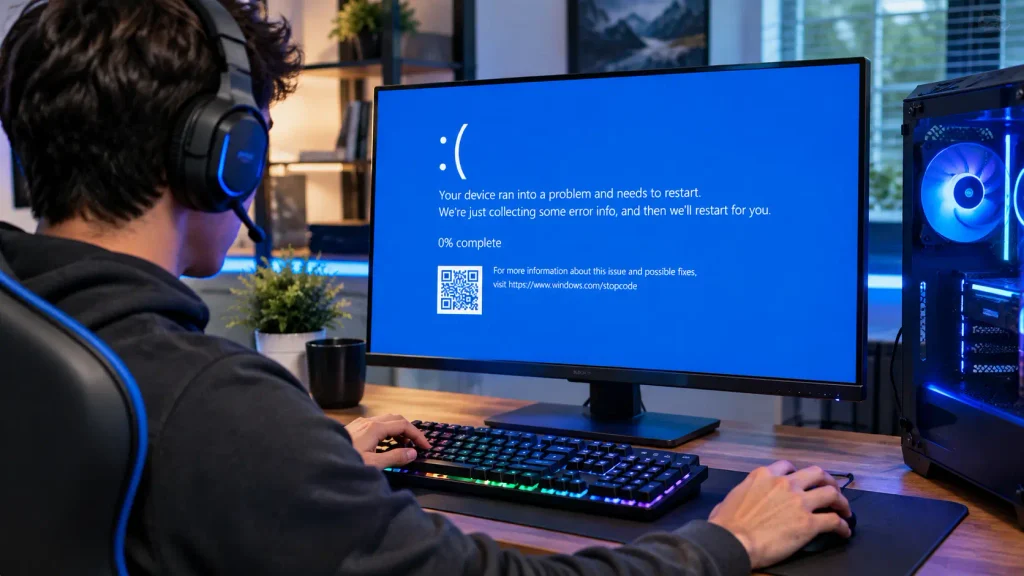
Gaming pushes your graphics card, processor, and power supply harder than almost anything else you do. A blue screen during play usually points to heat, an outdated graphics driver, or a power supply that cannot keep up.
- Watch your GPU and CPU temperatures during play
- Update your graphics driver from NVIDIA, AMD, or Intel
- Clean dust from fans and vents
- Make sure your power supply is strong enough for your graphics card
If the blue screens only happen during games and never during normal use, heat and power are your top suspects.
What Does a Windows 11 Stop Code Mean?
The stop code is Windows telling you exactly what kind of error it hit. A few common ones and what they usually point to:
- MEMORY_MANAGEMENT often points to a RAM problem
- DRIVER_IRQL_NOT_LESS_OR_EQUAL often points to a faulty driver
- SYSTEM_SERVICE_EXCEPTION often points to a driver or software conflict
- CRITICAL_PROCESS_DIED often points to damaged system files
These are strong hints, not guaranteed answers. Searching the exact code online, alongside the fixes in this guide, gives you the clearest path forward.
When Should You Get Professional Computer Repair?
If you have tried the fixes above and the blue screens continue, it is time to get help. A technician can test your power supply, motherboard, and other hardware that is hard to check at home. Back up your files first, and ask for a written quote before agreeing to any repair. If you want to know what typical repairs cost, our computer repair cost guide breaks down real prices.
If the problem keeps returning, our guide on finding a computer repair technician near you can help you know what to look for before choosing a technician.
Frequently Asked Questions
What causes the Blue Screen of Death on Windows 11?
The most common causes are outdated drivers, faulty RAM, corrupted system files, a bad Windows update, or failing hardware.
Can bad RAM cause a blue screen?
Yes. Faulty RAM is one of the most frequent causes of random blue screens, especially ones with memory-related stop codes.
Can Windows Update cause a BSOD?
Yes. An update that installs incorrectly, or one that includes a buggy driver, can lead directly to a blue screen soon after installing.
How do I find my Windows 11 stop code?
The stop code appears in capital letters near the bottom of the blue screen. Write it down or take a photo before the PC restarts.
Can I fix a BSOD without reinstalling Windows?
Yes, in most cases. Tools like System File Checker, DISM, driver updates, and System Restore fix the majority of blue screens without needing a full reinstall.
If your computer is experiencing crashes beyond blue screen errors, see our guide on why your computer keeps crashing for additional troubleshooting steps.
Conclusion
If you’re trying to fix a Blue Screen of Death on Windows 11, start with the stop code and the most recent change to your PC. Work through the fixes in order, beginning with Windows updates, drivers, and Safe Mode, then move to system file, RAM, storage, and hardware checks if the problem continues.
These steps can help with common Windows 11 BSOD problems, including crashes after an update, during startup, and while gaming. If the blue screens continue after you’ve tried the troubleshooting steps above, back up your important files and consider getting the hardware checked by a qualified technician.
Writtten By: Sahil Ansari