Why Is My Computer So Slow All of a Sudden? 7 Proven Fixes 2026
Why Is My Computer So Slow All of a Sudden?Your computer may suddenly become slow because of high RAM or CPU use, too many background apps, low storage, malware, overheating, or an update. Check Task Manager, close unused programs, free storage, scan for malware, and restart your computer.
This guide explains what may be slowing your computer and how to speed it up.
Why Is My Computer So Slow All of a Sudden?
A computer can suddenly become slow when something starts using too much CPU, RAM, storage, or disk activity. Background programs, malware, overheating, Windows updates, low storage, and old hardware can also cause sudden slowdowns. Microsoft and Intel both list these as common reasons for poor PC performance.
Too Many Background Programs Are Running
Programs can keep working in the background even when you are not using them. This uses CPU, RAM, and disk resources.
Open Task Manager with Ctrl + Shift + Esc and check which programs are using the most resources. Close apps you do not need.
CPU or RAM Usage Is Too High
When your CPU or RAM stays near its limit, Windows may take longer to respond. Running games, video editors, large files, and many apps at once can cause this.
Check the CPU and Memory columns in Task Manager to find the main resource user.
Your Storage Drive Is Almost Full
A nearly full system drive can affect Windows performance and can also make updates harder to install. Microsoft recommends freeing space when storage is running low.
Remove unwanted files, unused apps, and large files you no longer need.
Malware or a Virus Is Slowing Your Computer
Malware can use CPU and disk resources in the background. A sudden slowdown combined with strange popups, crashes, or unknown programs can be a warning sign.
Run a scan with Windows Security before assuming the hardware is failing.
Your Computer Is Overheating
High heat can reduce performance. You may notice loud fans, a very hot laptop, sudden freezes, or unexpected shutdowns.
Keep air vents clear and avoid using a laptop on a bed or soft surface that blocks airflow.
Windows or Driver Updates Are Running
Windows may perform updates and other background tasks that temporarily increase system activity. A driver update can also change how a device performs.
After updates finish, restart the computer and check whether the slowdown remains.
Too Many Apps Start With Windows
Many startup apps can make Windows take longer to become responsive. Microsoft recommends reviewing startup apps and disabling ones you do not need.
Your Hard Drive or SSD Has a Problem
A failing or unhealthy storage drive can cause very slow loading, freezing, crashes, or file errors. If the problem keeps getting worse, back up important files before troubleshooting further.
Too Many Browser Tabs or Extensions Are Open
Sometimes the computer itself is fine, but websites, videos, cloud apps, or downloads are slow because of the internet connection.
Test another website or app to see whether the problem is limited to online activity.
Your Computer Is Too Old for Modern Software
Older hardware may struggle with newer Windows versions and demanding programs. Microsoft notes that older PCs may not see major improvements from software fixes when their hardware is no longer suitable.
How Do I Find Out What Is Slowing Down My Computer?
Check CPU Usage in Task Manager
Press Ctrl + Shift + Esc to open Task Manager. Look at CPU usage under the Processes and Performance sections. Task Manager can show CPU, memory, disk, and network activity.
Check RAM and Memory Usage
Select the Memory section in Task Manager. If memory is consistently very high while you work, close unnecessary apps or consider a RAM upgrade.
Check Disk Usage
Look at Disk usage in Task Manager. If disk activity stays very high while the computer is slow, identify which process is causing it before making changes.
Check Which Apps Use the Most Resources
Sort the Processes list by CPU, Memory, or Disk. This gives you a quick way to find resource heavy programs.
Check How Much Storage Space Is Left
Open Settings > System > Storage to see how much space remains. Remove unnecessary files if your drive is getting full.
Check for Malware and Suspicious Apps
Open Windows Security and run a malware scan. If you find an unknown program, do not open it until you know what it is.
How Much CPU, RAM, and Storage Should a Computer Have?
How Much RAM Is Enough for Normal Use?
For basic web browsing, school work, documents, and email, 8 GB RAM can work. 16 GB is a better choice for modern Windows use, multitasking, and heavier apps.
Gaming, editing, and other demanding work may need more.
How Much Free Storage Should You Keep?
There is no single percentage that fits every computer, but avoid filling the system drive completely. Keeping a reasonable amount of free space gives Windows room for temporary files, updates, and normal tasks.
What CPU Usage Is Normal?
CPU usage naturally changes. Low usage while idle is normal, while high usage during gaming or demanding work is expected.
The important warning sign is unusually high usage when you are doing very little.
When Does High Disk Usage Become a Problem?
High disk usage is not automatically bad. It becomes a concern when it stays high while the computer is clearly slow, especially when you are not running demanding tasks.
When Does a Slow Computer Problem Happen?
Why Is My Computer Slow After Startup?
Startup programs and background services may load immediately after Windows starts. Too many of them can make the computer feel slow for several minutes.
Why Is My Computer Slow When Idle?
If the PC is slow even when you are not doing anything, check background processes, Windows activity, malware, temperature, and storage health.
Why Is My Computer Slow While Gaming?
Gaming can push the CPU, GPU, RAM, and cooling system hard. Close unnecessary apps, check temperatures, and make sure your hardware meets the game’s requirements.
Why Is My Computer Slow When Opening Programs?
Slow program launches can point to low RAM, high disk activity, a nearly full drive, or an older HDD. An SSD can make a major difference on older computers.
Why Is My Computer Slow After a Windows Update?
An update may temporarily increase background activity. If the slowdown continues, check CPU, RAM, disk usage, drivers, and startup apps.
Why Is My Computer Slow When Browsing the Internet?
Check your internet speed first. If only websites are slow, the connection or browser may be responsible rather than the computer.
Why Is Windows 11 So Slow All of a Sudden?
Windows 11 May Be Using Too Many Resources
Too many open apps, background processes, or demanding programs can use most available resources.
Too Many Startup Apps May Be Running
Open Task Manager, select Startup apps, and disable programs you do not need to launch automatically. Microsoft recommends this as a way to reduce background activity.
Windows Updates or Drivers May Cause Slowdowns
Check Windows Update and available driver updates. Updates can include fixes and performance improvements.
How to Check Windows 11 Performance
Open Task Manager and review CPU, Memory, Disk, and Network usage. This is one of the fastest ways to find what is using your system resources.
When Should I Worry About a Slow Computer?
The Computer Freezes or Crashes Often
Frequent freezing or crashing can point to software, overheating, memory, or hardware problems.
The Hard Drive Makes Strange Sounds
If an old mechanical hard drive makes unusual clicking or grinding sounds, back up important files immediately and consider replacing the drive.
The Computer Overheats or Shuts Down
Frequent overheating and unexpected shutdowns should not be ignored. Check airflow, fans, dust, and temperatures.
Programs Keep Crashing
Repeated crashes may indicate damaged software, insufficient resources, driver problems, or failing hardware.
Files Become Corrupted or Disappear
Unexpected file corruption can be a serious warning sign, especially when combined with storage errors or strange drive behavior.
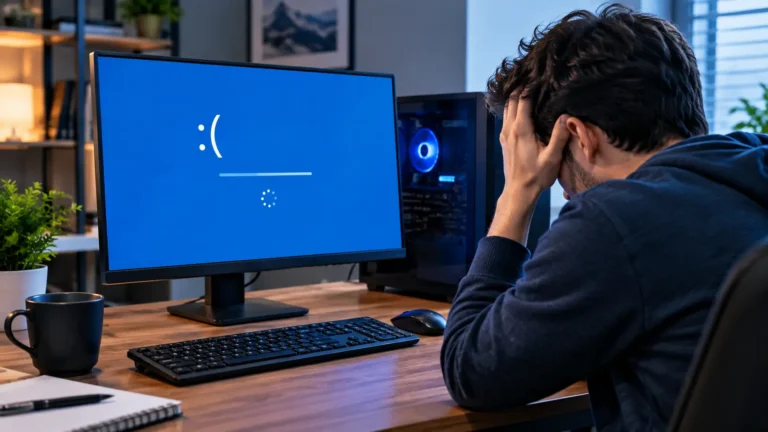
The Computer Shows Blue Screen Errors
Repeated blue screen errors can be linked to drivers, memory, hardware, or Windows problems. If they continue, back up your files and investigate the error.
How to Fix a Computer That Suddenly Became Slow
1. Restart Your Computer
Save your work and restart Windows. A restart can clear temporary problems and close processes that are no longer responding correctly. Microsoft also recommends restarting when closing unused apps does not solve slow performance.
2. Close Unused Apps and Background Processes
Open Task Manager and close apps you recognize but are not using. Do not end important Windows processes unless you know what they do.
3. Disable Unnecessary Startup Programs
Open Task Manager, choose Startup apps, and disable programs that do not need to start with Windows.
4. Free Up Storage Space
Delete temporary files, remove unused programs, and move large personal files to another safe location. Windows includes Storage Sense to help clean unnecessary files.
5. Scan Your Computer for Malware
Open Windows Security > Virus & threat protection and run a scan. Malware can consume system resources and cause unusual behavior.
6. Install Windows and Driver Updates
Go to Settings > Windows Update and install available updates. Check optional driver updates when appropriate.
7. Clear Temporary Files and Browser Cache
Remove unnecessary temporary files through Windows Storage settings. In your browser, clear old cached data when browser performance is poor.
8. Remove Unnecessary Browser Extensions and Tabs
Close tabs you no longer need and remove extensions that you rarely use. This can reduce memory use.
9. Improve Windows Performance Settings
Windows visual effects can use system resources. If your computer has limited hardware, reducing unnecessary visual effects can improve responsiveness.
10. Reduce Overheating and Improve Airflow
Keep vents clear, clean dust carefully, and use the computer on a hard surface. If the fan stays loud or the system shuts down from heat, have the cooling system checked.
11. Check Your Hard Drive or SSD Health
Back up important files before testing a drive that may be failing. If storage errors, crashes, or unusual drive behavior continue, replace the drive rather than relying on it.
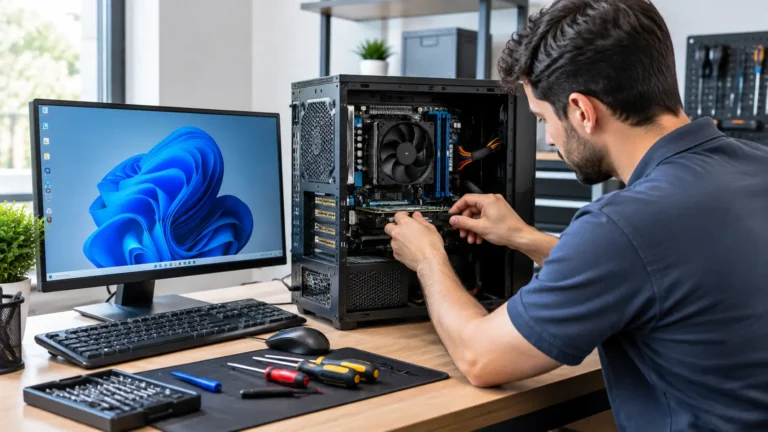
12. Upgrade RAM or Replace an Old HDD With an SSD
If the computer is still slow after software fixes, hardware may be the limit. Adding RAM can help multitasking, while replacing an old HDD with an SSD can greatly improve startup and program loading.
Can an Old Computer Be Made Faster?
Is a 7 Year Old Computer Still Good?
A seven year old computer can still be useful for browsing, documents, and basic work if its hardware is healthy. Its age matters less than its CPU, RAM, storage, operating system support, and condition.
Can You Upgrade RAM on an Old Computer?
Some computers allow RAM upgrades, while others have memory that cannot be replaced. Check your exact model before buying RAM.
Should You Replace an Old HDD With an SSD?
Usually, yes, if the computer still meets your needs. An SSD can make Windows start faster and reduce waiting when opening programs and files.
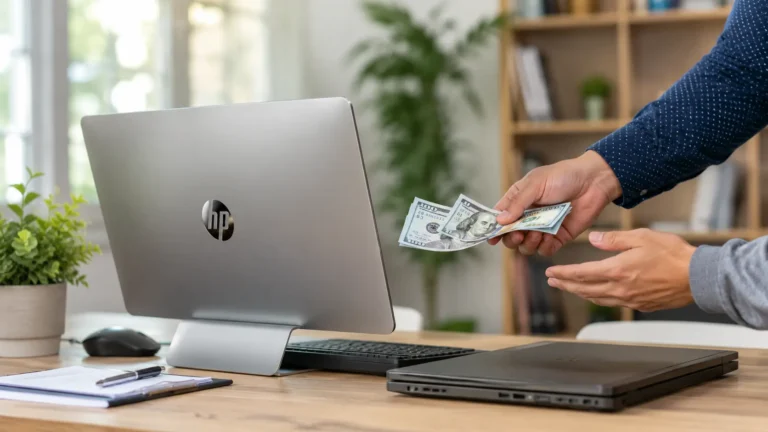
When Is It Better to Replace the Computer?
Replacement makes more sense when the PC cannot receive important updates, has repeated hardware failures, lacks upgrade options, or remains too slow after reasonable upgrades. Microsoft lists long startup times, frequent errors, low storage, and consistently high CPU, memory, or disk use among signs that a PC may be nearing replacement time.
Why Is My Computer Still Slow After Trying These Fixes?
Your Hardware May Be Too Old
Software changes cannot fully solve a hardware limit. An older CPU or outdated system may simply struggle with modern programs.
Your RAM May Not Be Enough
If memory usage stays high during normal work, adding compatible RAM may improve multitasking.
Your Storage Drive May Be Failing
A damaged drive can cause slow loading, freezes, errors, and file problems. Back up your data before the drive gets worse.
Your CPU May Be Too Slow for Your Workload
A basic CPU may be fine for documents but struggle with gaming, editing, or other demanding tasks.
When Should You Get Professional Computer Repair?
Get professional help when the PC repeatedly crashes, overheats, loses files, shows hardware errors, or remains slow after basic troubleshooting. Back up important files before major repair or recovery work.
Final Verdict: Why Is My Computer So Slow All of a Sudden?
A computer that suddenly becomes slow does not always need to be replaced. Start by checking Task Manager, storage space, startup apps, malware, temperature, and Windows updates.
If the problem remains, look at the hardware. Low RAM, an old HDD, failing storage, or an outdated CPU may be the real reason. The best fix depends on the actual cause, so diagnose the problem before spending money on an upgrade.
FAQS:
1.Can a Factory Reset Fix a Computer That Suddenly Became Slow?
Yes, a factory reset can fix a slow computer by removing unwanted apps, files, and software problems.
But back up your important files first, because a reset can remove your personal data.
2.Should You Back Up Your Files Before Troubleshooting a Slow Computer?
Yes, you should back up your important files before troubleshooting a slow computer.
This keeps your photos, documents, and other important data safe if something goes wrong.
3.Will Restarting Your Computer Regularly Help Prevent Slowdowns?
Yes, restarting your computer regularly can help clear temporary problems and close apps that use system resources.
It won’t fix every slowdown, but a restart can help your computer run smoothly.
4.How Long Should a Sudden Computer Slowdown Last Before You Take Action?
A sudden slowdown lasting more than a few minutes is worth checking, especially if it keeps happening.
If your computer stays slow after a restart, check Task Manager, storage, updates, and malware.
5.What Should You Check Before Buying a Computer Upgrade?
Before buying an upgrade, check your RAM, storage drive, CPU, and motherboard to see what your computer supports.
Also find the real cause of the slowdown so you only pay for the upgrade you actually need.
conclusion
If your computer suddenly becomes slow, don’t panic or replace it right away. Check Task Manager, storage, startup apps, malware, updates, and temperature first. These simple checks can often find the problem. If your PC is still slow, your RAM, HDD, SSD, or CPU may need attention. Find the real cause before spending money on an upgrade.
Written By