Why Does My Computer Keep Crashing? 11 Proven Fixes

Why does my computer keep crashing? A computer can keep crashing because of driver problems, faulty RAM, overheating, damaged Windows files, failing hardware, software conflicts, or other system errors. Check your temperature and updates first, then test your RAM and scan for malware if the crashes continue.
This guide walks you through how to spot your exact pattern, then gives you 11 easy fixes that match your specific problem, starting with the simplest.
Why Does My Computer Keep Crashing?
A crash happens when Windows or an app can no longer keep running properly. It might freeze, show a blue screen, close on its own, or restart without asking you first. All of these count as a crash, even though they look different on your screen.
The most common causes are:
- Overheating of the CPU or graphics card
- Faulty RAM or a failing storage drive
- Outdated or corrupted drivers, especially graphics drivers
- Damaged Windows system files
- Software conflicts between two programs
- Malware running quietly in the background
- A recent Windows update that did not install cleanly
- Failing hardware, like an aging power supply or motherboard
Software causes are usually easier and cheaper to fix. Hardware causes take more testing. The next section helps you tell them apart, since the type of crash you see is actually a strong clue.
What Kind of Computer Crash Are You Having?
Take a minute to notice exactly what happens when your computer crashes. This one step points you toward the right fix and saves you from trying things that do not match your problem.
Quick Diagnosis
- Blue screen? Check the stop code, drivers, and RAM.
- Freeze first? Check drivers, overheating, and resource-heavy apps.
- Crash only during gaming? Check GPU temperature, graphics drivers, and power delivery.
- Restart without warning? Check hardware, drivers, and power-related problems.
Your Computer Shows a Blue Screen
A blue screen, sometimes called a BSOD, means Windows hit an error it could not recover from on its own. It usually shows a short stop code in capital letters, like MEMORY_MANAGEMENT or DRIVER_IRQL_NOT_LESS_OR_EQUAL. This type of crash often points to a driver, RAM, or storage problem. Write the stop code down if you can, since it gives you a real head start.
Your Computer Freezes Before It Crashes
If the screen locks up first and stops responding before the crash happens, the cause is often a driver, a program using too many resources, or overheating. If your computer is becoming slow before it freezes or crashes, our guide on how to fix a slow computer in Windows 11 covers additional performance fixes. This pattern is common enough that we cover it in more depth in our guide on why your computer keeps freezing.
Your Computer Crashes While Gaming
Games push your graphics card, processor, and power supply harder than almost anything else you do. Crashes during play usually point to heat, an outdated graphics driver, or a power supply that cannot keep up with your hardware.
Your Computer Crashes After a Windows Update
If the crashes started right after an update, the update itself or a driver it installed is your first suspect. This timing is one of the clearest clues you can get.
Your Computer Crashes and Restarts on Its Own
Sometimes a crash is hidden because Windows restarts automatically right after it happens. If your PC keeps rebooting instead of showing an error, our guide on why your computer keeps restarting covers this pattern in detail.
Only One Program Keeps Crashing
If everything else on your computer runs fine but one app keeps closing or freezing, the problem is almost always with that program, not your whole system. Look for an update for that specific app before touching anything else.
How to Fix a Computer That Keeps Crashing
Work through these fixes in order. The easiest and safest steps come first, so you can stop as soon as the crashes end.
1. Check for Windows Updates
Go to Settings > Windows Update and install anything that is waiting. Microsoft often fixes crash-causing bugs in later updates. If your crashes began right after an update, check Update History to see which one arrived just before.
2. Update or Roll Back Your Drivers
Open Device Manager and look for any device with a yellow warning icon. For graphics cards, download the latest driver directly from NVIDIA, AMD, or Intel’s official site.
If the crashes began after a driver update, go back to the older version. Right-click the device, choose Properties, open the Driver tab, and select Roll Back Driver.
3. Check Your CPU and GPU Temperature
Install a free temperature monitoring tool and watch the numbers while you use your PC normally. If temperatures climb very high right before a crash, heat is likely your problem.
- Clean dust from vents and fans
- Make sure laptops sit on a hard, flat surface so air can move
- Check your PC maker’s website for the safe temperature range of your parts
4. Test Your RAM
Faulty memory is one of the most common reasons for random crashes.
- Search for Windows Memory Diagnostic in the Start menu
- Choose Restart now and check for problems
- Let your computer restart and finish the test
If it reports errors, one of your RAM sticks may need replacing.
5. Check Your Storage Drive
A failing drive can crash your system without warning.
Before running disk repairs, back up important files if your drive is still accessible.
- Open Command Prompt as an administrator
- Type chkdsk C: /f and press Enter
- Restart if you are asked to schedule the scan
Also check that your drive has enough free space, since a nearly full drive can cause strange crashes on its own.
6. Repair Windows System Files
Damaged system files can trigger crashes that seem to come out of nowhere. Open Command Prompt as an administrator and run these two commands, one after the other:
- DISM /Online /Cleanup-Image /RestoreHealth
- sfc /scannow
Let each one finish completely before starting the next, since this can take some time.
7. Check Recently Installed Software
Think back to anything you installed right before the crashes started. Uninstall it and see if the problem goes away. Two programs that do similar jobs, like two antivirus tools, can also conflict and cause crashes.
8. Check Recently Installed Hardware
If you added new RAM, a new drive, or plugged in a new device right before the crashes began, that new part is a strong suspect. Try removing it temporarily to see if your computer stabilizes.
9. Try Windows Safe Mode
Safe Mode loads Windows with only the basics running. Go to Settings > System > Recovery, click Restart now next to Advanced startup, then choose Troubleshoot > Advanced options > Startup Settings> Restart. Press 4 to enter Safe Mode.
If your computer runs fine in Safe Mode, a driver or background program is likely the cause. If it still crashes, hardware becomes more likely.
10. Check for Malware
Some malware quietly uses up your system’s resources until it becomes unstable.
- Open Windows Security
- Go to Virus & threat protection
- Choose Scan options, then run a Full scan
A full scan takes longer than a quick scan, but it checks far more of your system.
11. Check Crash and Error Logs
Windows keeps a record of what happened during a crash, even if you did not see any error message.
- Click Start, type Event Viewer, and open it
- Go to Windows Logs and click System
- Look for red Error entries around the time of your crash
- Note the Event ID and search it online for more detail
If your PC created a memory dump file during the crash, a free tool called WinDbg can help read it, though this step is more advanced and is usually only needed if simpler fixes have not worked.
Why Does Windows 11 Keep Crashing?
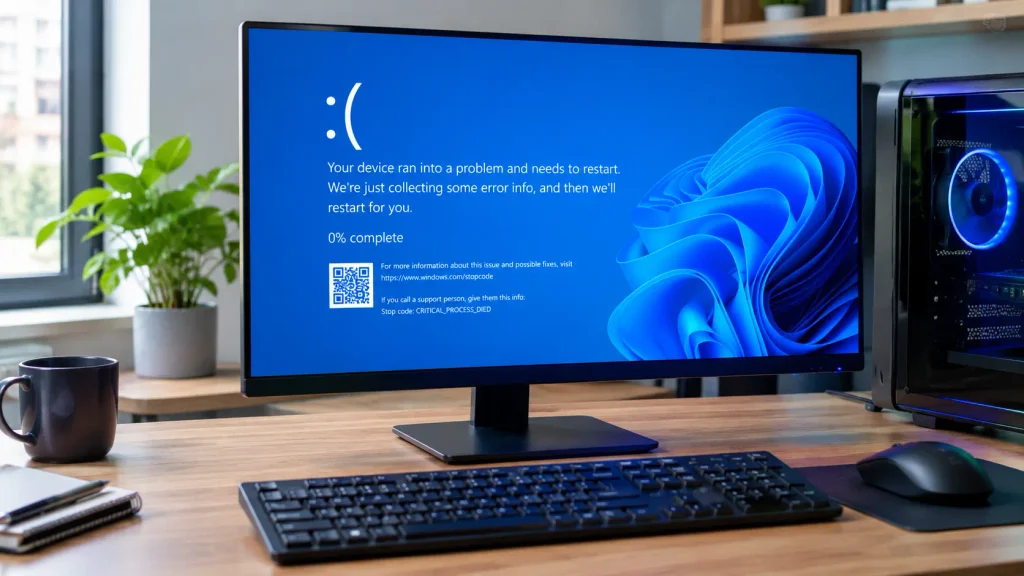
Windows 11 crashes often trace back to one of a few specific things: a driver that has not been updated for Windows 11 properly, a recent Windows update that introduced a bug, or a background app that is not fully compatible with newer Windows 11 features.
If your crashes started after upgrading to Windows 11, check your graphics driver first, since this is the most common cause reported by users. Also check Windows Update for a newer patch, since Microsoft regularly releases fixes for issues found after a major update.
If the crash leaves your computer unable to start Windows, see our guide on Windows 11 won’t boot.
Why Does My Computer Keep Crashing While Gaming?
Gaming is one of the toughest tests your PC ever faces. The graphics card and processor run hot, and the power supply has to deliver steady power the entire time.
Try these checks:
- Watch your GPU and CPU temperatures during play
- Update your graphics driver from NVIDIA, AMD, or Intel
- Close background programs before starting a game
- Make sure your power supply is strong enough for your graphics card
- Clean dust from fans and vents regularly
If crashes only happen during games and never during normal use, heat, graphics drivers, and power-related problems are among the main things to check.
When Is a Computer Crash a Hardware Problem?
Software crashes are common, but some signs point clearly toward hardware:
- Crashes continue even in Safe Mode
- The memory test or disk check reports errors
- Temperatures stay high even after cleaning
- Crashes happen even when the computer is doing very little
- The problem gets worse over time instead of better
If several of these match your situation, more software fixes are unlikely to help. The power supply, RAM, storage drive, or motherboard become the more likely suspects.
If your computer shuts down completely instead of freezing or showing a blue screen, see our guide to CPU shutting down automatically.
When Should You Get Professional Computer Repair?
If you have worked through the fixes above and the crashes continue, it may be time to get professional help. Our guide on finding a computer repair technician near me explains what to look for before choosing a repair service. A technician can test your power supply, motherboard, and other hardware that is hard to check at home. Back up your files first, and ask for a written quote before agreeing to any repair. If you want to know what typical repairs cost, our computer repair cost guide breaks down real prices.
Frequently Asked Questions
Can bad RAM cause a computer to crash?
Yes. Faulty RAM is one of the most common causes of random crashes, and it can also cause blue screens with memory-related stop codes.
Can overheating cause computer crashes?
Yes. When your CPU or GPU gets too hot, your system may crash or shut down to protect the hardware from damage.
Can outdated drivers cause crashes?
Yes, especially graphics drivers. An outdated or corrupted driver is one of the top reasons Windows crashes unexpectedly.
Can a failing SSD or hard drive cause a computer to crash?
Yes. A drive that struggles to read or write data can cause your entire system to become unstable, especially when opening or saving files.
What should I do if my computer keeps crashing?
Start with the easiest fixes first, like checking for updates and monitoring temperature, then move on to testing your RAM and checking your storage drive if the problem continues.
Why does my computer crash randomly but work fine afterward?
Your computer may crash randomly because of overheating, faulty RAM, outdated drivers, or damaged system files.
If it works normally afterward, check recent updates, temperatures, drivers, and RAM for the cause.
Why does my computer crash when I play games?
Your computer may crash when you play games because of overheating, outdated graphics drivers, low power, or hardware problems.
Check your CPU and GPU temperature, update your graphics driver, and make sure your PC has enough power.
Conclusion
If you have been asking why does my computer keep crashing, the cause usually becomes clear once you spot the type of crash you are dealing with. Start with updates, drivers, and temperature, then test your RAM and storage drive if the problem continues. Back up your files along the way. If the crashes keep happening after trying these fixes, a professional diagnosis is the safest next step.
Written By: Sahil Ansari