How to Fix a Slow Computer in Windows 11: 11 Proven Ways to Speed It Up
How to Fix a Slow Computer in Windows 11? To fix a slow computer in Windows 11, restart your PC, disable unused startup apps, free storage, install updates, and scan for malware. Check Task Manager for heavy processes. If it stays slow, upgrading RAM or replacing an HDD with an SSD can help.
This guide explains the common causes of slow performance and shows safe, practical ways to make your Windows 11 computer faster, smoother, and more reliable.
If your computer is old or has weak hardware, checking the what laptop specs do college students actually need can also help you decide whether an upgrade is better than fixing your current PC.
How to Fix a Slow Computer in Windows 11
Quick Answer: What Should You Do First?
Start by restarting the computer and checking Task Manager. Press Ctrl + Shift + Esc, then check CPU, Memory, and Disk usage.
Next, disable unnecessary startup apps, remove temporary files, uninstall unused software, install Windows updates, and scan for malware.
If the PC still feels slow, check whether it has enough RAM and whether Windows is installed on an SSD.
How Long Does It Take to Speed Up a Slow PC?
Simple fixes can take only 10 to 30 minutes. Removing unused apps and temporary files may take longer if the drive is nearly full.
Hardware upgrades, Windows repair, or reinstalling Windows can take considerably longer. The time depends on what is causing the slowdown.
Why Is My Computer Running Slow in Windows 11?
Common Signs of a Slow Windows 11 Computer
Common signs include:
- Slow startup
- Apps taking too long to open
- Frequent freezing
- High CPU or RAM usage
- Slow File Explorer
- Poor gaming performance
- Long shutdown times
- Fans running loudly
If these problems happen regularly, check Task Manager before changing advanced settings.
Why Does Windows 11 Become Slow Over Time?
A PC can become slower as more applications, startup programs, temporary files, browser data, and background services build up.
Storage can also become crowded. Older hardware may struggle with newer software, while dust and heat can reduce performance.
What Causes a Computer to Run Slowly in Windows 11?
Too Many Startup and Background Apps
Many programs start automatically with Windows. Some are useful, but others are not needed every time you turn on the PC.
Task Manager lets you review startup applications and their impact on startup.
Low RAM or High Memory Usage
Windows 11 officially requires at least 4 GB of RAM, but the minimum is not the same as a comfortable amount for everyday multitasking.
For normal use, 8 GB can work, while 16 GB is a better target for heavier multitasking and modern gaming.
If your PC has only 8 GB of RAM, you may notice slow performance when running many apps. See our guide on whether 8 GB RAM on a laptop is good to understand when more memory may be useful.
Low Storage Space
A nearly full system drive can cause performance and update problems. Microsoft recommends freeing drive space when storage is low.
Remove unnecessary files, old downloads, temporary files, and applications you no longer use.
High CPU or Disk Usage
Open Task Manager and sort processes by CPU, Memory, or Disk usage.
A single application constantly using a large amount of system resources may be the reason your PC feels slow.
Malware and Unwanted Software
Malware can consume CPU, memory, storage, and network resources. Run a full Windows Security scan if your computer suddenly becomes slow or behaves strangely.
Avoid installing unknown programs or unofficial cracked software.
Outdated Windows or Drivers
Windows and hardware drivers can contain performance fixes and bug fixes. Check Windows Update regularly and install recommended updates.
Graphics drivers are especially important for gaming and graphics related work.
Overheating and Poor Airflow
Heat can cause a processor or graphics card to reduce its speed. Dusty fans, blocked vents, and poor airflow can make this worse.
Keep vents clear and clean dust from the cooling system carefully.
Poor airflow can make your computer hotter and may reduce performance. Learn more about how to improve laptop airflow and keep your laptop cooler.
How Much RAM and Storage Does Windows 11 Need?
Windows 11 Minimum System Requirements
Microsoft lists these basic Windows 11 requirements:
| Component | Minimum |
|---|---|
| Processor | 1 GHz or faster, 2 or more cores |
| RAM | 4 GB |
| Storage | 64 GB |
| Firmware | UEFI with Secure Boot capability |
| TPM | TPM 2.0 |
| Graphics | DirectX 12 compatible |
| Display | 720p and larger than 9 inches |
These are minimum requirements, not a guarantee of fast performance.
Is 8GB RAM Enough for Windows 11?
Yes, 8 GB can be enough for browsing, documents, streaming, and light everyday work.
However, 16 GB is a better choice if you regularly use many applications, edit media, run virtual machines, or play demanding games.
Is an SSD Better Than an HDD for Windows 11?
Yes. An SSD is normally much faster than a traditional HDD for Windows startup, application loading, and general responsiveness.
If your PC still uses an HDD as the Windows system drive, replacing it with an SSD can be one of the most noticeable upgrades.
How Much Free Storage Should You Keep?
There is no single percentage that guarantees better performance, but avoid filling the system drive completely.
Keeping a reasonable amount of free space also makes Windows updates and file management easier.
When Does Windows 11 Feel Slow?
Why Is My PC Slow After Startup?
Too many startup programs are a common reason. Open Task Manager, select Startup apps, and disable programs you do not need immediately after signing in.
Do not disable Windows components or software you do not recognize without checking what it does.
Why Is My Computer Slow When Idle?
High resource usage while the computer is doing nothing can point to background applications, updates, antivirus scans, indexing, or unwanted software.
Check Task Manager to identify the process using the most resources.
Why Does Windows 11 Slow Down While Gaming?
Gaming performance can drop because of high temperatures, background applications, insufficient RAM, old graphics drivers, or hardware limitations.
Close unnecessary programs and make sure the graphics driver is current.
If Windows 11 becomes slow while gaming, overheating can be one possible reason. Our guide explains how to keep a gaming laptop cool during demanding games.
Why Is My PC Slow After a Windows Update?
Windows may temporarily perform background tasks after an update. If the slowdown continues, check Task Manager and restart the computer.
Persistent problems may require Windows repair tools or further troubleshooting.
When Should You Worry About a Slow Windows 11 PC?
When High CPU, RAM, or Disk Usage Is a Problem
High usage is not automatically bad. It becomes a concern when usage remains unusually high while you are doing very little.
Look for the application or process causing the load.
When Slow Performance May Mean a Hardware Problem
Frequent freezing, unusual noises, overheating, storage errors, crashes, or sudden performance drops can indicate hardware trouble.
Back up important files before investigating a failing drive.
When You Should Consider Upgrading Your PC
Consider an upgrade when your computer consistently struggles with everyday tasks even after software cleanup.
Microsoft also lists long startup times, frequent errors, low storage, and consistently high CPU, Memory, or Disk usage among signs that an older PC may need attention.
Before buying a new computer, check whether your current hardware can be upgraded. For HP laptops, you can learn more about upgrading a laptop graphics card before making a decision.
How to Fix a Slow Computer in Windows 11
1. Restart Your Computer
Restarting clears temporary system states and closes stuck processes.
If your PC has been running for days, restart it before trying more complicated fixes.
2. Disable Unnecessary Startup Apps
Press Ctrl + Shift + Esc, open Startup apps, and review the list.
Disable programs you do not need at startup. This can reduce startup time and background resource use.
3. Free Up Disk Space and Delete Temporary Files
Go to Settings > System > Storage > Temporary files.
Review the available categories carefully and remove files you no longer need. Keep personal files and important downloads unless you have backed them up.
4. Uninstall Unused Apps and Bloatware
Open Settings > Apps > Installed apps.
Remove applications you no longer use. This frees storage and can also reduce background activity.
5. Install Windows and Driver Updates
Open Windows Update and check for available updates.
Also check the computer manufacturer’s website when a specific driver needs updating, especially graphics, chipset, network, or storage drivers.
6. Scan Your PC for Malware and Viruses
Open Windows Security and run a scan.
If the slowdown appeared suddenly, malware should be considered, especially if you also notice unknown programs, pop ups, browser changes, or unusual network activity.
7. Set Windows 11 to Best Performance
Search Windows for Adjust the appearance and performance of Windows.
Under Visual Effects, choose settings that reduce unnecessary animations and effects. This can help older computers with limited hardware.
8. Turn Off Unnecessary Background Apps and Visual Effects
Review which applications are allowed to run in the background and close programs you are not using.
Do not disable important Windows services simply because they consume resources.
9. Optimize Your Storage Drive
For an HDD, Windows can optimize the drive through its built in drive optimization tool.
For an SSD, Windows handles optimization differently. Avoid using old third party defragmentation tools designed for traditional hard drives.
10. Find and Close Heavy Background Processes
Open Task Manager and sort processes by CPU, Memory, or Disk.
Close only applications you recognize and do not need. Ending an important Windows process can cause problems.
11. Keep Your Computer Cool
Make sure air vents are not blocked. Clean dust from fans and cooling openings.
For laptops, use the computer on a hard, flat surface instead of soft bedding that can block airflow.
Keeping your computer cool can help prevent performance problems. You can also learn how to improve laptop airflow and see our tips on how to keep a gaming laptop cool during heavy use.
How to Clear the Cache in Windows 11
How to Delete Temporary Files in Windows 11
Go to Settings > System > Storage > Temporary files.
You can also use Disk Cleanup when available. Review the categories before deleting anything.
Does Clearing Cache Make Windows 11 Faster?
It can help when temporary files are taking up significant storage or when a particular cache is causing a problem.
However, clearing cache is not a magic speed boost. It will not fix weak hardware, low RAM, overheating, or a failing drive.
Is Clearing Cache Safe?
Windows temporary files can generally be removed through its built in storage tools.
Still, review the selected categories first. Never delete personal files simply because you want to free space.
How to Make a Windows 11 Laptop Faster
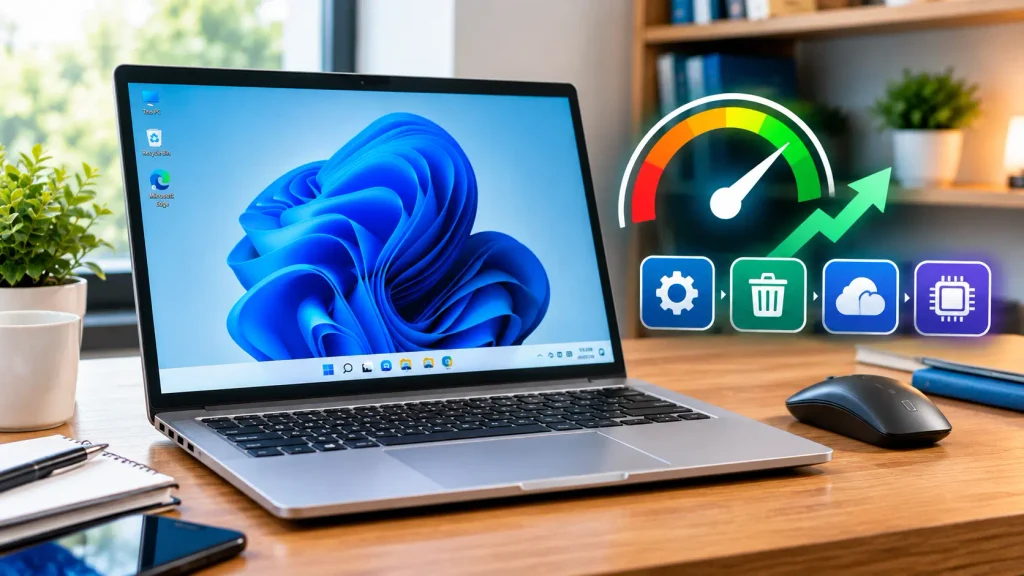
Reduce Startup Programs
Disable unnecessary applications that automatically launch when you sign in.
This is especially useful on laptops with limited RAM.
Free Up Storage Space
Remove unused programs, temporary files, old downloads, and unnecessary media.
Microsoft confirms that low storage can contribute to performance and update problems.
Use Best Performance Mode
When you need maximum performance, select the appropriate performance power setting in Windows.
Remember that higher performance can increase power use and heat, especially on laptops.
Upgrade RAM or Replace an HDD With an SSD
If your laptop supports RAM upgrades, moving from 8 GB to 16 GB can help with multitasking.
If Windows is installed on an HDD, moving the operating system to an SSD can provide a much larger improvement in everyday responsiveness.
If your laptop has only 8 GB RAM, read our guide on whether 8 GB RAM is enough for a laptop before deciding to upgrade.
Can Upgrading to Windows 11 Make a Computer Slower?
Why Older PCs May Feel Slower on Windows 11
Older hardware may meet the minimum requirements but still struggle with modern applications and multitasking.
Minimum compatibility does not mean the computer will feel fast.
Can Windows 10 Be Faster Than Windows 11?
On some older hardware, Windows 10 may have felt faster. However, Windows 10 support ended on October 14, 2025, so it should not be treated as a long term solution.
Can You Downgrade From Windows 11 to Windows 10?
Windows provides recovery options, but the available method depends on how recently the upgrade happened and how the system was installed.
Back up important files before changing the operating system. Microsoft warns that some recovery options can cause data loss.
How to Optimize Windows 11 for Gaming
Turn On Game Mode
Open Settings > Gaming > Game Mode and make sure Game Mode is enabled.
Windows provides Game Mode as part of its gaming settings.
Close Unnecessary Background Apps
Close browsers, launchers, recording tools, and other applications you do not need while gaming.
This can free CPU and RAM for the game.
Update Your Graphics Driver
Install the latest suitable driver from your GPU manufacturer.
A current driver can fix bugs and improve compatibility with newer games.
Use the Best Power Mode While Gaming
When connected to AC power, use an appropriate performance focused power setting if your laptop supports it.
Also watch temperatures because excessive heat can reduce performance.
What If Your Windows 11 Computer Is Still Slow?
Run Windows Troubleshooters
Windows includes built in troubleshooters that can help identify certain system problems.
Use the relevant troubleshooter for the problem you are experiencing instead of changing random system settings.
Repair Corrupted Windows System Files
Open Command Prompt as administrator and run:
DISM.exe /Online /Cleanup-image /Restorehealth
After it finishes, run:
sfc /scannow
Microsoft recommends running DISM before System File Checker when repairing corrupted Windows components.
Reinstall Windows 11 Without Removing Personal Files
Windows recovery options can provide ways to reset or reinstall Windows while keeping personal files, depending on the selected option.
Always back up important files first because recovery choices can have different effects on applications and data.
When Is It Better to Replace the Computer?
Replacement makes more sense when the processor, RAM, storage, and other hardware are too old or cannot be upgraded at a reasonable cost.
If basic fixes and upgrades no longer provide acceptable performance, a newer computer may be the better choice.
Final Verdict: How to Speed Up a Slow Windows 11 Computer
The best way to fix a slow Windows 11 computer is to find the real cause instead of installing random speed booster programs.
Start with Task Manager, restart the PC, reduce startup programs, free storage, remove unused software, update Windows and drivers, scan for malware, and control background processes.
If the computer still feels slow, check the hardware. 8 GB RAM can be enough for basic use, while 16 GB is a better target for heavier workloads. An SSD is also a major upgrade over an HDD for everyday Windows performance.
For serious problems, use Microsoft’s built in repair tools before considering a complete reinstall. If the hardware is simply too old, upgrading or replacing the PC may be the most practical solution.
FAQS:
1.Can Too Many Browser Tabs Make Windows 11 Feel Slow?
Yes, too many browser tabs can use a lot of RAM and make Windows 11 feel slow. Close tabs you do not need to free memory and improve PC speed.
2.Does a Full Recycle Bin Affect Computer Performance?
A full Recycle Bin usually does not make Windows 11 noticeably slower. Emptying it can free up storage space, especially when it contains many large files.
3.Should I Use PC Cleaner or Speed Booster Apps to Fix Windows 11?
It is better to avoid most PC cleaner or speed booster apps because they can remove useful files or cause new problems. Use Windows 11 built in tools to clean files and improve performance safely.
4.What Is the Fastest Way to Find the Reason for a Slow Windows 11 PC?
The fastest way is to open Task Manager and check CPU, Memory, and Disk usage. The app using the most resources can help you find what is making your Windows 11 PC slow.
5.How Can I Tell if a Slow Computer Is a Software or Hardware Problem?
A software problem may cause slow apps, errors, or high CPU usage, while a hardware problem can cause overheating, crashes, or unusual noises. Check Windows and your apps first before replacing any hardware.
conclusion
A slow Windows 11 computer does not always need new hardware. Start with simple fixes like restarting your PC, removing unwanted apps, freeing storage, and checking background tasks. Keep Windows updated and scan for malware. If your PC is still slow, adding more RAM or switching from an HDD to an SSD can make a big difference.
Written By