Can I Change My HP Laptop Graphics Card? Complete 2026 Upgrade Guide
Can I Change My HP Laptop Graphics Card? In most HP laptops, the answer is no because the GPU is usually soldered to the motherboard. However, a few older models may offer different upgrade options.
In most HP laptops, the graphics processor can’t be replaced because it is permanently soldered onto the motherboard. A few older or specialized HP models may use removable graphics hardware. Before buying anything, check your exact model and HP service manual. If an internal upgrade isn’t possible, an eGPU may be an option on compatible laptops.
In this guide, you’ll learn how HP laptop GPUs work, how to check your model, and which upgrade options are actually possible.
Can I Change My HP Laptop Graphics Card?
Can You Change Your HP Laptop Graphics Card? For most HP laptops, you cannot directly change the internal graphics card. Unlike a desktop PC, where a graphics card usually sits in a removable PCIe slot, a laptop’s GPU is often part of the motherboard design.
If you’re wondering, Can I Change My HP Laptop Graphics Card, the first thing to check is your exact HP model and its service manual.
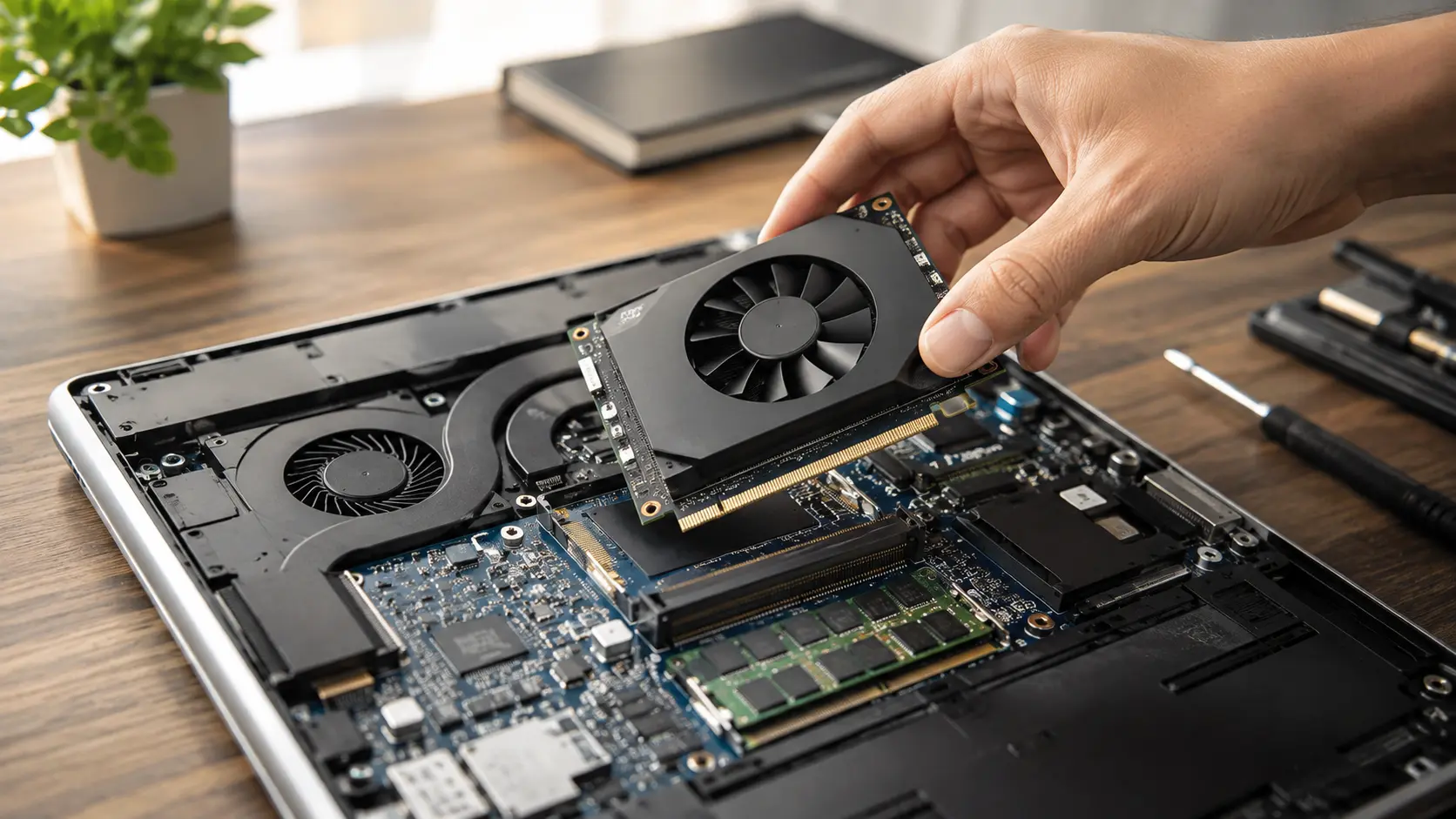
Some older or specialized laptops may use a removable GPU module, but these are not common. That’s why you should never buy a replacement laptop GPU based only on its model name or performance level.
Before trying an upgrade, check your exact HP laptop model and its service information.
A simple rule is:
| HP laptop GPU type | Can you normally replace it? |
|---|---|
| Soldered GPU | No |
| Integrated graphics | No |
| Older removable GPU module | Sometimes |
| External GPU | Yes, if compatible |
So, if your HP laptop has a soldered GPU, buying another internal graphics card won’t solve the problem. You’ll need another upgrade path.
Why Most HP Laptop Graphics Cards Can’t Be Upgraded
The main reason is the way laptop hardware is designed. Laptops have limited space, cooling, and power compared with desktop computers.
Is the GPU Soldered to the Motherboard?
In many modern laptops, the GPU is soldered directly to the motherboard. This means there isn’t a normal slot where you can remove the old GPU and install a new one.
The same problem can apply to integrated graphics. In many systems, the graphics processor is part of the CPU or motherboard design.
If the GPU is soldered, replacing it requires specialist board repair equipment and skills. Even then, installing a faster GPU isn’t as simple as soldering another chip in its place. The motherboard, BIOS, power system, cooling system, and other hardware must support it.
HP’s own support community explains that most modern HP laptops have GPUs that are soldered to the motherboard and therefore cannot normally be upgraded
Why Laptop GPUs Are Different From Desktop Graphics Cards
A desktop graphics card is usually a separate component. You can remove it from a PCIe slot and install another compatible card.
Laptop graphics hardware is much more tightly connected to the rest of the system. Manufacturers design the CPU, GPU, motherboard, cooling system, battery, and power system to work together.
Whether Can I Change My HP Laptop Graphics Card depends mainly on how the GPU is installed and whether the laptop was designed to support a removable graphics module.
This saves space and helps keep the laptop thin, but it makes upgrades much harder.
That’s why you shouldn’t expect a desktop-style GPU upgrade on a normal HP Pavilion, HP Envy, HP Spectre, HP laptop upgrade, or similar laptop.
Can You Replace a Damaged HP Laptop GPU?
If your HP laptop’s GPU has failed, replacement may be possible as a repair, but that doesn’t mean you can upgrade it to a faster GPU.
If repairing the laptop isn’t worth the cost, you can also learn what to do with a broken HP laptop before replacing it.
A repair shop may be able to diagnose a motherboard or GPU fault. In many cases, the practical repair is replacing the motherboard rather than replacing the GPU chip itself.
GPU Replacement vs. GPU Upgrade
These two terms are easy to confuse.
GPU replacement means repairing a failed graphics system, usually with compatible hardware.
GPU upgrade means installing a faster graphics processor to get better performance.
For example, replacing a damaged motherboard with the same compatible motherboard can restore your laptop’s original graphics performance. It doesn’t automatically give you a more powerful GPU.
If your goal is gaming performance, don’t assume that a repair will make the laptop faster.
Can Replacing the Motherboard Upgrade the GPU?
Sometimes, a different motherboard configuration for the same laptop family may have a better GPU. However, compatibility is the big issue.
You would need to confirm that the replacement motherboard:
- Fits your exact laptop chassis.
- Works with your CPU and other components.
- Has the correct display and power connections.
- Is supported by the BIOS.
- Works with your cooling system.
- Fits your laptop’s power requirements.
In many cases, the cost and effort aren’t worth it. A new laptop can make more financial sense.
How to Check If Your HP Laptop GPU Is Upgradeable
Don’t open your laptop or buy a graphics card until you’ve checked the model and hardware first.
Find Your Exact HP Laptop Model
First, find the exact model number.
You can usually find it on:
- A label on the bottom of the laptop
- The original box
- Your purchase information
- Windows System Information
- HP Support Assistant
You need more than just a general name such as HP Pavilion or HP Envy. A single product family can contain many different configurations.
For example, two HP Pavilion laptops may have different processors, GPUs, motherboards, and cooling systems.
Check the HP Specifications and Service Manual
Once you know your exact model, search HP’s official support pages for its specifications and service manual.
Look for information about:
- Graphics
- Motherboard
- Expansion options
- Memory
- Storage
- Serviceable parts
The service manual is especially useful because it can show which components are designed to be removed or replaced.
Don’t rely only on a random online listing that says a particular GPU will fit.
Check How the GPU Is Installed
The most important question is whether your GPU is removable.
If the graphics processor is soldered to the motherboard, a normal internal upgrade isn’t possible.
If your laptop uses a removable graphics module, an upgrade may be possible, but you still need to check compatibility with the motherboard, BIOS, cooling system, power supply, and display.
This is why checking the exact model matters more than simply knowing that you have an HP laptop.
Can I Add a Graphics Card to My HP Laptop?
Yes, in some cases you can add graphics power without replacing the internal GPU.
The main option is an external graphics card, also called an eGPU.
Using an External GPU (eGPU)
An eGPU is a desktop graphics card placed inside an external enclosure. You connect the enclosure to your laptop using a high-speed connection.
An eGPU enclosure holds a desktop graphics card, supplies it with power, and connects it to the laptop through a supported high-speed connection. HP explains that eGPUs can provide a way to increase graphics performance without replacing the laptop itself.
An eGPU can be useful for:
- Gaming
- Video editing
- 3D work
- Creative software
- Other graphics-heavy tasks
However, an eGPU isn’t a simple USB graphics adapter. Your laptop needs a compatible high-speed connection.
Does Your HP Laptop Have Thunderbolt?
This is one of the first things you should check.
Many eGPU setups use Thunderbolt 3, Thunderbolt 4, or newer supported connections. HP says most modern eGPU setups require a compatible Thunderbolt connection, and not every laptop supports external GPUs.
Also, don’t assume every USB-C port supports an eGPU. A USB-C port and a Thunderbolt port aren’t automatically the same thing.
Check your exact HP model’s specifications before buying an eGPU enclosure.
How to Upgrade Graphics on an HP Laptop Without Replacing the GPU
If your internal GPU can’t be upgraded, you still have several ways to improve your laptop’s graphics experience.
Update Your Graphics Driver
An outdated graphics driver can cause game problems, poor performance, crashes, or compatibility issues.
Check which GPU your laptop uses, then get the correct driver from the GPU manufacturer’s official source or HP when appropriate.
After updating the driver, restart the laptop and test the game or application again.
A driver update won’t turn a low-end GPU into a high-end one, but it can help the hardware perform correctly.
Improve Cooling and Performance
Heat can reduce laptop performance.
If heat is reducing your laptop’s performance, these tips can help you keep a gaming laptop cool during heavy use.
If your laptop gets very hot during gaming, the system may reduce performance to control temperatures.
You can help by:
- Keeping air vents clear
- Using the laptop on a hard, flat surface
- Cleaning dust from the cooling system
- Checking that the fans are working
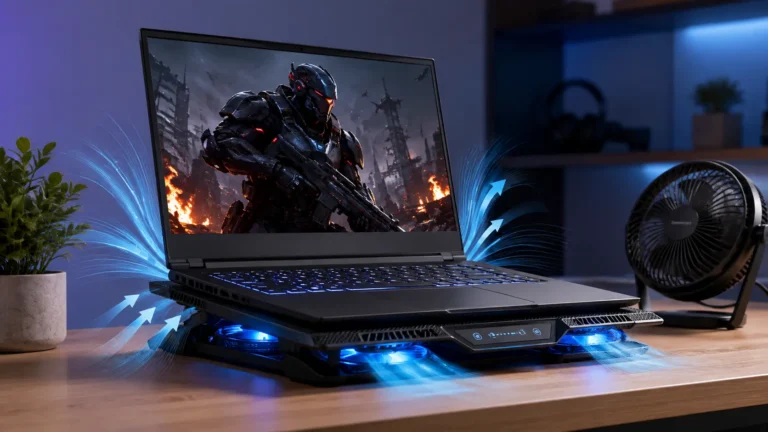
- Using a suitable cooling pad when needed
- Closing unnecessary background programs
Don’t expect cooling improvements to create a huge jump in GPU power. The goal is to help the laptop maintain the performance it already has.
Upgrade RAM When It Helps
RAM isn’t a replacement for a graphics card, but adding more memory can help some laptops and workloads.
If you’re not sure whether a RAM upgrade would help, see our guide on whether 8GB RAM is enough for a laptop.
This is especially useful when your laptop has very little RAM and Windows, games, and other programs are competing for memory.
Before buying RAM, check the maximum supported capacity and the type of memory your exact HP model uses.
If your laptop already has enough RAM, adding more may not improve gaming performance much.
Is an External GPU Worth It for an HP Laptop?
An eGPU can be a good solution, but it’s not right for everyone.
eGPU Requirements and Compatibility
A basic eGPU setup usually includes:
- A compatible HP laptop.
- A suitable high-speed connection.
- An eGPU enclosure.
- A desktop graphics card.
- Enough power for that graphics card.
- Correct drivers and software.
HP recommends checking compatibility before buying because not every laptop can use an external GPU.
For the best experience, an external monitor connected directly to the eGPU can also be useful.
Performance, Cost, and Limitations
An eGPU can provide a large graphics improvement, but it won’t always perform exactly like the same graphics card inside a desktop.
The connection between the laptop and eGPU has less bandwidth than a normal desktop PCIe x16 connection. This can reduce performance in some games and applications. HP’s current eGPU guide also notes that using the laptop’s internal screen can create additional performance limits.
You also need to consider the total cost.
You’re paying for an enclosure, graphics card, and possibly a monitor. If your HP laptop is already old, spending a large amount on an eGPU may not be the best choice.
An eGPU makes more sense when your laptop is still useful for everything else, and you specifically need more graphics power.
Should You Upgrade Your HP Laptop or Buy a New One?
For most people, buying a new laptop is the better choice if the main goal is a much faster internal GPU.
Before buying a replacement, it’s also worth checking how HP laptop prices compare across different models and configurations.
An upgrade can make sense when:
- Your laptop is otherwise in good condition.
- Your GPU is actually replaceable.
- The upgrade is affordable.
- The cooling system can handle it.
- The new GPU is confirmed to work with your model.
Buying a new laptop is often better when the GPU is soldered, and you need a major performance increase.
A newer laptop can also give you a faster CPU, newer graphics, better cooling, improved battery technology, and newer ports at the same time.
If you’re thinking about replacing your laptop, first check the laptop specs to look for based on your needs.
Before spending money, compare the total upgrade cost with the price of a laptop that already has the graphics performance you need.
Frequently Asked Questions
1. Can a BIOS Update Make an HP Laptop GPU Upgrade Possible?
No, a BIOS update usually cannot make a soldered HP laptop GPU upgrade possible. It can improve hardware support or fix GPU issues, but it cannot add a removable GPU slot or change the motherboard design.
2. Does a More Powerful GPU Need Better Laptop Cooling?
Yes, a more powerful GPU usually needs better laptop cooling because it creates more heat. Good cooling helps prevent overheating and keeps the GPU running smoothly during heavy tasks like gaming.
3. Should You Upgrade an Older HP Laptop for Gaming?
Yes, upgrading an older HP laptop for gaming can be worth it if the upgrade is affordable and compatible. If the GPU is soldered, buying a newer laptop is often a better choice for a big gaming performance boost.
4. What Does It Cost to Replace an HP Laptop Graphics Card?
The cost depends on your HP laptop model and the type of repair needed. A simple GPU repair may cost less, while motherboard replacement can be expensive and may not be worth it on an older laptop.
5. Which HP Laptop Parts Should You Check Before a GPU Upgrade?
Before a GPU upgrade, check your HP laptop’s motherboard, power supply, cooling system, BIOS support, and exact GPU compatibility. Also check the service manual to make sure the new graphics hardware can work with your laptop.
Conclusion
Most HP laptop graphics cards cannot be changed because they are soldered to the motherboard. Check your exact model before buying any GPU. If an upgrade isn’t possible, you can improve performance with better cooling, drivers, RAM, or a compatible eGPU. For major gaming upgrades, a newer laptop may be the better choice.
About the Author:
Techipilot’s technology writer focuses on HP laptops, hardware upgrades, troubleshooting, and practical laptop buying advice.
Written By