Windows 11 Search Not Working? 11 Easy Ways to Fix It
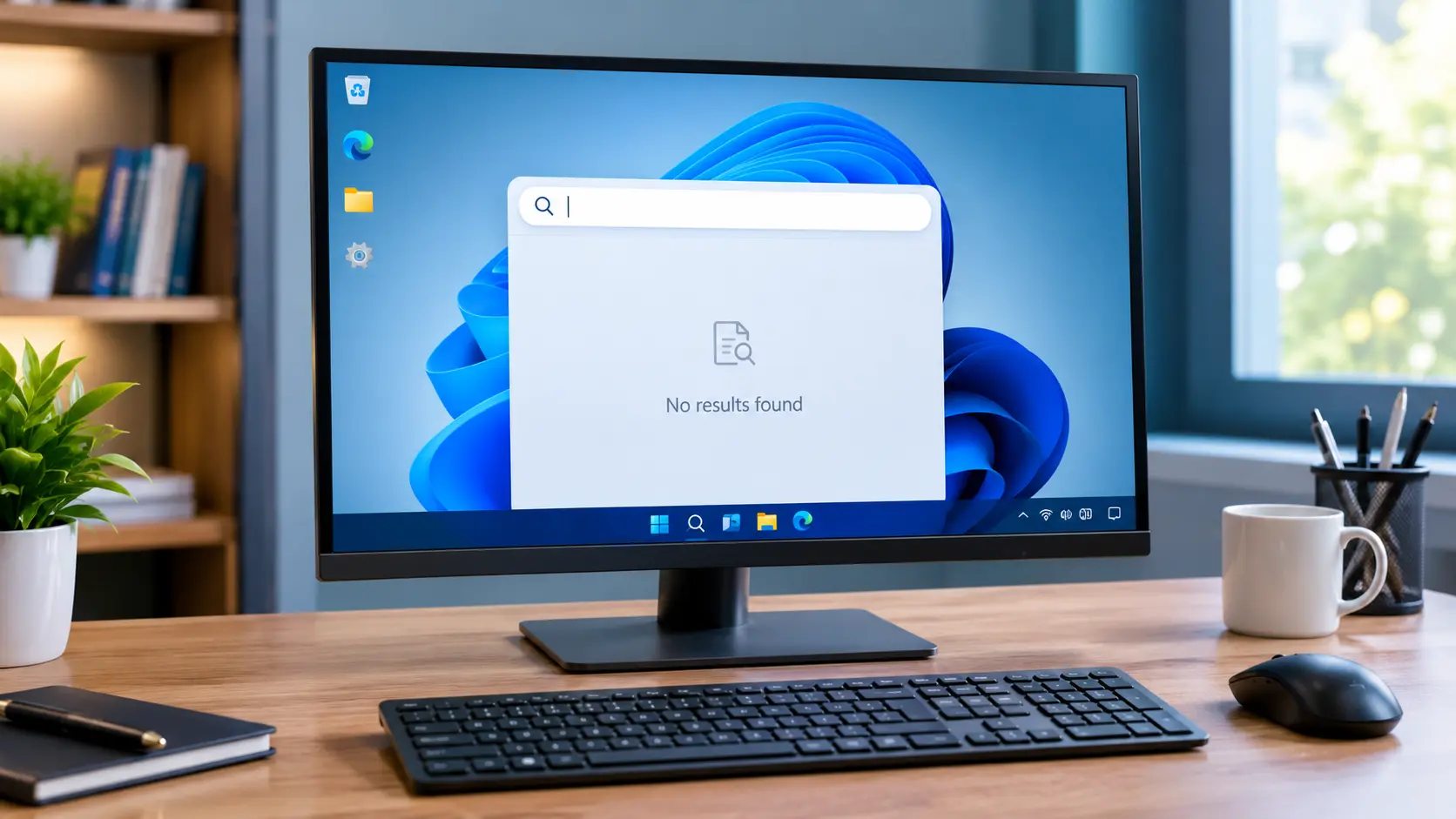
Windows 11 search not working? Restart Windows Explorer from Task Manager first. Then end the SearchHost.exe process and restart the Windows Search service. If it still fails, install Windows updates, then rebuild the search index to restore your search results.
In this guide, you will learn how to identify the exact Search problem and try safe fixes step by step. Start with the quick diagnosis below, then use the fix that matches your problem.
Why Is Windows 11 Search Not Working?
Windows Search depends on several parts of the operating system working together. The taskbar search box connects with the Windows Search process, Windows Explorer, search services, and the index that helps Windows find files quickly.
Microsoft explains that Windows creates an index of files and their properties so searches can return results faster. If that index becomes incomplete, a service stops responding, or the SearchHost.exe process has a problem, Search may stop working correctly.
Common reasons include:
- SearchHost.exe stops responding
- Windows Search service has a problem
- Search indexing becomes stuck
- Windows needs an update
- System files become damaged
- Search Highlights causes a blank panel
- The problem is limited to one Windows user account
You may also notice that Start menu search and taskbar search fail at the same time because they use the same Windows Search system.
If Windows Search problems are happening together with startup problems, you may also want to see our guide on Windows 11 won’t boot.
Quick Diagnosis: What Is Your Search Problem?
Before changing anything, match your problem with the symptom below. This can save time because you can start with the fix that best matches what you see.
| Search problem | What to try first |
|---|
| Search bar will not open | Restart Windows Explorer |
| You cannot type | Restart Search and run ctfmon.exe |
| Search stays blank or loads forever | Restart SearchHost.exe |
| Search opens but finds nothing | Check indexing |
| Search is missing from taskbar | Check taskbar Search settings |
| Search stopped after an update | Check Windows Update |
Quick Tip: Check Indexing Before Rebuilding
If Windows Search can find apps but cannot find your personal files, do not rebuild the index immediately. First check which folders Windows is indexing.
Open Settings > Privacy & security > Searching Windows and review the search locations. If the missing files are outside the indexed locations, change the search scope or use This PC in File Explorer.
If the correct folders are already included but Search still cannot find files, rebuilding the index is the next useful step.
Search Bar Won’t Open
If clicking Search does nothing, first restart Windows Explorer. Explorer controls much of the Windows desktop and taskbar, so restarting it can restore a stuck Search interface without restarting the whole computer.
You Can’t Type in the Search Box
If the search panel opens but your keyboard input does not appear, the problem may involve Windows input components rather than the search index.
Try restarting SearchHost.exe first. If typing still fails, restarting the text input process with ctfmon.exe can help.
Search Keeps Loading or Shows a Blank Panel
A blank panel or endless loading often points toward the Search process or another Windows component that Search depends on.
Microsoft documents restarting SearchHost.exe as a supported troubleshooting step for Windows 11.
Search Opens but Finds Nothing
If Search opens normally but cannot find files or apps, check indexing before making deeper system changes.
Windows uses indexing to catalog file names, locations, properties, and in some cases file contents.
Search Bar Is Missing From the Taskbar
You can change the Search option through Windows taskbar settings. If Search works but the icon or box is missing, check your taskbar settings instead of repairing Windows.
Search Stopped Working After an Update
A Windows update can sometimes be linked with Search problems. Microsoft recommends checking for available Windows updates when Search is not responding.
If the problem began immediately after an update, note the date and Windows build before making major changes. This information can help identify whether the issue is software-related.
How to Fix Windows 11 Search Not Working
Work through these fixes in order. The first few are simple and low risk. The later fixes make bigger changes, so do not skip directly to PowerShell unless the easier methods fail.
1. Restart Windows Explorer
Restarting Windows Explorer is one of the quickest ways to fix an unresponsive search bar.
- Press Ctrl + Shift + Esc to open Task Manager.
- Find Windows Explorer in the Processes list.
- Right-click Windows Explorer.
- Select Restart.
- Wait a few seconds.
- Try Search again.
Your desktop and taskbar may disappear briefly. This is normal while Explorer restarts.
2. Restart the Search Process (SearchHost.exe)
Windows 11 uses SearchHost.exe for the Search experience. Microsoft recommends ending this process when Windows Search is unresponsive. Windows can start it again when you use Search.
- Open Task Manager.
- Select the Details tab.
- Find SearchHost.exe.
- Right-click it.
- Select End task.
- Open Search again.
Do not delete the file. You are only stopping the running process so Windows can start it again.
3. Restart the Windows Search and Font Cache Services
The Windows Search service and Windows Font Cache Service can affect search behavior.
Press Windows + R, type:
services.msc
Press Enter.
Find Windows Search and check its status. If it is running, right click it and select Restart.
Then find Windows Font Cache Service. Microsoft specifically lists restarting this service as a possible solution for Windows Search problems.
Test Search again after restarting the services.
4. Fix Typing Problems (Win+R Trick and ctfmon.exe)
If Search opens but you cannot type, try restarting the Windows text input component.
Press Windows + R and enter:
ctfmon.exe
Press Enter.
Then open Search and try typing again.
This step is mainly useful when the search box responds visually but does not accept keyboard input. It is not a replacement for repairing the search index when files are missing from results.
5. Check for Windows Updates
Microsoft recommends checking for updates when Windows Search does not respond correctly.
Open:
Settings > Windows Update
Select Check for updates.
Install available updates and restart the PC if Windows asks you to do so.
This is also worth trying if Search stopped working after another system change. Keeping Windows current can prevent known software problems from continuing.
6. Turn Off Search Highlights
Search Highlights can change what appears in the Windows Search panel. If your Search window opens to a strange or blank panel, temporarily turning this feature off is worth testing.
Go to:
Settings > Privacy & security > Search permissions > More settings
Turn off:
Show search highlights
Now open Search again.
If the problem disappears, you have identified a setting related to the Search interface rather than a problem with your personal files.
7. Run the Search and Indexing Troubleshooter
Microsoft has changed how Windows handles older troubleshooters, so do not depend on an old command simply because you see it on another website.
On supported Windows 11 versions, look in:
Settings > System > Troubleshoot > Other troubleshooters
If Windows provides a Search or indexing troubleshooting option, run it and follow the instructions.
You may also find Search and indexing troubleshooting through Advanced indexing options on some Windows versions. Microsoft documents this route for diagnosing indexing problems.
You may still see the older msdt.exe command mentioned in Microsoft’s troubleshooting documentation. Because its availability can vary across Windows versions, treat it as a legacy option rather than the first method to try.
8. Rebuild the Search Index
If Search opens but cannot find files, rebuilding the index can help.
Windows uses an index to find files quickly. Microsoft says the first indexing process can take time, especially when many files are included.
Open:
Settings > Privacy & security > Searching Windows
Check your search locations and indexing mode.
For the classic indexing controls, open Advanced indexing options, select Advanced, and choose Rebuild.
Rebuilding the index does not delete your personal files. It creates the search catalog again. Depending on how many files you have, rebuilding can take some time.
9. Repair System Files With DISM and SFC
If Windows Search is still broken, damaged system files may be involved.
Open Command Prompt as administrator and run:
DISM.exe /Online /Cleanup-image /Restorehealth
Wait for it to finish.
Then run:
sfc /scannow
Let each command complete before starting the next one.
Restart Windows when both commands finish and test Search again.
These tools are useful when the problem extends beyond Search, and other Windows features are also behaving strangely.
If your computer is also crashing or restarting unexpectedly, see our guide on why your computer keeps crashing for additional troubleshooting steps.
10. Re-register the Search App in PowerShell
Use this step only after the simpler fixes fail.
Microsoft documents a Windows 11 AppX registration command for the Windows Search package.
Open PowerShell as administrator and use the Microsoft-documented command:
Add-AppxPackage -Path “C:\Windows\SystemApps\MicrosoftWindows.Client.CBS_cw5n1h2txyewy\Appxmanifest.xml” -DisableDevelopmentMode -Register
Restart your PC after the command completes.
Do not use random PowerShell scripts copied from comments or unknown websites. The Windows Search package can vary between Windows versions, so an official Microsoft method is the safer choice.
11. Test With a New User Account
If every normal fix fails, create a temporary Windows user account and test Search there.
If Search works correctly in the new account, the problem may be limited to your original Windows profile rather than the entire operating system.
This is a useful diagnostic test because it helps separate a profile problem from a system-wide Windows Search problem.
Do not immediately delete your old account. First, confirm that Search works consistently in the new account and make sure your important files are safe.
What If Nothing Works? Advanced Options
If the eleven fixes above do not solve the problem, proceed carefully. At this stage, avoid random registry edits or scripts from forum comments.
If Search remains broken after the basic fixes, check whether the rest of Windows is also running slowly or behaving unusually. Our guide on how to fix a slow computer in Windows 11 covers additional performance checks.
Repair Microsoft Edge WebView2 Runtime
Only try this step if Windows Search shows a blank or broken interface and other Windows apps or panels are also displaying blank content.
Open Settings > Apps > Installed apps and look for Microsoft Edge WebView2 Runtime.
If a Repair option is available, you can try it and then restart Windows.
If Search is the only Windows feature that is broken, skip this step and continue with the Windows repair options below. Do not install WebView2 from random third-party websites.
Do an In-Place Repair of Windows 11
If Search remains broken and other Windows features are also failing, an in-place Windows repair may be more appropriate than repeatedly changing individual settings.
Before using any repair method, back up important files. Do not jump to a full PC reset just because Search is broken.
Search Works but Can’t Find “My PC” or Downloads
Sometimes Windows Search is working correctly, but the search scope is not what you expect.
In File Explorer, select This PC when you want to search across your drives and folders. Microsoft specifically recommends using This PC to search locations across the computer.
You should also check:
- Settings > Privacy & security > Searching Windows
- Indexed locations
- Your Downloads folder
- File Explorer search scope
- Classic or Enhanced indexing mode
Classic indexing covers common folders by default, while Enhanced indexing can include the entire PC.
If a file is stored outside the indexed locations, Windows may not return it as quickly as an indexed file.
When Should You Get Professional Computer Repair?
You normally do not need professional repair just because Windows Search stops working. Most Search problems are software-related.
Consider professional help when:
- Search fails together with several other Windows features
- Windows Explorer repeatedly crashes
- DISM and SFC cannot repair system problems
- The PC freezes or restarts during normal use
- Storage problems appear at the same time
- Windows cannot complete updates or repairs
- The same problem returns after repeated repairs
If the issue affects important work and basic troubleshooting has failed, getting the system checked can save time and prevent you from making bigger changes without knowing the cause.
If you decide to get professional help, our computer repair technician near you guide explains what to check before choosing a repair service.
Frequently Asked Questions
Why Can’t I Type in the Windows 11 Search Box?
Restart SearchHost.exe first. If the search box still does not accept keyboard input, run ctfmon.exe and restart Windows. If the issue continues, check Windows updates and system files.
How Do I Restart Windows Search in Windows 11?
Open Task Manager, select Details, find SearchHost.exe, right-click it, and select End task. Windows Search should start again when you use Search. Microsoft lists this as a Windows Search troubleshooting method.
Will Rebuilding the Search Index Delete My Files?
No. Rebuilding the search index recreates the catalog Windows uses to locate files. It does not delete your personal documents, photos, or other files. The rebuilding process can take time while Windows creates the index again.
How Do I Bring Back the Search Bar on the Windows 11 Taskbar?
Open Windows Settings and check the taskbar settings. Windows lets you control how Search appears on the taskbar. If Search is present but does not work, use the troubleshooting steps in this guide instead of changing the taskbar appearance repeatedly.
Can a Windows Update Break Windows Search?
A Windows update can be associated with Search problems on some systems. Microsoft recommends checking for available updates when Windows Search is unresponsive. If the problem began immediately after an update, note the update and Windows version before trying advanced repairs.
Conclusion
Windows 11 Search Not Working can look like a major Windows problem, but it often comes down to a stuck SearchHost.exe process, a service issue, indexing, system files, or a Windows setting.
Start with the simple fixes first. Restart Windows Explorer and SearchHost.exe, check the Windows Search service, install available updates, and rebuild the index when results are missing. Move to DISM, SFC, PowerShell, or account testing only when the earlier steps do not solve the problem.
Most importantly, avoid random registry changes and unknown scripts. Use current Windows settings and official Microsoft guidance whenever possible.
Author:
Written By: Sahil Ansari
Sahil Ansari is a technology writer and the founder of TechiPilot. He writes practical guides about Windows, computers, laptops, troubleshooting, and everyday technology problems.
This guide was written to provide simple, step-by-step troubleshooting methods for Windows 11 Search problems.