How to Fix a Black Screen on Windows 11: 11 Easy Ways
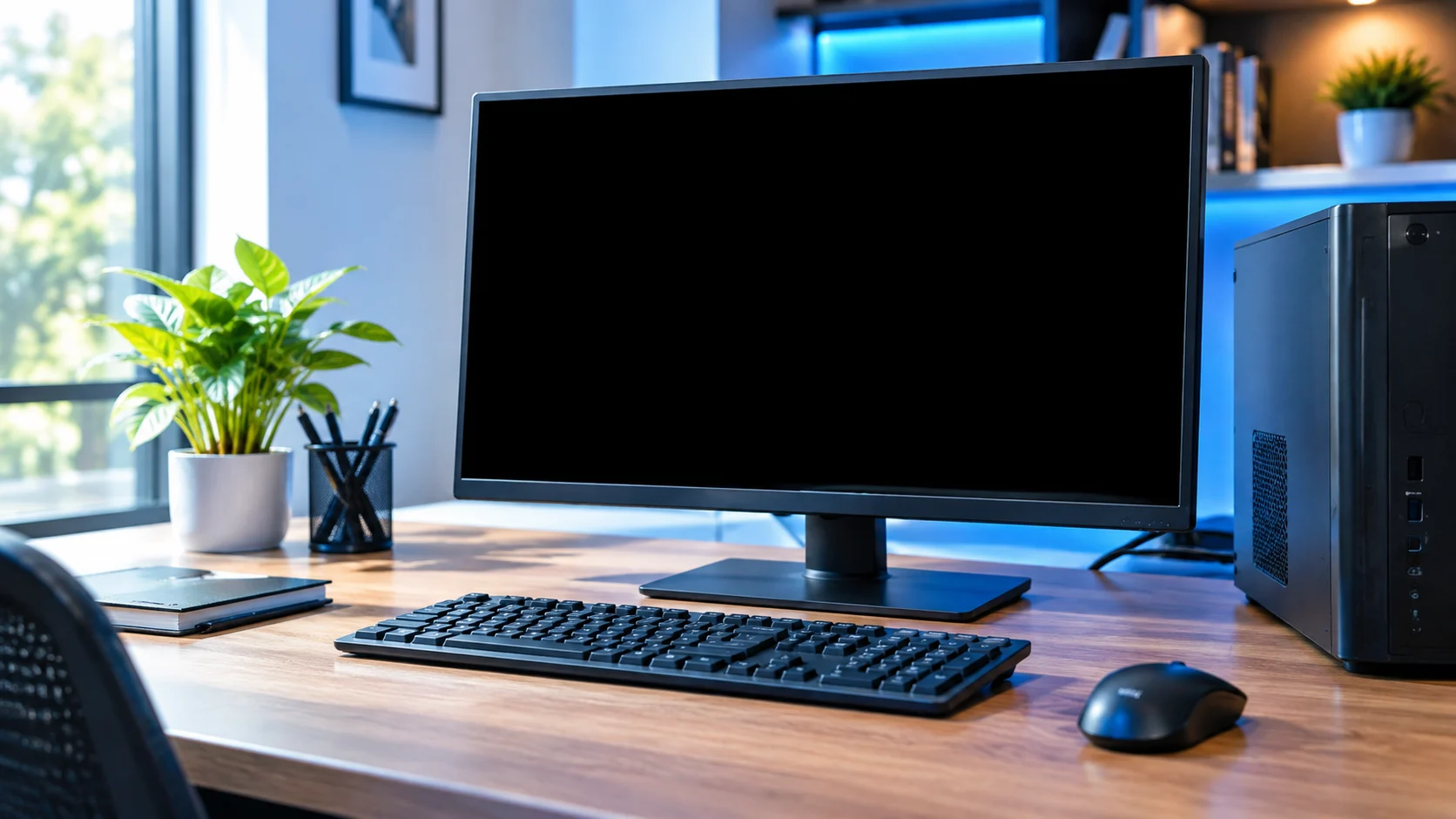
Here is how to fix a black screen on Windows 11: press Windows + Ctrl + Shift + B to reset the graphics driver. Then check your cable, restart Windows Explorer, and try Safe Mode to update or roll back your graphics driver.
You press the power button, the fans spin, the lights come on, but the screen stays dark. It feels scary, yet a black screen is often easier to fix than it looks. If you are searching for how to fix a black screen on Windows 11, the right fix depends on what you see: a cursor, nothing at all, or a dark screen after login. You do not need special skills or tools. This guide helps you spot your exact type first. Then it gives you 11 easy fixes to try in order, starting with the quickest and safest ones.
Why Is My Windows 11 Screen Black?
A black screen means Windows is not sending a picture to your display. The computer may be running fine, but something between Windows and the screen has failed.
The most common causes are:
- A stuck graphics driver or a driver that does not match your update
- A stalled Windows process, often Windows Explorer
- A loose cable or the wrong display mode
- An update that did not finish cleanly
- A changed resolution that your screen cannot show
- A hardware problem, such as a failing graphics card or monitor
Most of these are software problems. That is good news, because you can fix them at home.
Quick Diagnosis: What Type of Black Screen Do You Have?
Before you try any fix, look closely at what your screen is doing. This takes one minute and saves a lot of guessing.
| What You See | Check First |
|---|---|
| Black screen, mouse cursor moves | Windows Explorer or graphics driver |
| Fully black, PC is on | Cable, display mode, graphics driver |
| Black after you enter your password | Explorer, startup apps, graphics driver |
| Black during startup | Safe Mode or recovery tools |
| Black after an update | Wait, then the driver or the update |
| Black after changing resolution | Safe Mode, then reset the driver |
Now let’s look at each type in a little more detail.
Black Screen With a Cursor
If you can still move the mouse, Windows is running. The desktop itself has not loaded, which usually points to Windows Explorer or the display driver. Fixes 1 and 3 help most here.
Completely Black Screen (PC Is On)
Here the fans spin, and lights glow, but there is no picture at all. Start with your cable and display mode, then reset the graphics driver. If an external monitor works, the problem may be your laptop screen.
Black Screen After Login
The login screen looks normal, then the screen goes dark after you type your password. This often comes from Windows Explorer, a startup app, or the graphics driver. Press Ctrl + Alt + Delete to see if Task Manager opens.
Black Screen During Startup
If the screen stays black from the moment you turn the PC on, Windows may not be loading fully. Recovery tools and Safe Mode are your best friends here. A blinking cursor on a black screen can also mean the system cannot find its boot drive.
Black Screen After a Windows Update
If the trouble started right after an update, the update is your first suspect. It may still be finishing, or it may have brought a driver that does not fit your hardware.
Black Screen After a Driver or Resolution Change
Sometimes you set a resolution your monitor cannot show, or you disable a display driver, and the screen goes dark. Safe Mode lets you undo the change, since it uses a basic display setup.
How to Fix a Black Screen on Windows 11
Work through these fixes in order. The quick and safe ones come first.
1. Wake the Screen and Reset the Graphics Driver (Win+Ctrl+Shift+B)
Press Windows + Ctrl + Shift + B together. If it works, you will hear a short beep or see the screen flicker. This restarts the graphics driver without closing your apps. It does not fix every black screen, but it is the fastest try.
2. Check Your Monitor, Cable, and Display Mode (Win+P)
Make sure your PC and monitor are plugged in and turned on. Check that the HDMI or DisplayPort cable is firm at both ends. Then press Windows + P, press P again, and press Enter. This cycles through display modes in case the picture is going to the wrong screen.
3. Restart Windows Explorer from Task Manager
Press Ctrl + Alt + Delete and choose Task Manager. Find Windows Explorer, right-click it, and select Restart. If you cannot find it, click Run new task, type explorer.exe, and press Enter.
4. Wait a Few Minutes if It Started After an Update
Updates sometimes keep working in the background while the screen stays dark. Give your PC a few minutes before you do anything drastic. Leave it plugged in. If nothing changes, move to the next fix.
5. Disconnect External Displays and USB Devices
Unplug extra monitors, docks, USB drives, and printers. Then restart. A device that does not work well with Windows can sometimes cause a black screen. If the screen returns, plug devices back in one by one to find the cause.
6. Start Windows 11 in Safe Mode
Safe Mode loads Windows with only the basics, so it helps you tell if a driver is the cause.
- Hold the power button for about 10 seconds to turn the PC off
- Turn it on, and as Windows starts, turn it off again. Repeat two or three times until the recovery screen appears
- Go to Troubleshoot > Advanced options > Startup Settings > Restart
- Press 4 for Safe Mode, or 5 for Safe Mode with Networking
7. Update, Roll Back, or Reinstall the Graphics Driver
In Safe Mode, press Windows + X and open Device Manager. Expand Display adapters and right-click your graphics card.
- Choose Update driver to look for a newer one
- Choose Properties > Driver > Roll Back Driver if the trouble began after an update
- Choose Uninstall device, then restart, and Windows will install a basic driver
This also fixes the problem when a bad resolution caused the black screen.
8. Check Recent Windows Updates
Go to Settings > Windows Update > Update history. If the black screen began right after one update, choose Uninstall updates and remove the latest one. Then check for a newer update, since Microsoft often fixes these problems in a later patch.
9. Repair Windows System Files
Open Command Prompt as an administrator and run these two commands, one after the other:
- DISM /Online /Cleanup-Image /RestoreHealth
- sfc /scannow
Let each one finish before you start the next. Damaged system files can stop Windows from showing the desktop.
10. Use Startup Repair or System Restore
From the recovery screen, go to Troubleshoot > Advanced options. Try Startup Repair first. If that does not help, try System Restore to go back to a date when your screen worked. Back up your files first if you can, because some recovery options can remove data.
11. Check for Hardware Problems
If nothing above works, test your hardware. Connect your laptop to an external monitor. If that screen works, your laptop display may be failing. On a desktop, try another cable or monitor. For a desktop with a dedicated graphics card, check that the card is seated firmly. A failing graphics card or screen usually needs a professional.
What If You See No Cursor and Nothing Works?
If the screen is dark, no cursor appears, and keys do nothing, try these steps in order:
- Force a restart by holding the power button for 10 to 20 seconds
- Do a power drain. Unplug the charger, take out the battery if it is removable, hold the power button for 15 seconds, then plug it back in
- Test an external monitor to see if only your screen is the problem
- Boot to recovery by turning the PC off and on two or three times, then use Safe Mode or Startup Repair
- Look at the lights. If the PC shows no signs of power, see our guide on a computer that won’t turn on
If Windows will not start at all, our guide on Windows 11 won’t boot can help.
Black Screen vs Blue Screen: What’s the Difference?
These two problems look alike but are not the same. A blue screen shows a message with a stop code because Windows crashed. A black screen shows nothing, and there is no stop code.
If you see a blue screen with text, read our guide on how to fix the Blue Screen of Death on Windows 11. If the screen is just dark, stay with the fixes in this article.
If your PC freezes, crashes, or restarts instead of showing a dark screen, those are different problems. Our guides on why your computer keeps freezing, why your computer keeps crashing, and why your computer keeps restarting can help.
When Should You Get Professional Computer Repair?
If you have tried every fix and the screen is still black, it is time to get help. This is especially true when an external monitor also shows nothing, or when the PC gives no signs of life. A technician can test your graphics card, screen, and motherboard. Back up your files first, and ask for a written quote before agreeing to any repair. Our computer repair cost guide shows what typical repairs cost.
Frequently Asked Questions
Why is my computer screen black but the PC is still running?
Windows may be running while the display driver, a cable, or the screen has failed. Try the graphics reset shortcut and check your cable first.
How do I fix a black screen with a cursor on Windows 11?
Press Ctrl + Alt + Delete, open Task Manager, and restart Windows Explorer. If that does not work, try Safe Mode and update the graphics driver.
Why does my screen go black after I enter my password?
This is often caused by Windows Explorer, a startup app, or the graphics driver. Restarting Explorer or updating the driver usually helps.
Can a graphics driver cause a black screen?
Yes. A broken or mismatched graphics driver is one of the most common causes. Rolling it back or reinstalling it in Safe Mode often fixes the problem.
Can I fix a black screen without reinstalling Windows?
Yes, in most cases. The shortcut, Safe Mode, driver fixes, System Restore, and Startup Repair solve most black screens without a reinstall.
Conclusion
If you have been searching for how to fix a black screen on Windows 11, start with the quick wins: the graphics shortcut, your cable, and Task Manager. If the screen stays dark, move to Safe Mode, drivers, and recovery tools. Most black screens are software problems you can solve at home. If the screen still will not light up, a professional check is the safest next step.
Written By: Sahil Ansari.