CPU Shuts Down Automatically: 10 Proven Fixes
If your CPU shuts down automatically, check overheating, power problems, RAM, cooling, and hardware first. If the PC turns off instantly with no warning, focus on power, temperature, and hardware before changing Windows settings.
In this guide, we’ll walk through 10 proven fixes to help you find the cause and stop unexpected shutdowns. Follow each step carefully, starting with the easiest checks, to get your computer running normally again.
Quick Tip:
If the PC completely loses power during gaming but works normally during light tasks, check temperatures, PSU connections, power capacity, and overclocking first.
Is It Actually Shutting Down, Restarting, Freezing, or Showing a Black Screen?
Before troubleshooting, identify exactly what your computer is doing.
A complete shutdown means the PC loses power and stays off. A restart means the computer turns off and powers back on by itself. A freeze means the computer stays on but stops responding. A black screen can happen because of a display, graphics card, or connection problem while the PC may still be running.
These symptoms can have different causes, so identifying the exact problem first can save time and prevent unnecessary hardware changes.
Why Does My CPU Shut Down Automatically?
If your CPU shuts down automatically, the computer may be losing power because of overheating, a faulty power supply, loose cables, unstable RAM, driver problems, or failing hardware. It can also happen when the system becomes unstable during gaming or other heavy tasks.
If your computer is also running slowly, see our guide on why your computer is so slow all of a sudden.
A sudden shutdown is different from a normal Windows shutdown. If the screen goes black and the PC turns off without warning, Windows may not have enough time to record the exact cause.
Common reasons include:
| Possible cause | Common sign |
|---|---|
| CPU overheating | PC turns off during heavy use |
| Power supply problem | Instant power loss, often under load |
| Dust or poor airflow | High temperatures and loud fans |
| RAM problem | Random shutdowns, freezes, or restarts |
| Gaming load | Shutdown happens while playing games |
| Driver problem | Crashes or restarts after Windows or driver changes |
| Corrupted system files | Windows errors, crashes, or instability |
| Overclocking | Problems after changing CPU or RAM settings |
| Failing hardware | Shutdowns continue after basic fixes |
Microsoft explains that an unexpected shutdown can be related to interrupted power, a stop error, or hardware problems. Event ID 41 can help with troubleshooting, but it does not always identify the exact cause by itself.
What to Check Before Fixing the Problem
Before changing Windows settings or opening your PC, check what happens immediately before the shutdown.
Ask yourself:
- Does the PC become very hot?
- Does it shut down only while gaming?
- Does it turn off after a few minutes?
- Does it happen when the PC is idle?
- Did you recently install RAM, a graphics card, or another component?
- Did the problem start after a Windows or driver update?
- Does the computer restart by itself, or does it stay completely powered off?
If your computer stays powered on but does not respond, see our guide on computer turns on, but nothing happens.
Also check the power connection. Make sure the desktop power cable or laptop charger is firmly connected. If you use a power strip or UPS, check that it is working correctly.
If you recently installed new hardware, remember that the added hardware can increase power demand. Microsoft specifically recommends checking whether the power supply can handle the installed components when investigating unexpected shutdowns.
10 Ways to Fix a CPU That Shuts Down Automatically
1. Check for CPU Overheating
Overheating is one of the first things to check when a computer suddenly turns off, especially during gaming or other demanding tasks.
A CPU produces more heat when it works harder. If the cooling system cannot remove that heat, temperatures can rise quickly.
For more cooling tips, see our guide on how to improve laptop airflow.
Check your CPU temperature with a trusted monitoring tool. Watch the temperature while the PC is idle and again when performing the task that normally causes the shutdown.
Also check whether:
- The CPU fan is spinning.
- The heatsink is blocked with dust.
- Case fans are working.
- The laptop vents are covered.
- The computer has enough airflow.
If the shutdown happens only when the CPU becomes heavily loaded, overheating becomes an important area to investigate.
2. Check the Power Supply and Power Cables
A faulty or insufficient power supply can cause an instant shutdown.
This is especially important on desktop PCs with powerful CPUs and graphics cards. Gaming can increase the power demand significantly.
Check that:
- The main power cable is firmly connected.
- The PSU cables are properly connected.
- The PSU has enough wattage for your hardware.
- Recently installed hardware has not exceeded the PSU’s capacity.
- The wall outlet, power strip, or UPS is working correctly.
If possible, testing the computer with a known good PSU can help identify a power supply problem. Microsoft also recommends checking PSU capacity and power interruptions when troubleshooting unexpected shutdowns.
Do not open a PSU yourself. Power supplies can contain dangerous electrical components even when disconnected.
3. Clean Dust From the CPU Cooler and Air Vents
Dust can block airflow and reduce cooling performance.
Turn off the computer, unplug it, and allow it to cool before cleaning it. For a desktop, inspect the CPU cooler, case fans, filters, and vents.
For a laptop, keep the ventilation openings clear and avoid using it on a bed, blanket, or other soft surface.
After cleaning, monitor the temperature again. If temperatures drop and the shutdown stops, poor cooling was likely contributing to the problem.
4. Check and Reseat the RAM
Loose or unstable RAM can cause crashes, freezes, restarts, and other system problems.
If you’re comfortable working inside a desktop PC, shut it down completely and disconnect the power. Remove the RAM modules and carefully reseat them in the correct motherboard slots.
If you have more than one RAM stick, testing them individually can help identify a faulty module.
You can also use Windows Memory Diagnostic to check the memory.
Microsoft recommends checking memory configuration and using a memory checker when investigating unexpected restarts and shutdowns.
5. Check Your PC After It Shuts Down During Gaming
If your PC shuts down only during gaming, pay close attention to temperature and power.
Gaming can place heavy demand on both the CPU and GPU. A weak PSU, overheating, unstable RAM, GPU problems, or overclocking can become more noticeable under this load.
If your gaming laptop is also getting hot, see our guide on how to keep a gaming laptop cool.
Check:
- CPU temperature while gaming.
- GPU temperature while gaming.
- CPU and GPU usage.
- PSU capacity.
- GPU power cables.
- CPU power cable.
- Recent graphics driver changes.
- Any CPU, GPU, or RAM overclocking.
If the computer instantly loses power rather than showing a Windows error, power or hardware should be checked carefully. Microsoft notes that Event ID 41 can occur when power is interrupted or the system stops responding unexpectedly.
6. Update Windows and Device Drivers
Outdated or damaged drivers can cause system instability.
If Windows is also running slowly, see our guide on how to fix a slow computer in Windows 11.
Start with Windows Update. Then check important drivers, especially:
- Graphics drivers.
- Chipset drivers.
- Storage drivers.
- Network drivers.
For important hardware, get drivers from the computer, motherboard, or hardware manufacturer’s official website.
If the shutdown started immediately after a driver update, the recent change is also worth investigating.
7. Check Windows for Corrupted System Files
Damaged Windows system files can cause crashes and other unexpected behavior.
Open Command Prompt as administrator and run:
DISM /Online /Cleanup-Image /RestoreHealth
After it finishes, run:
sfc /scannow
Restart the computer when the checks are complete.
These commands can repair Windows component and system file problems. However, if the PC loses power instantly, do not assume corrupted Windows files are the main cause. Sudden power loss often requires hardware and power checks too.
8. Check Event Viewer for the Shutdown Cause
Event Viewer can show what Windows recorded around the time of the shutdown.
To check it:
- Press Windows + X.
- Select Event Viewer.
- Open Windows Logs.
- Select System.
- Look around the exact time of the shutdown.
- Check for critical and error events.
Pay particular attention to Kernel Power, Event ID 41.
Event ID 41 means Windows detected that the previous shutdown was not completed normally. It does not automatically prove the PSU is faulty or identify a specific component. Microsoft recommends examining the surrounding events and the Event ID 41 details when troubleshooting.
You may also see Event ID 6008, which records that the previous shutdown was unexpected.
9. Turn Off Overclocking and Restore Default Settings
If you changed CPU, GPU, or RAM settings, temporarily return the system to its default configuration.
Overclocking can increase heat and power requirements. An unstable setting may work during light use but fail under heavy load.
Enter your BIOS or UEFI settings and restore the manufacturer’s default settings if you know how to do this safely.
Microsoft recommends disabling overclocking when investigating unexpected restarts and checking whether the problem continues at the system’s normal settings.
10. Check for Failing Hardware
If the problem continues after the basic fixes, a hardware fault becomes more important to investigate.
Possible problem areas include:
- Power supply.
- RAM.
- CPU cooler.
- Motherboard.
- Graphics card.
- Storage drive.
- Laptop battery or charger.
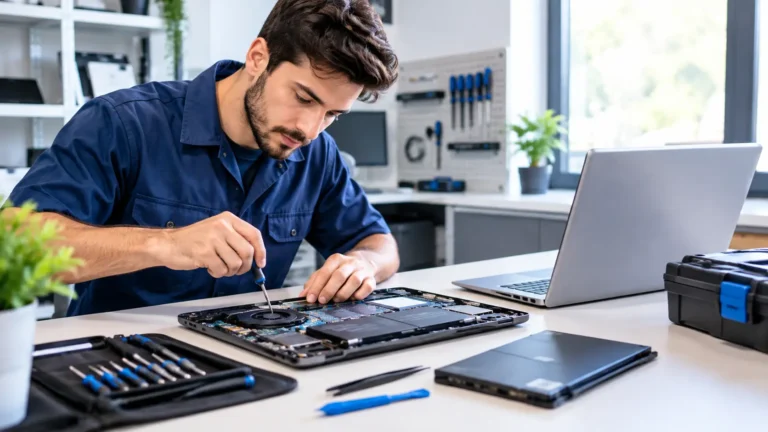
Test one component at a time where possible. If you are not comfortable opening the computer or testing hardware, a qualified technician can perform these checks more safely. For professional computer troubleshooting, see our guide on computer repair technician near me.
What If the PC Shuts Down After a Few Minutes?
A PC that shuts down after a few minutes may have a heat or power problem.
Check the CPU temperature from a cold start and watch how quickly it rises. Also make sure the CPU fan is working correctly and that the cooler is properly installed.
If the computer turns off after a similar amount of time every time, overheating deserves close attention.
However, timing alone does not prove that heat is the cause. A failing PSU, motherboard, charger, battery, or another hardware component can produce similar symptoms.
What If the PC Shuts Down Even When It Is Not Overheating?
If temperatures remain normal, move to power, RAM, drivers, BIOS settings, and hardware checks.
Start with the simplest checks:
- Check the power cable and outlet.
- Check the PSU or laptop charger.
- Reseat RAM if you’re comfortable doing so.
- Restore BIOS settings to default.
- Check Event Viewer.
- Update Windows and important drivers.
- Test for memory errors.
- Have the hardware tested if the problem continues.
Normal CPU temperature does not rule out a power or hardware problem.
What If the PC Shuts Down Only While Gaming?
A shutdown that happens only while gaming usually deserves a closer look at components that experience higher load.
Check CPU and GPU temperatures first. Then check the PSU, GPU power cables, drivers, RAM, and any overclocking settings.
If the computer switches off instantly during demanding games but works normally for browsing and office tasks, the higher load may be exposing an unstable power or hardware condition.
Current Microsoft troubleshooting guidance also recommends checking power, memory, overheating, and overclocking when unexpected restarts occur under load.
How to Find Out What Caused an Unexpected Shutdown
There is no single Windows message that always tells you exactly why a PC shut down.
Use this simple process:
- Note exactly what you were doing when the shutdown happened.
- Check CPU and GPU temperatures.
- Open Event Viewer after restarting.
- Go to Windows Logs > System.
- Find the events at the shutdown time.
- Check for Kernel Power Event ID 41.
- Look for other errors immediately before it.
- Check whether the problem occurs under heavy load.
- Test power, RAM, cooling, and hardware.
- Return overclocked components to default settings.
Event ID 41 is useful evidence, but Microsoft states that it may not contain enough information by itself to determine the exact cause. The events around it and the behavior of the computer are also important.
When Should You Stop Troubleshooting and Get Professional Help?
Get professional help if the PC repeatedly shuts down after you have checked temperature, power connections, Windows, RAM, and basic settings.
You should also stop and seek help if:
You smell burning from the computer.
You see smoke or physical damage.
The PSU makes unusual electrical noises.
The motherboard shows visible damage.
The computer shuts down immediately after turning on.
The system cannot stay powered on long enough to test it.
You are uncomfortable working inside the PC.
The problem continues after replacing or testing obvious causes.
Do not repeatedly power on hardware that shows signs of electrical damage. A technician can test the PSU, motherboard, RAM, CPU cooling, GPU, and other components with proper equipment.
A sudden shutdown is often a symptom rather than the actual fault. The safest approach is to identify whether the problem is related to heat, power, software, or hardware instead of replacing parts at random.
FAQS:
1. Can a Bad Power Button Cause a Computer to Shut Down?
Yes, a faulty or stuck power button can cause a computer to shut down unexpectedly. Check the button for damage and make sure it is not stuck or being pressed accidentally.
2. Does a Weak Laptop Battery Cause Unexpected Shutdowns?
Yes, a weak or failing laptop battery can cause unexpected shutdowns, especially when the charger is unplugged. If the laptop turns off suddenly, check the battery health and charger connection.
3. Should I Back Up My Files Before Troubleshooting Repeated Shutdowns?
Yes, you should back up your important files before troubleshooting repeated shutdowns. This protects your photos, documents, and other data if the problem gets worse or the drive fails.
4. How Can I Tell If a Sudden Shutdown Is Caused by Power Loss?
A sudden shutdown may be caused by power loss if the screen goes black and the computer turns off without warning. Check the power cable, outlet, PSU, or charger for loose connections or faults.
5. What Should I Check First When My Computer Turns Off Without Warning?
First, check the CPU temperature, power cable, and charger or PSU for any problems. Then check for dust, loose RAM, and recent Windows or driver changes.
Conclusion
If your CPU shuts down automatically, start by checking overheating, power connections, dust, RAM, and recent system changes. Then check Windows, drivers, and Event Viewer for more clues. If the shutdowns continue or you notice burning, damage, or power problems, stop troubleshooting and get professional help.
Written By