How to Fix WiFi Not Working on a Computer?9 Easy Fixes 2026
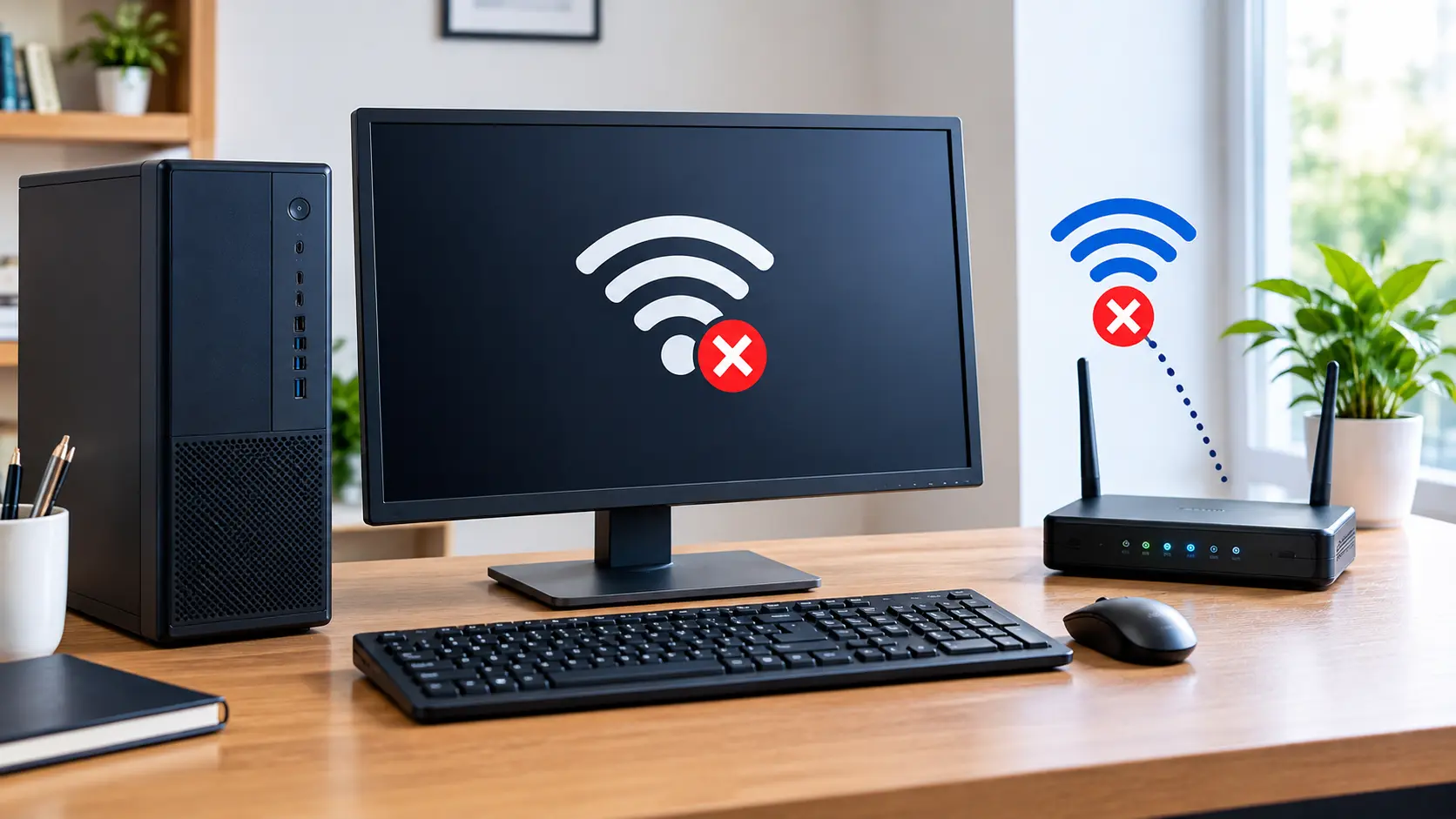
To fix WiFi not working on a computer, first check WiFi and Airplane Mode, then restart your computer and router. Forget and reconnect to the network, update the WiFi driver, and reset network settings in Windows if the problem continues.
If WiFi is not working on your computer, do not assume that your router is broken. The problem can come from a disabled WiFi setting, a saved network profile, a driver, Windows network settings, or the WiFi adapter itself.
In this guide, you will find steps to find the cause and restore your computer’s WiFi connection safely and easily.
How to Fix WiFi Not Working on a Computer: Quick Checks First
Before changing advanced settings, try these simple checks. They can solve many common WiFi problems within a few minutes.
Check if WiFi Is Turned On
Click the network icon near the clock and make sure WiFi is turned on. Select your home network and check whether Windows shows it as connected.
If WiFi cannot be turned on, the problem may involve the WiFi adapter, driver, or Windows service.
Turn Off Airplane Mode
Airplane Mode can disable wireless connections. Open Windows Settings, select Network and Internet, then check Airplane Mode.
Make sure it is turned off. Then turn WiFi off and back on, and check whether your network appears.
Restart Your Computer and Router
Restart your computer first. If that does not help, restart the modem and router.
Unplug the router from power, wait about 30 seconds, plug it back in, and give it a few minutes to reconnect. Microsoft also recommends restarting network equipment when basic connection problems continue.
Check Whether Other Devices Have Internet
Connect your phone or another computer to the same WiFi network.
If other devices work normally, the problem is probably on your computer. If every device is offline, your router or internet service may be the real cause.
If only your computer has the problem, focus on Windows and the WiFi adapter before changing the router settings.
Test Your Computer With Ethernet
If you have an Ethernet cable, connect your computer directly to the router.
If Ethernet works but WiFi does not, your internet connection is probably fine. The problem is more likely related to the computer’s WiFi adapter, driver, or wireless settings.
This test can quickly tell you whether the problem is with your internet connection or only the computer’s WiFi.
Why Is WiFi Not Working on a Computer?
WiFi can stop working for several reasons. The exact symptom usually gives you a useful clue about where to look.
If your computer has other performance problems as well, you can also learn why your computer is so slow all of a sudden and check for common Windows issues.
WiFi Option Is Missing From Windows
If the WiFi button has disappeared from Windows, check Device Manager for the wireless adapter. A disabled adapter, missing driver, or stopped WLAN AutoConfig service can cause this problem.
Some laptops also have a physical wireless switch or keyboard key that can disable WiFi.
Computer Cannot Detect Any WiFi Networks
If your computer cannot find any nearby networks, check whether WiFi is enabled and whether the adapter appears in Device Manager.
A driver problem, disabled adapter, unsupported frequency, or hardware issue can stop Windows from finding available networks.
Computer Will Not Connect to WiFi but Phone Will
If your phone connects to the same network but your computer does not, focus on the computer first.
The saved WiFi profile, network adapter, driver, IP settings, or Windows network configuration may be causing the problem.
If your phone connects normally but the computer does not, test another WiFi network on the computer if possible. This can help you tell whether the problem is with your home router or the computer.
WiFi Is Connected, but There Is No Internet
Windows can show that your computer is connected to WiFi while websites still fail to load.
This means your computer may be connected to the router but not reaching the internet. Checking the IP address, DNS settings, proxy settings, and network commands can help identify the problem.
WiFi Stopped Working Suddenly
A sudden failure can happen after a Windows update, driver change, router problem, or network setting change.
Start with the simple checks instead of immediately changing advanced settings. This helps you avoid making the problem harder to diagnose.
How to Fix WiFi Not Working on a Computer
If the quick checks did not solve the problem, work through these fixes in order.
Forget the WiFi Network and Connect Again
A saved WiFi profile can sometimes cause connection problems.
Open Settings, select Network and Internet, then WiFi and Manage known networks. Select your network and choose Forget.
After that, select the network again, enter the password, and reconnect. After that, select the network again, enter the password, and reconnect.
Run the Windows Network Troubleshooter
Windows includes tools that can check common network problems.
On Windows 11, Microsoft recommends starting with the automated Network and Internet troubleshooter in the Get Help app. It can check the connection and attempt common repairs.
Follow the instructions shown by Windows and test your WiFi again when the check finishes.
Check and Enable the WiFi Adapter
Your wireless adapter may be disabled.
Open Device Manager, expand Network adapters, find the wireless adapter, and check its status. If it is disabled, right-click it and choose Enable device.
If the adapter is missing completely, Windows may not be detecting it correctly.
Update or Reinstall the WiFi Driver
A damaged or outdated driver can prevent WiFi from working correctly.
First, check Windows Update for available driver updates. You can also use Device Manager to update or reinstall the adapter driver. Microsoft notes that Windows Update can provide driver updates for network adapters.
If the computer has no internet connection, download the correct driver from the computer manufacturer’s website using another device and transfer it with a USB drive.
Restart the WLAN AutoConfig Service
WLAN AutoConfig helps Windows manage wireless connections.
Press the Windows key and R, type services.msc, and press Enter. Find WLAN AutoConfig, right-click it, and choose Restart.
Then check whether the WiFi option and available networks have returned.
Reset IP and DNS Settings
If WiFi connects but websites do not open, your IP or DNS settings may be causing the problem.
Open Command Prompt as administrator and run these commands one at a time:
- ipconfig /release
- ipconfig /renew
- ipconfig /flushdns
These commands release and renew the IP address and clear the DNS cache. Microsoft also recommends these commands as part of Windows network troubleshooting.
Check Your DNS Settings
DNS changes website names into IP addresses. If DNS is not working correctly, you may have a WiFi connection but still be unable to open websites.
Check your network’s IP and DNS settings. For most home networks, automatic IP and DNS settings are the simplest choice unless you have a specific reason to use manual settings.
If your computer is also running slowly, check these ways to speed up a slow computer in Windows 11.
Microsoft recommends DHCP for automatic IP assignment on supported networks.
Restart Your Router and Modem
If the problem affects more than one device, restart your network equipment.
Disconnect the modem and router from power, wait about 30 seconds, reconnect them, and wait for the connection lights to return to normal.
Then reconnect your computer and test the internet.
Use Windows Network Reset
Network Reset should be one of your final software fixes.
On Windows 11, open Settings, select Network and Internet, Advanced network settings, Network reset, and then Reset now.
Network Reset removes installed network adapters and their settings. Windows reinstalls the adapters after restarting and returns their settings to default. You may need to set up VPN or other network software again afterward.
How to Fix WiFi Not Showing on Windows 11

A missing WiFi option needs a slightly different approach because Windows may not be detecting or managing the wireless adapter correctly.
Check the WiFi Adapter in Device Manager
Open Device Manager and expand Network adapters.
Look for an adapter with names such as Wireless, WiFi, WLAN, Intel, Realtek, or MediaTek. If it is disabled, enable it and restart the computer.
Take a quick look at the adapter status before changing other Windows settings. This can save time when the real problem is a driver or disabled adapter.
Look for a Driver Error or Missing Adapter
A warning symbol beside the adapter can point to a driver problem.
If the wireless adapter is not listed at all, Windows may not be detecting it. Check for hidden devices and install the correct driver from your computer manufacturer’s support page.
Check WiFi Settings After a Windows Update
If WiFi disappeared immediately after an update, restart the computer and check Windows Update again.
You may also need to reinstall the network adapter driver. Microsoft specifically recommends considering driver reinstallation when a network connection stops working properly after a recent update.
What to Do When WiFi Is Connected but No Internet Works
This problem is different from having no WiFi at all. Your computer may be connected to the router while internet access is still unavailable.
Check Your IP Address
Open Command Prompt and type ipconfig.
If the computer has an address beginning with 169.254, Windows may not have received a proper IP address from the router. DHCP may need attention.
Flush the DNS Cache
Open Command Prompt as administrator and run:
ipconfig /flushdns
Then close the window and test a few websites again.
Reset Winsock and TCP IP
If the connection is still not working, open Command Prompt as administrator and run:
- netsh winsock reset
- netsh int ip reset
Restart your computer afterward. These commands reset important parts of the Windows network stack.
Check VPN and Proxy Settings
A VPN or manual proxy can sometimes interfere with internet access.
Temporarily disconnect your VPN and check Windows proxy settings. If the internet works after disabling one of them, check that software’s settings before turning it back on.
When Should You Reset the Network on Your Computer?
Network Reset can help when normal troubleshooting has failed, but it should not be your first choice.
What Network Reset Removes
Network Reset removes installed network adapters and their settings. Windows then reinstalls the adapters after the computer restarts.
It can also affect VPN software and other virtual networking tools, so make sure you understand this before using it.
How to Use Network Reset in Windows 11
Go to Settings, Network and Internet, Advanced network settings, and Network reset.
Select Reset now and confirm the action. Windows will restart the computer.
After the restart, reconnect to your WiFi network and test the connection.
Why Does WiFi Work on My Phone but Not My Computer?
When your phone works on the same WiFi network, your internet service is probably available. The computer needs closer attention.
Your Computer Has a WiFi Adapter Problem
The wireless adapter may be disabled, poorly connected, damaged, or not detected by Windows.
If your laptop is also getting unusually hot, check these ways to improve laptop airflow to help keep the system cooler.
Check Device Manager before assuming the hardware has failed.
If your computer has a separate power problem, see How to Fix a Computer That Won’t Turn On for safe troubleshooting steps.
Your WiFi Driver May Be Broken
A driver can become damaged or incompatible after a system change.
Updating or reinstalling the correct driver can restore communication between Windows and the wireless adapter.
Your Computer May Have a Bad Network Profile
A saved network profile can contain settings that no longer work correctly.
Forgetting the network and connecting again creates a fresh connection profile.
The Router May Have a Problem With One Device
Sometimes a router can have trouble with one device while other devices continue working.
Restarting the router, reconnecting the computer, and testing another WiFi frequency can help identify this situation. Microsoft notes that trying another available frequency can help when the adapter and router are using different supported bands.
If your router has both 2.4 GHz and 5 GHz WiFi, try the other network to see whether your computer connects.
When to Get Professional Computer Repair Help
If basic Windows troubleshooting does not restore WiFi, the problem may be physical rather than software-related.
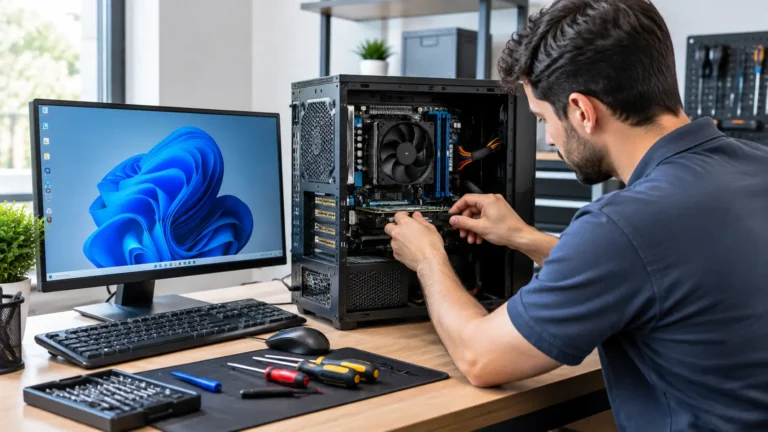
If you are not comfortable checking computer hardware yourself, a Computer Repair Technician Near Me can help diagnose the problem.
Signs of a Failed WiFi Adapter
Consider professional help if the adapter disappears from Device Manager, the correct driver cannot detect it, or WiFi fails even after a clean driver installation and network reset.
For desktop computers, an internal wireless card or external WiFi adapter may need replacement.
When Ethernet Works but WiFi Does Not
If Ethernet gives you a stable internet connection but WiFi still cannot find or connect to networks, your internet service is probably not the main problem.
The wireless adapter, driver, router settings, or WiFi hardware should be checked next.
When Windows Cannot Detect the WiFi Adapter
If the adapter does not appear in Device Manager even after checking hidden devices and installing the correct driver, hardware or firmware may be involved.
If your computer is also having startup or display problems, see Computer Turns On, but Nothing Happens for additional troubleshooting steps.
At this point, avoid repeatedly changing random Windows settings. A qualified technician can check the adapter, BIOS settings, and internal hardware safely.
Final Verdict
Most WiFi problems on a computer can be solved without replacing hardware. Start with WiFi settings, Airplane Mode, a restart, and a fresh connection to your network.
If those steps fail, check the adapter, driver, WLAN AutoConfig service, IP and DNS settings, and Windows network configuration. Use Network Reset only after the simpler fixes fail.
The key is to identify whether the problem is with your computer, WiFi router, or internet service before making major changes. This approach saves time and reduces the chance of creating another problem while trying to fix the first one.
FAQS:
1. Can a Windows Update Cause WiFi Problems on a Computer?
Yes, a Windows update can sometimes cause WiFi problems by changing network settings or affecting the WiFi driver.
Updating or reinstalling the correct driver can often restore the WiFi connection.
2. Does Restarting the Computer Fix Temporary WiFi Problems?
Yes, restarting the computer can fix temporary WiFi problems caused by small system or network errors.
A quick restart can refresh the network connection and help your computer connect to WiFi again.
3. Should I Replace the WiFi Adapter if Windows Cannot Find It?
You do not need to replace the WiFi adapter right away if Windows cannot find it.
First, check the driver and adapter settings, then replace the adapter only if it has a hardware problem.
4. How Can I Fix WiFi Problems Without Losing My Saved Settings?
Start with simple checks like restarting your computer and checking WiFi settings. Avoid a network reset at first because it can remove saved network settings and require you to reconnect to WiFi.
5. What Should I Check Before Changing Advanced WiFi Settings?
First, check your WiFi, router, and network connection for simple problems. Try basic fixes before changing advanced settings.
Conclusion
If WiFi is not working on your computer, start with simple checks like WiFi settings, restarting your devices, and reconnecting to your network. If the problem continues, check the WiFi adapter, driver, and Windows settings. These steps can help restore your connection safely.
Written By