How to Fix a Computer With No Sound: 11 Easy Fixes
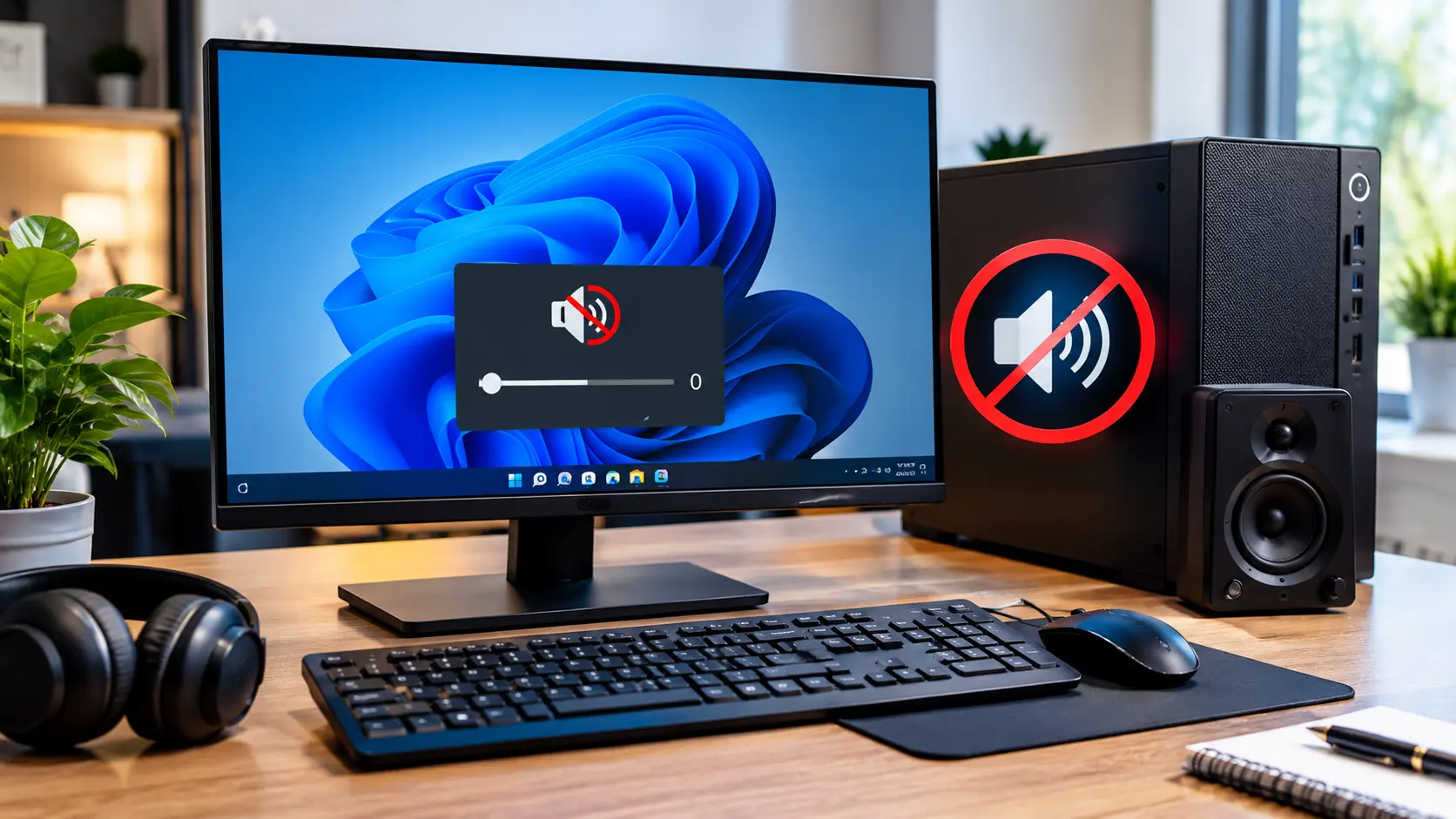
To fix a computer with no sound, check the volume, mute settings, and selected audio device first. Then check speakers or headphones, run Windows audio troubleshooting, restart audio services, and update the sound driver. These steps fix most common sound problems quickly.
In this guide, you’ll learn how to fix a Computer With No Sound using simple steps you can try at home. We’ll start with the easiest checks and then move to common Windows sound settings and driver fixes, so you can find the cause and get your computer audio working again.
Why Does My Computer Have No Sound?
If your computer has no sound, the problem is usually related to the volume, audio output device, speakers, headphones, audio driver, or Windows sound settings. In some cases, Windows may also stop detecting the audio device.
Start with the simple checks before changing drivers or other system settings. Make sure the volume is not muted, check which device Windows is using for sound, and disconnect any headphones or Bluetooth devices you are not using.
A computer can also lose sound after a Windows update or driver problem. Microsoft notes that missing, outdated, disabled, or incorrectly loaded audio drivers can prevent Windows from detecting an audio device.
Microsoft explains more about missing or undetected audio devices in its official [audio output device guide].
If sound works in some apps but not others, the Volume Mixer may be the cause because Windows can control each app’s volume and output device separately.
How to Fix a Computer With No Sound
Try these fixes in order. Start with the easiest checks and move to driver and Windows settings only if the earlier steps do not restore sound.
1. Check the Volume and Volume Mixer
First, check the speaker icon on the Windows taskbar. Make sure your computer is not muted and raise the volume to a comfortable level.
Then check the Volume Mixer because an individual app may be muted even when the main computer volume is working.
- Open Settings.
- Select System.
- Select Sound.
- Open Volume Mixer.
- Check the volume for the app that has no sound.
- Make sure the app is not muted.
This is especially useful when YouTube, a game, or another program has no sound while Windows system sounds still work. Microsoft confirms that app volume and app-specific output settings can affect sound.
You can also follow Microsoft’s [official guide for app audio problems].
2. Select the Correct Audio Output Device
Windows may be sending sound to a different device. For example, your computer may be using a monitor, HDMI device, Bluetooth speaker, or headphones instead of the built-in speakers.
To check it:
- Open Settings.
- Go to System > Sound.
- Look under Output.
- Select the speakers or headphones you want to use.
- Play a video or music file to test the sound.
If several devices are available, choose the one you actually want to hear sound from. Microsoft lists the wrong output device as a common reason for having no sound.
See Microsoft’s [official sound output guide] for more steps.
3. Check Your Speakers and Audio Connections
If you use external speakers, check their power and connections. A loose cable can make it appear that Windows has a sound problem when the real issue is the speaker connection.
Check these points:
- Make sure the speakers are turned on.
- Check the speaker power cable.
- Check the audio cable.
- Try another audio port if your computer has one.
- Make sure the speaker volume is turned up.
- Test the speakers with another device if possible.
For a laptop, make sure nothing is blocking or covering the built-in speakers. If another speaker works normally on the same computer, the original speaker or connection may need attention.
4. Check Your Headphones
If you are using wired headphones, remove them and connect them again. Make sure the plug is fully inserted.
If Windows switches to headphones when they are connected, sound may stop coming from the computer speakers. Check the selected output device after connecting the headphones.
For Bluetooth headphones, check that they are connected and selected as the output device. Windows can show a Bluetooth device as connected while sound is still being sent somewhere else.
If possible, test another pair of headphones. This helps you find out whether the problem is with the computer or the headphones.
5. Run the Windows Audio Troubleshooter
Windows includes an audio troubleshooter that can check common sound problems.
On Windows 11, you can use the Get Help app and search for the audio troubleshooter. Microsoft says this tool can run diagnostic checks and guide you through available fixes.
You can also check:
Settings > System > Sound
Look for the available troubleshooting options and follow the instructions shown by Windows.
Microsoft also explains how to use the [Windows Audio troubleshooter in Get Help].
This is a good step when the basic volume and output checks do not solve the problem.
6. Restart the Windows Audio Services
Windows uses audio services to handle sound. If one of these services stops working correctly, your computer may have no sound.
To restart them:
- Press Windows + R.
- Type services.msc.
- Press Enter.
- Find Windows Audio.
- Right-click it and select Restart.
- Find Windows Audio Endpoint Builder.
- Restart that service as well.
- Test your sound again.
Microsoft recommends restarting these services for some Windows audio problems.
You can see the official steps in Microsoft’s [guide for audio problems after Windows updates].
7. Update or Reinstall the Audio Driver
A damaged, outdated, or incompatible audio driver can stop sound from working.
Start by checking Windows Update because Microsoft recommends it as a way to receive available driver updates.
You can also check the driver through Device Manager:
- Open Device Manager.
- Expand Sound, video and game controllers.
- Right-click your audio device.
- Select Update driver.
- Follow the instructions.
- Restart the computer.
If updating does not help, reinstalling the driver may fix a damaged installation. Windows can reinstall the driver after you restart the computer.
Microsoft provides detailed steps in its [official audio driver update guide].
8. Turn Off Audio Enhancements
Audio enhancements can sometimes cause sound problems on Windows. If your computer has no sound, try turning them off and test the audio again.
Open Settings.
Select System.
Select Sound.
Select your audio output device.
Find Audio enhancements.
Set it to Off.
Play a video or music file to test the sound.
If turning off Audio enhancements does not fix the problem, turn them back on and continue with the next fix.
9. Check the Audio Device in Device Manager
If Windows does not show your speakers or other audio device, check Device Manager.
Open Device Manager and expand Sound, video and game controllers. Look for your audio device.
If the device is disabled, Windows may provide an Enable device option. If the device does not appear, Microsoft recommends checking hidden devices and scanning for hardware changes.
If there is a warning symbol beside the audio device, the driver or device may need further attention.
10. Fix Bluetooth Headphones or Speakers With No Sound
If your Bluetooth headphones or speaker connect but produce no sound, first make sure Windows has selected them as the output device.
Go to:
Settings > System > Sound
Then select the Bluetooth device under Output.
Also check its volume and make sure another device is not selected.
If the problem continues, disconnect the Bluetooth device and connect it again. You can also restart the computer and run the available Bluetooth troubleshooter in the Get Help app.
Microsoft notes that incorrect settings, driver problems, and compatibility issues can cause Bluetooth devices to connect without producing sound.
For more Bluetooth sound steps, see Microsoft’s [official Bluetooth no sound guide].
11. Restart Your Computer and Check for Windows Updates
A simple restart can fix temporary Windows audio problems. Restart your computer and test the sound before making more changes.
If the problem started after a Windows update, check for another available update:
- Open Settings.
- Select Windows Update.
- Select Check for updates.
- Install available updates.
- Restart your computer.
Microsoft also notes that audio problems after an update can be linked to incompatible or incorrectly installed audio drivers. If the problem began immediately after an update, the Roll Back Driver option may be available in Device Manager when an earlier driver exists.
For more Windows audio help, see Microsoft’s official [Windows audio troubleshooting guide].
September 2026 USB Audio Note: If your USB audio device stopped working after a recent Windows update, check Windows Update for the latest available update. Some USB audio devices may have sound problems after certain September 2026 updates. If the problem started right after an update, check Microsoft’s latest Windows update information before changing drivers.
How to Fix No Sound on Windows 11
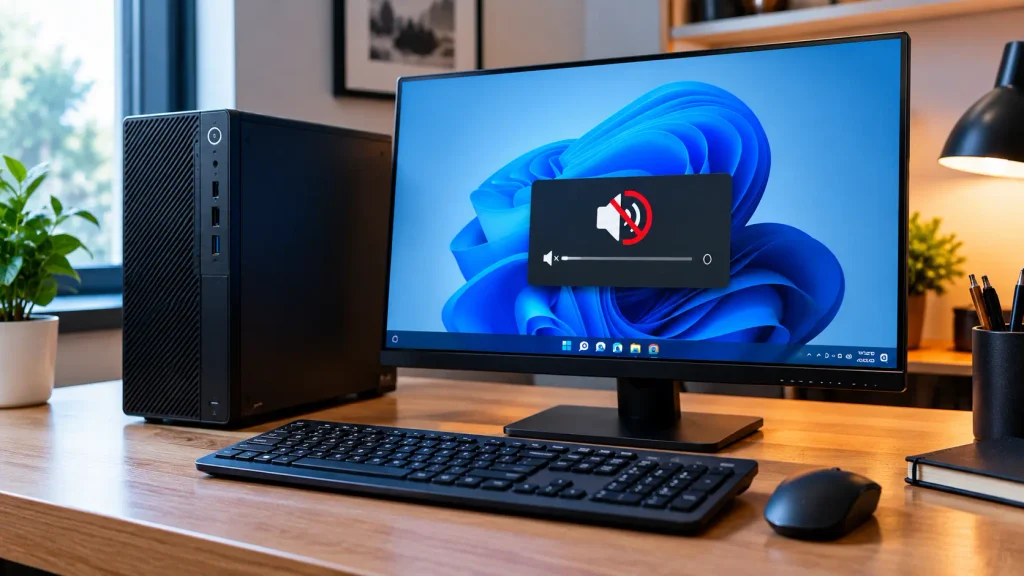
Windows 11 has several sound settings that can help you find the cause quickly. Check these before making major system changes.
Check the Default Output Device
Open Settings > System > Sound and check the device listed under Output.
Choose the speakers, headphones, monitor, or other device you actually want to use.
If several devices are listed, selecting the wrong one can make the computer appear to have no sound. You can also open the additional sound settings and set the correct playback device as the default.
Check the Volume Mixer
Open Settings > System > Sound > Volume mixer.
Check the main volume and the volume for the individual app. If only one app has no sound, make sure that app is not muted and that it is using the correct output device.
Check for a Missing Audio Device
If Windows does not show an audio output device, open Device Manager and check Sound, video and game controllers.
A missing device can be caused by a driver that is missing, outdated, disabled, or not loading correctly. Microsoft recommends checking Device Manager, scanning for hardware changes, and installing the correct driver from the computer manufacturer when needed.
What If Headphones Work but Computer Speakers Have No Sound?
If headphones work but the built-in speakers do not, Windows may be using the wrong output device, or the speaker hardware may have a problem.
First, disconnect the headphones and open Settings > System > Sound. Select the built-in speakers under Output and test the sound.
If the speakers are selected but still produce no sound, check the volume, run the audio troubleshooter, and update the audio driver.
If external headphones continue to work while the built-in speakers never produce sound, even after these software checks, the speakers or their internal connection may need to be inspected.
What If Your Computer Still Has No Sound?
If none of the fixes work, check whether Windows can detect the audio device at all. A missing audio device can point to a driver or hardware problem.
Try these final checks:
- Restart the computer.
- Check Windows Update.
- Check Device Manager.
- Reinstall the audio driver.
- Test another speaker or headphones.
- Check the manufacturer’s driver for your exact computer model.
- Test the computer with another audio output.
Do not download random audio drivers from unknown websites. Use Windows Update or the official support website for your computer or audio hardware when possible. Microsoft also recommends getting manufacturer-supplied drivers when a generic driver does not solve the issue.
If your computer has other startup problems along with no sound, see our guide on Computer Turns On, but Nothing Happens.
When Should You Get Professional Help for a Sound Problem?
You may need professional help when the problem continues after the normal software checks.
Consider getting the computer checked if:
- The audio device is completely missing from Device Manager.
- Built-in speakers never work, but other audio devices do.
- The computer has suffered liquid or physical damage.
- The audio port is damaged or loose.
- The problem remains after reinstalling the correct driver.
- Windows repeatedly loses the audio device.
- You hear unusual electrical noise, crackling, or other signs of hardware trouble.
A technician can check the speakers, audio port, motherboard connection, and other hardware. If the problem started after physical damage, avoid opening the computer unless you know how to work safely with its hardware.
The good news is that many computer sound problems come from simple settings, output selection, drivers, or temporary Windows issues.
If the problem continues after these steps, you can learn how to find a Computer Repair Technician Near Me for professional help.
FAQS:
1. Can a Monitor Cause a Computer to Have No Sound?
Yes, a monitor can cause a computer to have no sound if Windows sends audio to the monitor instead of your speakers.
Check Settings > System > Sound and select your computer speakers or headphones as the output device.
2. Does Restarting Windows Fix Temporary Sound Problems?
Yes, restarting Windows can fix temporary sound problems caused by a small system or audio error.
Restart your computer and check the sound again before trying other fixes.
3. Should You Replace Your Speakers If Windows Detects No Audio Problem?
No, you should not replace your speakers right away if Windows detects no audio problem.
First, check the sound settings, connections, and audio driver to find the real cause.
4. What Should You Check When Your Computer Has Sound but You Cannot Hear It?
Check the volume, mute settings, and the correct audio output device first.
Then check your speakers or headphones and make sure they are connected properly.
5. How Can You Test Whether a Computer Speaker Is Working Properly?
Play a sound and check if you can hear it clearly from the computer speakers.
You can also test the speakers with another device to see if they work properly.
Conclusion
If your computer has no sound, start with the volume, output device, speakers, and headphones. Then check Windows sound settings, audio services, and the audio driver. These simple steps can fix most sound problems. If your computer still has no sound, check for hardware problems or get help from a qualified technician.
Written By