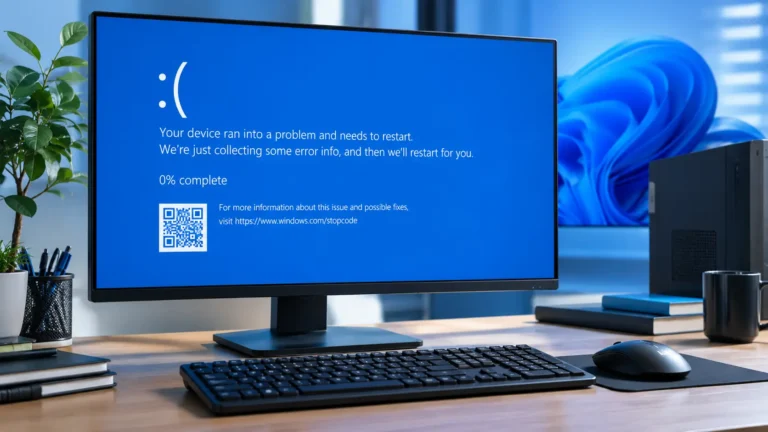
Computer Turns On, but Nothing Happens: 10 Safe Ways to Fix It
Computer Turns On, but Nothing Happens. If your computer turns on but nothing happens, first check the monitor, cable, keyboard, and USB devices. Then reseat the RAM and graphics card, and check the BIOS for errors. If there is still no display, contact a qualified technician for help.
This problem can come from something simple, such as a bad display cable or USB device. It can also be caused by RAM, a graphics card, BIOS settings, or another hardware problem. The good news is that you can safely check several things yourself before taking the computer to a repair shop.
In this guide, we’ll explain the common causes and show you what to do step by step.
Quick Answer:Why Does My Computer Turn On but Nothing Happens?
If your computer turns on but nothing happens, first check the monitor, display cable, keyboard, and mouse. Then disconnect USB devices and restart the computer. If there is still no response, RAM, the graphics card, BIOS, or another internal component may be causing the problem.
Start with the easiest checks before opening the computer. Make sure the monitor has power and is connected to the correct display port. Try another cable or monitor if one is available.
If the computer still shows no display or does not respond, turn it off and check the RAM and graphics card. Only work inside the computer when it is fully powered off and unplugged.
What Happens When a Computer Turns On but Nothing Happens?
This problem does not look the same on every computer. Some computers show power signs but never display anything. Others may show the manufacturer’s logo but fail to continue into Windows.
Knowing what your computer is doing can help you find the cause faster.
Power Light and Fans Are On
A power light or spinning fan tells you that the computer is receiving some power. However, it does not always mean that the computer has completed its startup check.
When a computer starts, it checks important hardware before loading Windows. If something goes wrong during this early check, the fans and lights may still work while the computer stays stuck.
Pay attention to:
- Power lights
- Fan movement
- Storage drive activity
- Beep sounds
- Motherboard debug lights
- Keyboard lights
These signs can give you useful clues about where the problem may be.
No Display, Keyboard, or Mouse Response
If the monitor remains black and the keyboard and mouse do not respond, the computer may not be completing its startup process.
A loose cable can cause a blank screen, but no keyboard or mouse response can point to a deeper hardware or startup problem.
Try pressing the Caps Lock key. If its light changes, the computer may still be running even though you cannot see anything on the screen. If nothing changes, the computer may be stuck before Windows starts.
Why Does My Computer Turn On but Nothing Happens?
There are several possible causes. The most common ones involve the display, RAM, graphics hardware, or startup settings.
Before replacing parts, check the simple causes first. A loose connection or incorrect monitor input can look like a serious computer failure.
Monitor or Cable Problem
The computer may actually be working while the monitor is not receiving a signal.
Check that the monitor is turned on and set to the correct input. For example, if your computer uses HDMI but the monitor is set to DisplayPort, the screen may show no signal.
Also check both ends of the display cable. If possible, try another cable or connect the computer to another monitor or TV.
RAM or Graphics Card Problem
RAM problems can stop a computer from completing its startup check. A loose RAM module may prevent the computer from showing anything on the screen.
A dedicated graphics card can cause a similar problem if it is loose, not receiving power, or has developed a fault.
If you are comfortable opening a desktop computer, you can check that these components are properly seated. Always shut down the computer, unplug it, and discharge static electricity before touching internal parts.
If this problem is happening on an HP laptop, our guide on whether you can change an HP laptop graphics card may also help you understand your upgrade options.
BIOS, Motherboard, or CPU Problem
If the computer cannot complete its early hardware check, the problem may involve the BIOS, motherboard, CPU, or power supply.
BIOS is the firmware that starts the basic hardware before Windows loads. Incorrect BIOS settings can sometimes prevent normal startup.
A motherboard fault or CPU problem is less common, but it can cause a computer to turn on without reaching the normal startup screen.
How to Fix a Computer That Turns On but Nothing Happens
Try these fixes in order. Start with external connections and simple checks before moving to internal hardware.
1. Check the Monitor and Display Cable
First, check the monitor.
- Make sure the monitor has power.
- Check that the display cable is firmly connected.
- Select the correct input on the monitor.
- Try another HDMI, DisplayPort, or other supported cable.
- If possible, test another monitor or TV.
If another screen works, the original monitor or cable may be the problem.
2. Check the Keyboard and Mouse
Disconnect the keyboard and mouse and connect them again. Try different USB ports if available.
If you have another keyboard, test it. You can also press Caps Lock or Num Lock and see whether the keyboard light changes.
You can also use Windows Recovery if Windows does not start normally.
This can help you determine whether the computer is completely frozen or only having a display problem.
3. Disconnect USB Devices and Restart
Remove unnecessary USB devices before restarting.
Disconnect:
- USB drives
- External hard drives
- Printers
- USB hubs
- Game controllers
- Other unnecessary accessories
A faulty USB device can sometimes interfere with startup. Leave only the keyboard, mouse, monitor, and required connections attached, then restart the computer.
4. Reseat the RAM
If you have a desktop computer and are comfortable working inside it, check the RAM.
Turn the computer off and unplug it first. Open the case and remove the RAM module carefully. Then place it back into the slot until the clips lock into position.
If your computer has more than one RAM module, testing one module at a time can help identify a faulty module.
Do not force the RAM into place. The notch on the module must match the slot.
If you are also wondering whether your laptop has enough memory for normal use, see our guide on whether 8 GB of RAM is good for a laptop.
5. Check the Graphics Card
If your desktop has a dedicated graphics card, make sure it is properly seated and its required power cables are connected.
Also check where the monitor cable is plugged in. If your computer has a dedicated graphics card, the monitor usually needs to connect to the graphics card’s ports rather than the motherboard’s video ports.
If the graphics card appears damaged or the problem started after installing one, it may need further testing.
6. Check BIOS or UEFI
BIOS or UEFI starts your computer before Windows loads. If you can reach the BIOS or UEFI screen, the display and basic hardware are working well enough to enter the firmware.
Restart the computer and use the manufacturer’s setup key, which may be Delete, F2, F10, or Esc, depending on the computer.
If the BIOS opens, check whether the main hardware is detected. Avoid changing settings unless you know what they do.
7. Reset BIOS Settings
Incorrect BIOS settings can sometimes stop normal startup.
If you can enter BIOS or UEFI, look for an option such as Load Setup Defaults, Load Optimized Defaults, or Restore Defaults.
Save the changes and restart.
If you cannot reach the BIOS, some desktop motherboards allow a CMOS reset. This process varies by motherboard, so check the manufacturer’s instructions before doing it.
8. Check for Beep Codes or Debug Lights
Some desktop computers provide error clues through beep codes or motherboard debug lights.
For example, a motherboard may show a light labeled CPU, DRAM, VGA, or BOOT. The exact meaning depends on the motherboard model.
Listen for repeated beep patterns and note which debug light stays on. Then check your computer or motherboard manual for the meaning.
If you are using a Dell desktop, its official guide can help you understand beep codes or debug lights and other no POST or no video problems.
These clues can make it much easier to identify a hardware problem.
9. Test With Minimum Hardware
If the computer still does nothing, you can test it with only the hardware needed to start.
For a desktop, this may mean using:
- Motherboard
- CPU and cooler
- One RAM module
- Power supply
- Graphics output
Remove unnecessary storage drives, USB devices, and expansion cards temporarily.
If the computer still does not start after testing the basic hardware, you may need professional help. If you are not comfortable testing internal components yourself, learn what to look for when choosing a computer repair technician near you.
Computer Turns On but No Display or No Signal
If the computer powers on but the monitor says No Signal, focus on the display path first. You can also follow Microsoft’s guide for troubleshooting a blank screen in Windows.
Check the monitor input and cable. Then test another cable, monitor, or display port if possible.
If you use a dedicated graphics card, make sure the display cable is connected to the correct port. If the computer has integrated graphics, testing the motherboard display output may also help, but only if your CPU supports integrated graphics.
If there is still no display after these checks, RAM or graphics hardware may need inspection.
Computer Turns On but Won’t Boot Into Windows 11
If you can see the manufacturer’s logo but Windows 11 does not load, the problem is different from having no display at all.
The computer has passed at least part of its initial hardware startup, but Windows may be failing to load.
You can try:
- Restarting the computer.
- Disconnecting unnecessary USB devices.
- Checking whether the SSD or hard drive appears in BIOS.
- Using Windows Recovery options if they appear.
- Running Startup Repair from Windows Recovery can help fix some problems that stop Windows from starting.
If the storage drive is not detected in BIOS, the issue may involve the drive or its connection rather than Windows itself.
If Windows starts but keeps freezing or showing errors, Safe Mode can help you find out whether a driver or other software is causing the problem.
If Windows does start but your computer remains very slow or freezes often, our guide on how to fix a slow computer in Windows 11 covers additional ways to improve performance.
When Should You Get Professional Help?
You should consider professional help if the basic checks do not solve the problem or you are not comfortable working inside the computer.
If you need help with testing or repairing the computer, see our guide on finding a computer repair technician near you.
Get help if:
- You smell burning or see smoke.
- The computer shuts down repeatedly.
- The motherboard shows a serious hardware error.
- RAM or graphics testing does not solve the issue.
- The computer was damaged by liquid.
- The computer was dropped or physically damaged.
- The power supply may be faulty.
- You cannot safely access or test the internal components.
Do not keep turning on a computer that shows signs of electrical damage. Continuing to power it can make a hardware problem worse.
For a simple cable, monitor, or loose connection problem, you may be able to fix it yourself. But motherboard, CPU, graphics card, and power supply faults often need proper testing.
The safest approach is to start with external checks, move to basic hardware checks, and stop when the problem requires tools or experience you do not have.
If you use an HP computer, you can also check HP Computer Support for official boot, black screen, beep code, and hardware troubleshooting information.
FAQS:
1. Can a Dead CMOS Battery Prevent a Computer From Starting Properly?
Yes, a dead CMOS battery can cause startup problems, especially if BIOS settings are lost or reset.
Replacing the battery can restore normal startup if it is the cause.
2. Does a Power Supply Problem Cause a Computer to Turn On Without Working?
Yes, a faulty power supply can make a computer turn on but fail to work properly.
If it cannot provide enough power, the computer may not start, show a display, or load Windows.
3. Should You Keep Restarting a Computer That Is Not Responding?
No, avoid restarting it again and again if the computer is not responding.
Try simple checks first, because repeated restarts may not fix the real problem.
4. What Should You Check First When Your Computer Suddenly Stops Responding?
Check the power light, monitor, display cable, keyboard, and mouse first to see if the computer is still running.
Then disconnect extra USB devices and restart the computer to check if a simple connection is causing the problem.
5. How Can You Tell If Your Computer Has a Hardware or Software Problem?
If the computer has no display or does not reach BIOS, the problem may be hardware-related.
If it reaches Windows but shows errors, freezes, or crashes, the problem may be software-related.
conclusion
If your computer turns on but nothing happens, start with the monitor, cables, keyboard, and USB devices. Then check the RAM, graphics card, and BIOS settings if needed. These simple steps can solve many startup problems. If the computer still shows no response or has signs of hardware damage, stop troubleshooting and get help from a qualified technician.
Written By