Windows 11 File Explorer Not Responding? How to Fix It (Step by Step)
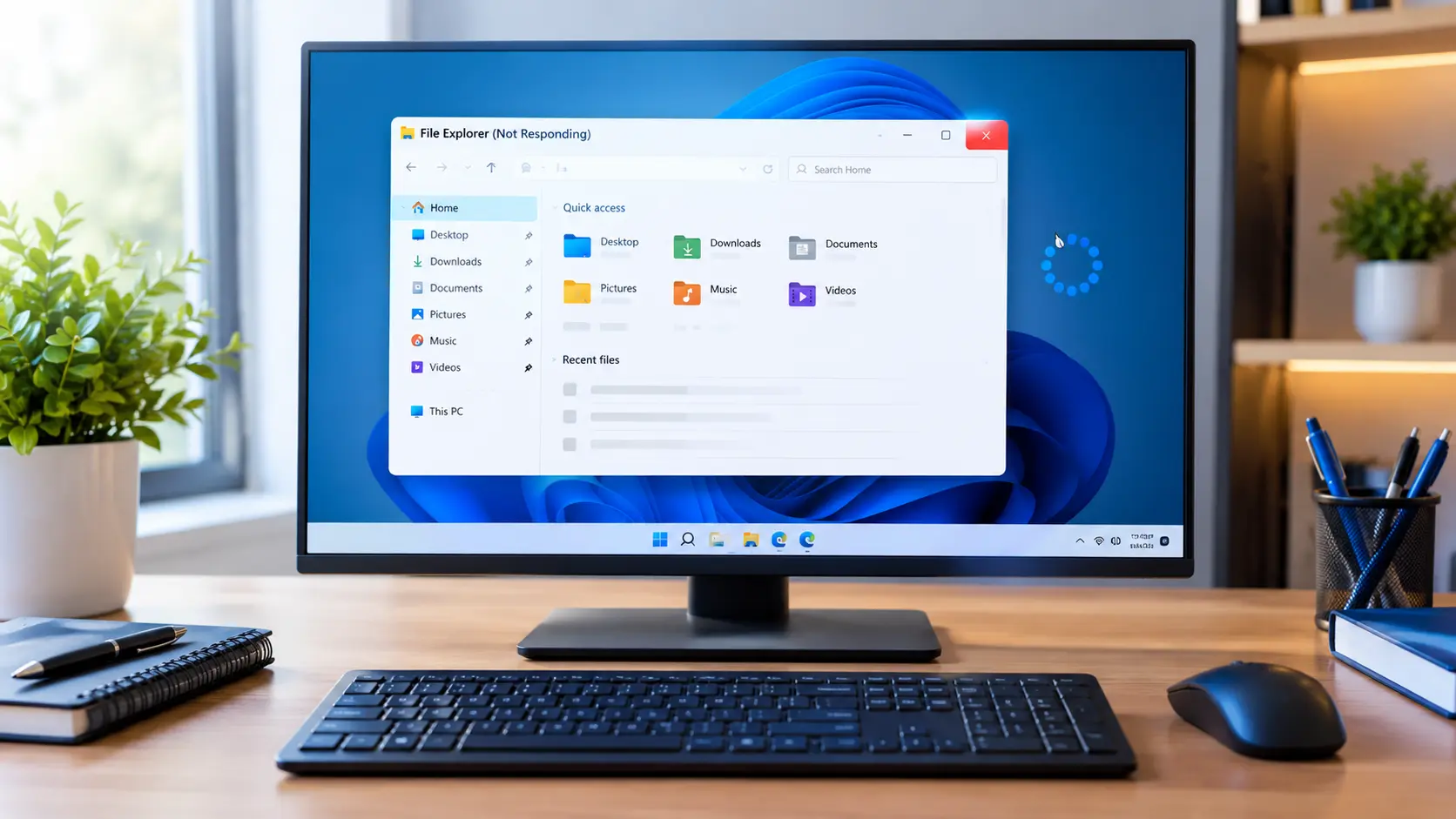
When File Explorer freezes in Windows 11, it can feel like the whole PC has stopped. The window may turn white, say “Not responding”, or stay on “Working on it” for a long time. In most cases the cause is small: the Explorer process is stuck, one folder or drive is slow, or an update is waiting.
This guide starts with quick, safe fixes and moves to bigger ones. Microsoft’s File Explorer pages are short and do not cover freezing in detail, so each fix below says where it comes from. Steps taken from Microsoft support pages were checked in October 2026. Steps marked as common technician steps are standard Windows actions that Microsoft’s pages do not list.
Quick answer: what to try first
- Restart Windows Explorer in Task Manager.
- Restart your PC and install Windows updates.
- Disconnect USB drives and network drives, then test again.
- Test one folder at a time to see if only one location is the problem.
Find your problem: quick diagnosis
| When does it freeze? | Try this first |
|---|---|
| Everything freezes, including the taskbar | Fix 1, then Fix 2 |
| Only one folder freezes | Fix 4 and Fix 5 |
| It freezes after you plug in a drive or use a network folder | Fix 4 |
| It freezes when you right-click | The right-click section below |
| It says “Working on it” for a long time | Fix 3, Fix 4 and Fix 5 |
| It started after an update | Fix 2, then Fix 9 |
How to fix File Explorer not responding in Windows 11
Test File Explorer after each fix, so you know which one worked.
Fix 1: Restart Windows Explorer in Task Manager
Microsoft lists this step on its page about troubleshooting blank screens, even though its File Explorer page does not.
- Press Ctrl + Shift + Esc to open Task Manager.
- On the Processes tab, find Windows Explorer.
- Select it and click Restart. The taskbar may flash for a moment.
- If Windows Explorer is not in the list, select Run new task, type
explorer.exe, and press Enter.
Fix 2: Restart your PC and install updates
Microsoft’s performance guide starts with updates, and a restart also finishes any update that is waiting.
- Open Start > Settings > Windows Update and select Check for updates.
- Go to Advanced options > Optional updates and install anything you see.
- Select Start > Power > Restart.
See Microsoft’s tips to improve PC performance.
Fix 3: Open File Explorer to This PC and clear its history
Quick access remembers recent files and folders. If one of those places is no longer available, Explorer may wait for it.
- In File Explorer, select See more > Options.
- Next to Open File Explorer to, choose This PC, then select Apply. This path is from Microsoft’s File Explorer guide.
- In the same window, under Privacy, select Clear next to File Explorer history. This is a common technician step, and Microsoft’s page does not list it. It does not delete your files.
- Select OK.
Microsoft recommends keeping Home as the starting page for faster search. You can switch back later if you like.
Fix 4: Disconnect drives and network folders
This is a common technician step.
- Unplug USB drives and external hard drives, then test File Explorer.
- Disconnect network drives you do not need.
- If Explorer becomes normal, plug the devices back in one at a time to find the one that causes the delay.
If an external drive keeps causing freezes, it may be slow or failing. Back up its files soon.
Fix 5: Test one folder at a time
Open Documents, Pictures, Downloads, and This PC one by one. If only one folder freezes, the problem is probably in that folder, not in Windows. Large folders with thousands of files, damaged files, or many photos and videos can load slowly.
If it freezes while you click files, hide the Preview pane. In File Explorer, select View > Show > Preview pane to turn it off, then test again. This is a common technician step.
Fix 6: Restart the Windows Search service
File Explorer uses Windows Search when you type in the search box. If it freezes while you search, read our guide on what to do when Windows 11 Search is not working. It includes Microsoft’s steps for restarting the search process and checking indexing.
Fix 7: Check your free storage space
Microsoft says a full drive can cause slower performance. Open Settings > System > Storage to see how much space is left, then use Cleanup recommendations to remove files you do not need. Our guide on how to fix a slow computer in Windows 11 has the full steps.
Fix 8: Scan for malware
Malware can make Windows slow and unstable.
- Select Start > Settings > Privacy & security > Windows Security, then Open Windows Security.
- Go to Virus & threat protection and run a Quick scan.
Microsoft advises running only one antivirus program at a time.
Fix 9: Repair damaged system files
Try this if File Explorer keeps freezing after the fixes above.
- Right-click Start and open Terminal (Admin).
- Type
sfc /scannowand press Enter. Microsoft says this scans protected system files and repairs problems when it can. See the sfc command guide. - If it cannot repair some files, run
DISM /Online /Cleanup-Image /RestoreHealth, then runsfc /scannowagain. See Microsoft’s page on repairing a Windows image. - Restart your PC.
Fix 10: Test with a new user account
Microsoft uses this test when it troubleshoots Windows Search, and it works for File Explorer problems too.
- Open Settings > Accounts > Other users and add a new account.
- Sign in to the new account and use File Explorer.
- If it works there, the problem is in your own profile or one of your apps. If it freezes there too, the problem is Windows-wide.
If the problem is Windows-wide, a technician may need to help. See when to call a computer technician.
Why File Explorer stops responding: the common causes
File Explorer shows your files, the taskbar and the desktop. When it hangs, the whole PC can feel stuck even though Windows is running.
A slow or missing drive
Explorer waits for drives to answer. A network folder that is offline, a disconnected USB drive, or a failing hard drive can make it freeze while it waits. Fix 4 removes these as a cause.
One folder with a problem
A folder with a huge number of files, or one file that Explorer cannot read for its preview, can freeze the window. Fix 5 helps find it.
A busy search index or low resources
When the search service is busy, or memory and disk are almost full, Explorer slows down. Fix 6 and Fix 7 deal with this.
Add-ons and shell extensions
Some apps add items to the right-click menu or the preview pane. A faulty one can freeze Explorer, which is why right-click freezes are a separate case below.
Damaged files or a profile problem
Corrupt system files, or a user profile that is damaged, can also cause hangs. Fix 9 and Fix 10 check these.
How to find what makes File Explorer freeze
This is a common technician step. It helps when the freeze comes and goes.
- Note when it freezes: on opening, on right-click, on a certain folder, or after a few minutes.
- Open Task Manager and check the CPU, Memory and Disk columns when it happens. A high number tells you what is busy.
- Right-click the taskbar, open Task Manager, and look for apps that were opened just before the freeze.
- Open Reliability Monitor from the Start menu. Look for a red X listed against Windows Explorer on that day.
- If it only freezes in one folder, move some files out and test again.
With a clear pattern, you can pick the right fix instead of all of them.
How to keep File Explorer fast
- Do not keep huge numbers of files in one folder. Split them into subfolders.
- Disconnect network drives you no longer use.
- In File Explorer, open View > Show and turn off the preview pane if it causes problems.
- Keep free space on your main drive, and restart the PC each week.
- Install Windows updates, because they include fixes for Explorer.
- Be careful with apps that add many right-click items. Remove ones you do not use.
What to do if Explorer keeps crashing
If the problem returns after the fixes, a few more checks can help.
Check for a third-party shell extension
A program that adds a right-click item or a preview may be the cause. Uninstall the most recent app you added, then test again. This is a common technician step.
Check the drive
Open Command Prompt as administrator and run chkdsk C: /scan. It checks the drive for errors without taking it offline. If it reports problems, back up your files first.
Back up and ask a technician
If nothing helps, back up your files and ask a technician. A drive that is slow to read, or damaged system files, may need hands-on repair.
If File Explorer freezes when you right-click
This is a common technician tip. Some apps add their own items to the right-click menu. If one of them has a problem, Explorer can freeze when the menu opens. Think about which app you installed just before the problem began, then remove it in Settings > Apps > Installed apps. Microsoft’s File Explorer page notes that some older menu items only appear under Show more options in Windows 11.
Frequently asked questions
Does clearing File Explorer history delete my files?
No. It only clears the list of recent locations that Explorer remembers.
Is it safe to restart Windows Explorer?
Yes. The taskbar and desktop reload for a moment, but your files are not affected. Save any open work first.
Why does File Explorer freeze only in one folder?
The folder may hold a very large number of files, a damaged file, or many photos and videos. Fix 5 helps you check this.
Why does File Explorer freeze when I plug in a USB drive?
The drive may be slow, damaged or unreadable. Try another port, and run a check on the drive. If it only happens with one drive, the drive is the cause.
Why does File Explorer open slowly every time?
A slow start often comes from network drives, a busy search service, or a huge Quick access list. Clear the history (Fix 3) and disconnect unused drives (Fix 4).
Sources
- File Explorer in Windows (Microsoft Support)
- Tips to improve PC performance in Windows (Microsoft Support)
- sfc command (Microsoft Learn)
- Repair a Windows image (Microsoft Learn)
- Fix problems in Windows Search (Microsoft Learn)
Last updated: October 13, 2026