Windows 11 Bluetooth Not Working? 11 Easy Fixes
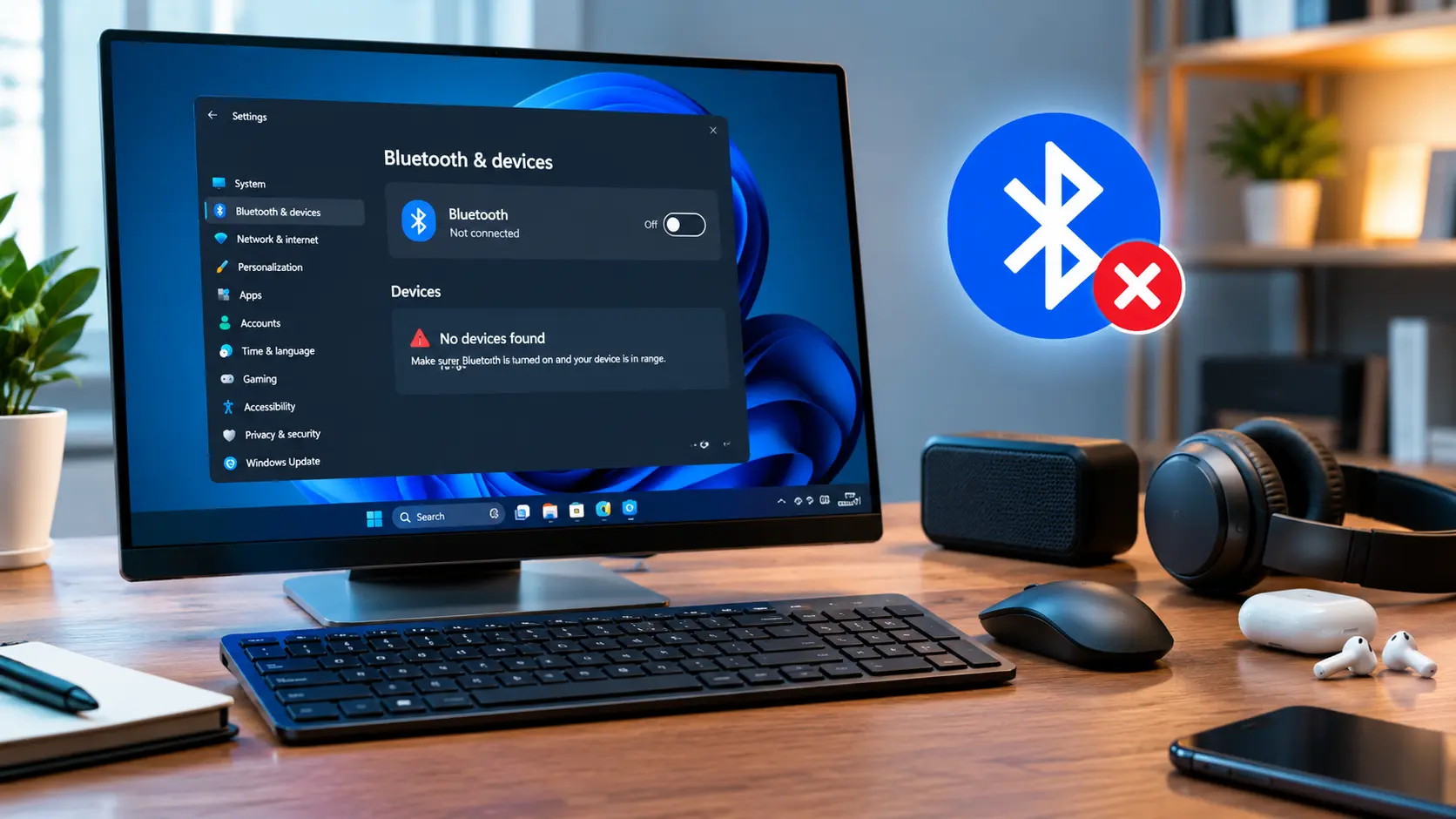
Windows 11 Bluetooth Not Working? Run the Bluetooth troubleshooter in Get Help first. Then check Bluetooth, Airplane mode, and your device. If that fails, restart the Bluetooth Support Service, update or reinstall the driver, and check your desktop antenna or USB Bluetooth adapter.
In this guide, you’ll learn simple ways to check Bluetooth settings, restart related services, update or reinstall drivers, and fix common connection errors. Follow the fixes in order, starting with the easiest checks, so you can get Bluetooth working again.
How to Fix Windows 11 Bluetooth Not Working
The fastest approach is to start with Windows’ built-in troubleshooting tools and basic connection checks. If those do not work, move on to services, power settings, drivers, and hardware.
1. Run the Bluetooth Troubleshooter in Get Help
Windows 11 includes a Bluetooth troubleshooter inside the Get Help app. It can check common connection problems and suggest or apply fixes.
Open the Get Help app and search for Bluetooth troubleshooter. Follow the steps shown on the screen.
Microsoft currently recommends this as the first troubleshooting step for Bluetooth problems in Windows 11.
If the troubleshooter cannot fix the problem, continue with the checks below.
2. Turn On Bluetooth and Check Airplane Mode
A simple setting can make Bluetooth appear broken.
Press Windows + A to open Quick Settings. Make sure:
- Bluetooth is turned on.
- Airplane mode is turned off.
- Your PC is not showing an obvious wireless connection error.
You can also go to Settings > Bluetooth & devices and check the Bluetooth switch.
If Bluetooth is already on, turn it off, wait a few seconds, and turn it back on. Microsoft lists this as a basic troubleshooting step.
3. Check Your Bluetooth Device
The problem may be with the accessory rather than Windows.
Check that your headphones, mouse, keyboard, or speaker:
- Is powered on
- Has enough battery
- Is close to the PC
- Is in pairing mode
- Is not already connected to another device
Turn the accessory off, wait a few seconds, and turn it on again.
Also move it closer to the computer. Microsoft notes that nearby USB 3.0 devices can sometimes interfere with Bluetooth connections.
4. Remove and Pair the Device Again
If Windows shows the device as paired but it will not connect, remove the old connection and pair it again.
Go to:
Settings > Bluetooth & devices > Devices
Find your device, select the three-dot menu, choose Remove device, then select Add device and pair it again.
This can clear an old or damaged pairing record and is especially useful when a device says Paired but does not actually connect.
5. Change Bluetooth Discovery Settings
Windows 11 can use different discovery levels for Bluetooth devices.
Go to:
Settings > Bluetooth & devices > Devices
Find Bluetooth device discovery and change it to Advanced.
The Advanced option allows Windows to display more types of Bluetooth devices. This is useful when your accessory is turned on and ready to pair but does not appear in the device list.
6. Restart the Bluetooth Support Service
Windows uses the Bluetooth Support Service to manage Bluetooth functions. If the service stops or gets stuck, Bluetooth may stop responding correctly.
Press Windows + R, type services.msc, and press Enter.
Find Bluetooth Support Service, right-click it, and select Restart.
If the service is stopped, start it instead. Then try connecting your Bluetooth device again.
Microsoft also recommends restarting this service for repeated Bluetooth disconnections.
7. Stop Windows From Turning Off the Bluetooth Adapter
Power management can cause Bluetooth to disconnect, especially when the PC is idle or running on battery.
Open Device Manager, expand Bluetooth, and find your Bluetooth adapter or radio.
Open its Properties and look for the Power Management tab. If you see Allow the computer to turn off this device to save power, clear that option.
This setting can help when Bluetooth keeps disconnecting or stops working after the computer has been idle. Microsoft specifically recommends checking this setting for repeated Bluetooth connection drops.
8. Update the Bluetooth Driver
An outdated or incompatible driver can cause Bluetooth connection problems.
Open Device Manager, expand Bluetooth, right-click your Bluetooth adapter, and select Update driver.
Choose the automatic search option first.
If Windows does not find a suitable driver, visit your PC manufacturer’s official support website and download the Bluetooth driver for your exact computer model. Microsoft recommends the manufacturer’s driver when Windows cannot find a newer one.
Avoid random driver download websites when an official manufacturer driver is available.
9. Uninstall and Reinstall the Bluetooth Adapter
If updating the driver does not help, reinstalling the adapter can fix a damaged driver installation.
Open Device Manager > Bluetooth.
Right-click the Bluetooth adapter and select Uninstall device. Then shut down the PC and turn it back on.
Windows may reinstall the Bluetooth adapter automatically. If it does not, open Device Manager and select Action > Scan for hardware changes.
Microsoft provides this method for cases where Bluetooth hardware appears in Device Manager, but the Bluetooth option is not working correctly.
10. Roll Back or Fix a Bad Windows Update
If Bluetooth stopped working immediately after a Windows update, the update or a related driver change may be involved.
First, check Settings > Windows Update for newer updates. A later driver or system update may correct the problem.
If the Bluetooth driver itself was recently changed, open Device Manager, open the Bluetooth adapter properties, and check whether a Roll Back Driver option is available.
Do not remove a Windows update without a good reason. First, check for a newer update and the latest driver from your computer manufacturer.
Microsoft notes that Bluetooth problems can occur after Windows upgrades or updates when an existing driver is no longer compatible.
11. Check the Antenna and USB Bluetooth Adapter
This step is especially important on desktop PCs.
Many desktop computers use a wireless card that provides both Wi Fi and Bluetooth. If the external antenna is missing, loose, or incorrectly connected, wireless performance can suffer.
Check that the antennas supplied with the motherboard or wireless card are firmly attached.
If you use a USB Bluetooth adapter, unplug it and connect it again. You can also try another USB port.
If your computer does not have built-in Bluetooth, a USB Bluetooth adapter can add Bluetooth support.
Why Is Bluetooth Not Working in Windows 11?
Bluetooth can stop working for several different reasons. The most common ones are settings, pairing, drivers, services, power management, Windows updates, and hardware.
Bluetooth Is Turned Off
Bluetooth may simply be disabled in Quick Settings or Windows Settings. Airplane mode can also affect wireless connections.
The Bluetooth Device Is Not in Pairing Mode
A device must usually be ready to pair before Windows can find it. Low battery or an existing connection to another device can also prevent pairing.
The Bluetooth Driver Has a Problem
A damaged, outdated, or incompatible driver can stop Windows from communicating correctly with the Bluetooth adapter.
Windows Bluetooth Services Are Not Running
The Bluetooth Support Service helps Windows manage Bluetooth connections. If it is stopped or stuck, devices may fail to connect.
Windows Is Turning Off the Bluetooth Adapter
Power Management can allow Windows to turn off the Bluetooth adapter to save power. This can lead to repeated disconnects.
A Recent Windows Update Caused the Problem
A Windows update can sometimes change or replace drivers. If Bluetooth worked before an update and failed immediately afterward, check the driver and Windows Update history.
A Desktop Bluetooth Antenna Is Missing or Loose
Desktop Bluetooth hardware may rely on an external antenna. A loose or missing antenna can cause weak or unstable wireless connections.
What Causes Bluetooth Problems in Windows 11?
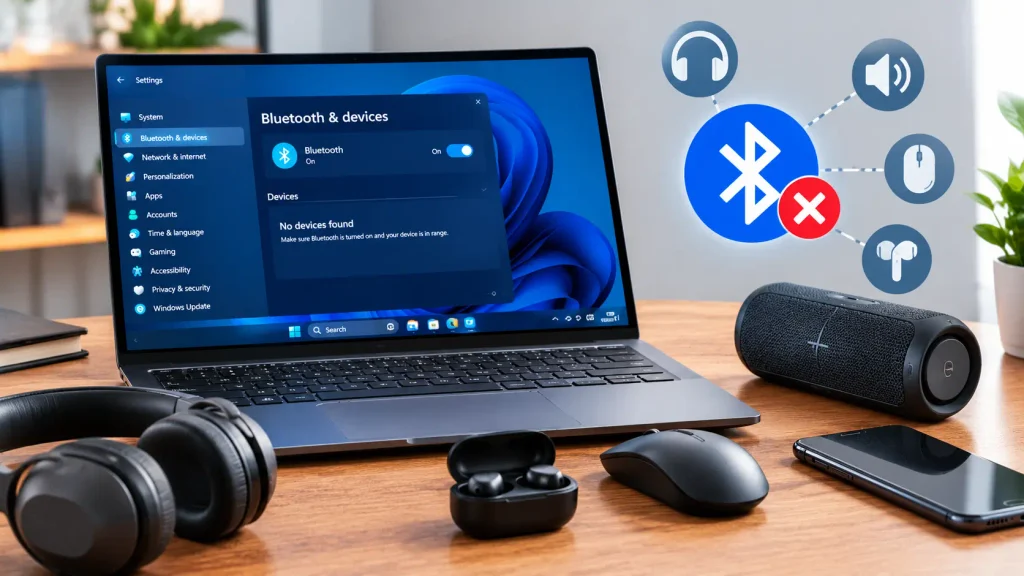
Most Bluetooth problems fall into a few simple groups.
Driver and Device Problems
The Bluetooth adapter driver may be outdated, damaged, or incompatible with the current Windows version.
Windows Settings and Services
Bluetooth, Airplane mode, Quick Settings, or the Bluetooth Support Service may not be configured correctly.
Connection and Pairing Problems
The accessory may not be discoverable, may already be connected elsewhere, or may have an old pairing record.
Power Management Problems
Windows may reduce power to the Bluetooth adapter when the PC is idle or running on battery.
Hardware and Antenna Problems
A failed adapter, loose antenna, faulty USB adapter, or unsupported Bluetooth hardware can also cause the problem.
Which Bluetooth Problem Are You Having?
Identifying the exact symptom can help you choose the right fix instead of trying every solution.
Bluetooth Toggle Is Missing
If the Bluetooth toggle disappears from Settings or Quick Settings, Windows may not be detecting or enabling the Bluetooth hardware. Check Device Manager and the manufacturer’s driver.
Bluetooth Is On but Won’t Connect
Check that the accessory is charged, nearby, and in pairing mode. Then remove it from Windows and pair it again.
Device Is Paired but Not Connected
Remove the device from Bluetooth settings and add it again. This clears the existing pairing information.
Bluetooth Keeps Disconnecting
Check Power Management, Battery Saver or Energy Saver settings, the Bluetooth Support Service, and the Bluetooth driver.
Bluetooth Connects but Has No Sound
If headphones connect but produce no sound, check Settings > System > Sound and make sure the Bluetooth device is selected as the output device. You can also learn more about fixing computer has no sound problems.
Bluetooth Stopped Working After an Update
Check Windows Update and your manufacturer’s Bluetooth driver. If the driver changed recently, a driver rollback may also be available.
When Is Windows 11 Bluetooth Not Working a Serious Problem?
Most Bluetooth problems are software or connection issues. Some symptoms, however, point to a deeper problem.
Bluetooth Is Missing From Device Manager
If Bluetooth does not appear in Device Manager, Windows may not be detecting the adapter. Check for unknown devices and install the correct manufacturer driver.
The Adapter Keeps Disappearing
If the Bluetooth adapter repeatedly appears and disappears, the driver, firmware, power settings, or hardware may be unstable.
Multiple Bluetooth Devices Fail to Connect
If several different Bluetooth devices fail on the same PC, the problem is more likely to be with Windows or the PC’s Bluetooth adapter rather than one accessory.
Bluetooth Stops Working After Every Restart
A recurring problem after every restart may point to a driver, service, or hardware issue.
The Problem Continues After Driver Reinstallation
If the correct manufacturer driver has been installed and Bluetooth still does not work, hardware becomes a stronger possibility.
When Is Bluetooth a Hardware Problem?
Before buying replacement hardware, test the basic software fixes first.
Check the Bluetooth Antenna on a Desktop PC
Make sure the external antenna is connected correctly. This is easy to overlook after building or moving a desktop PC.
Check an External USB Bluetooth Adapter
Remove the adapter, reconnect it, and try another USB port. If possible, test the adapter on another computer.
Test Bluetooth With Another Device
Try connecting a different Bluetooth accessory. If one device works while another does not, the original accessory may be the problem.
When the Built-In Bluetooth Adapter May Have Failed
If Windows cannot detect the adapter, correct drivers do not help, and several Bluetooth devices fail, the adapter itself may have a hardware fault.
When Should You Get Professional Computer Repair?
You usually do not need professional repair for a simple pairing or driver problem. Consider professional computer repair when basic troubleshooting cannot restore the adapter.
Your Bluetooth Adapter Is Not Detected
If Windows cannot detect the adapter even after installing the correct driver, professional diagnosis may be useful.
Other Wireless Hardware Is Also Failing
If both Wi Fi and Bluetooth are having problems, the wireless card, antenna, driver, or motherboard may need closer inspection. If WiFi is also not working, check the related troubleshooting steps before assuming the hardware has failed.
Driver and Windows Fixes Did Not Work
If other Windows problems are also happening, such as your computer keeps crashing, the issue may be broader than Bluetooth and may need additional Windows troubleshooting.
You Suspect a Hardware Failure
A repair technician can test the adapter and determine whether the issue is with the wireless card, antenna, USB adapter, or another component.
Final Verdict: How to Fix Bluetooth on Windows 11
When Windows 11 Bluetooth is not working, start with the Get Help troubleshooter, Bluetooth settings, Airplane mode, and the device itself. If those checks fail, remove and pair the device again, restart the Bluetooth Support Service, review Power Management, and update the Bluetooth driver.
For missing Bluetooth, driver reinstallation and checking Device Manager are important. On desktop PCs, do not overlook the external antenna or USB Bluetooth adapter.
The safest approach is to use official Windows tools and drivers from your PC manufacturer’s website rather than random driver software. With these checks, many Bluetooth problems can be fixed without replacing the computer or accessory.
Frequently Asked Questions
Why did Bluetooth suddenly disappear in Windows 11?
Bluetooth can disappear because Windows cannot detect the Bluetooth adapter, a driver has failed, firmware has a problem, Airplane mode is enabled, or a recent system change affected the hardware. Check Device Manager and install the latest driver from your PC manufacturer.
How do I force Bluetooth to turn on in Windows 11?
Open Settings > Bluetooth & devices and turn Bluetooth on. You can also use Quick Settings by pressing Windows + A. If the Bluetooth switch is missing, check Device Manager, drivers, and the Bluetooth hardware.
Why is my PC not detecting Bluetooth devices?
Make sure the accessory is powered on, charged, nearby, and in pairing mode. If it still does not appear, change Bluetooth device discovery to Advanced, then try removing and pairing the device again.
Can a Windows update break Bluetooth?
Yes, a Windows upgrade or update can expose a driver compatibility problem. If Bluetooth stopped working after an update, check for newer Windows updates and install the latest Bluetooth driver from your PC manufacturer’s official support page.
Do I need to update my Bluetooth driver?
Not every Bluetooth problem requires a driver update. However, if Bluetooth is missing, unstable, or stopped working after a Windows update, checking for the latest compatible manufacturer driver is a good troubleshooting step.
Author:
Written By: