How To Improve Laptop Airflow? 10 Easy Ways to Cool Your Laptop in 2026
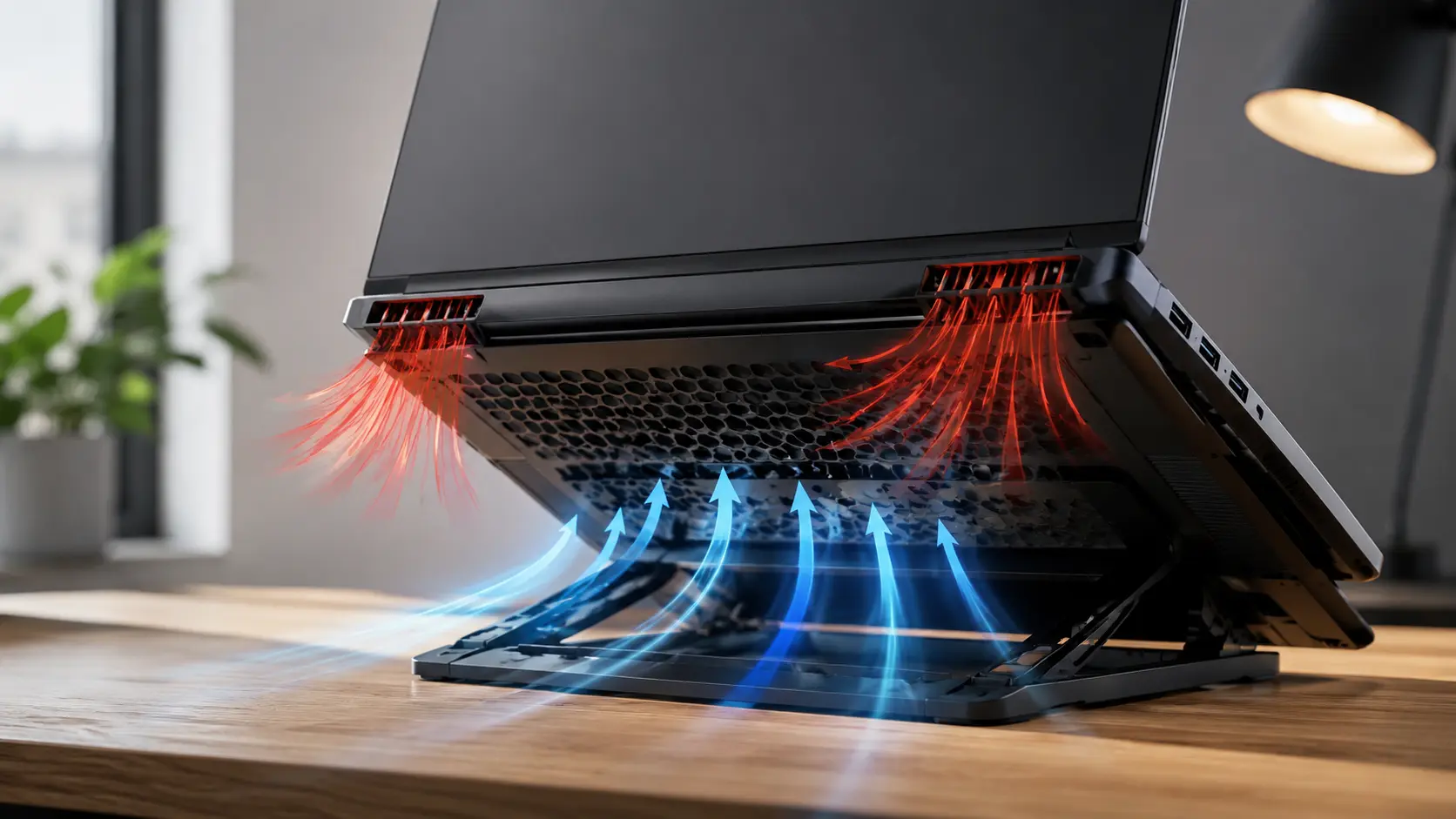
To improve laptop airflow, keep the vents clean and uncovered. Place the laptop on a hard, flat surface and slightly raise the back. Clean dust from the fans regularly. A cooling pad can also help during gaming and heavy tasks.
In this guide, you’ll learn practical ways to improve airflow, reduce unnecessary heat, and avoid common cooling mistakes. You’ll also learn when overheating may need deeper inspection.
Why Is Good Laptop Airflow Important?
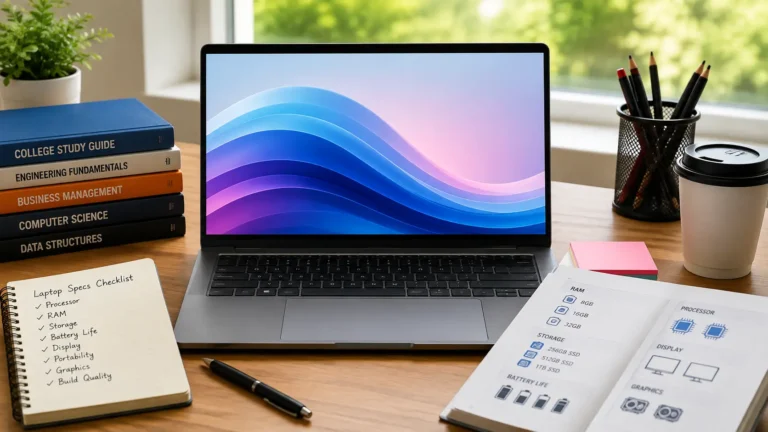
Laptop components such as the CPU and GPU produce heat when they work. The CPU and GPU produce heat when they work. If you’re choosing a laptop for demanding tasks, the right laptop specs also matter for performance and cooling. The cooling system moves that heat away through fans, vents, and heatsinks.
If air cannot move properly, heat stays inside the laptop. This can lead to louder fans, slower performance, crashes, or unexpected shutdowns. Dell also recommends keeping vents clear, using a hard surface, and removing dust to support proper cooling.
How Does Laptop Airflow Work?
Most laptops use a simple airflow path. A fan pulls air through intake vents, moves it across hot internal parts, and pushes warm air toward exhaust vents.
The exact design differs between laptops. Some take air mainly from the bottom, while others use side or rear vents. This is why you should check your laptop’s own vent layout before placing a stand or cooling pad underneath it.
What Happens When Laptop Airflow Is Blocked?
Blocked airflow makes it harder for the cooling system to remove heat. Dust can cover the vents, while beds, blankets, and other soft surfaces can cover bottom openings.
As the laptop gets hotter, the fans may spin faster. You may also notice reduced performance, especially during gaming or other heavy tasks.
Can Poor Airflow Cause Laptop Overheating?
Yes. Poor airflow can cause overheating, but it isn’t always the only cause.
Dust inside the cooling system, a weak fan, high CPU or GPU usage, old thermal paste, and a hot room can also increase temperatures. If cleaning and better placement do not help, the problem may need deeper inspection.
How To Improve Laptop Airflow
The easiest way to improve laptop airflow is to give the cooling system enough space to breathe. Start with placement and ventilation before spending money on accessories.
Keep Your Laptop on a Hard, Flat Surface
Place your laptop on a desk, table, or another hard, flat surface. This leaves the intake vents open and gives air a clear path underneath the machine.
Avoid placing it directly on a bed, pillow, carpet, or cushion. These surfaces can cover the vents and restrict airflow. Dell and Intel both recommend hard surfaces for better laptop ventilation.
Raise the Back of Your Laptop
Slightly raising the rear of your laptop can create more space below the intake area. This can help when your laptop pulls cooling air through bottom vents.
You don’t need to lift the entire laptop high. A proper laptop stand is usually safer and more stable than using random objects.
Keep the Air Vents Clear
Find the intake and exhaust vents on your laptop. Make sure books, cables, walls, or other objects aren’t blocking them.
Don’t place anything directly over a vent. Also, leave enough open space around exhaust areas so hot air can escape.
Clean Dust From the Laptop Vents
Dust can slowly collect around the vents and reduce the amount of air entering the cooling system.
Turn the laptop off before cleaning. Use short bursts of electronics-safe compressed air and avoid forcing dust deeper into the machine. Dell recommends turning the computer off and using compressed air to clean external vents.
Clean the Laptop Fans and Heatsink
If dust has built up inside the laptop, cleaning only the outside vents may not be enough. A clogged fan or heatsink can still restrict cooling.
Internal cleaning requires opening the laptop, and the process differs by model. If you’re not comfortable opening it, have a qualified technician do the job instead.
Use a Laptop Cooling Pad
A cooling pad uses fans to move more air around the laptop’s base. It can help during gaming or other long, demanding workloads.
However, results depend on your laptop’s intake design and the cooling pad. A pad that does not line up well with the intake vents may provide little benefit.
Use a Laptop Stand for Better Airflow
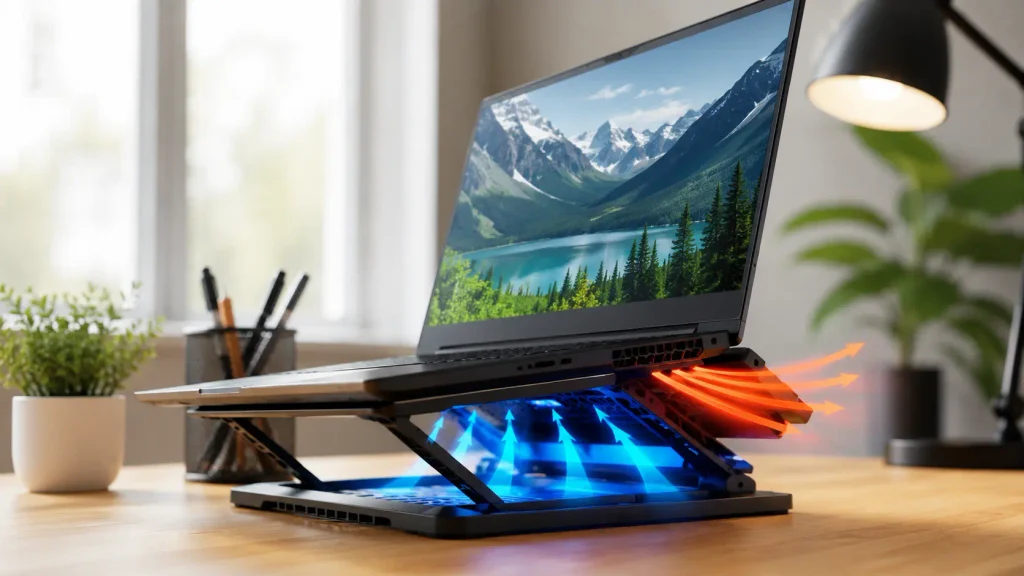
A laptop stand can raise the computer and improve the space underneath it. This can be useful even when you don’t need extra fans.
A stand also gives you a better viewing position, which makes it useful for everyday work. Just make sure its design doesn’t cover your laptop’s intake vents.
Keep Your Laptop Away From Beds, Blankets, and Sofas
Soft surfaces are among the easiest ways to restrict laptop airflow. A blanket or sofa cushion can cover bottom vents within seconds.
For regular use, move the laptop to a hard desk or table. Intel specifically recommends keeping notebooks elevated and well ventilated instead of using them on blankets or pillows
Improve Airflow Around Your Laptop
The area around the laptop matters too. Don’t push the exhaust side against a wall or place the computer inside a closed space.
Keep the workspace reasonably cool and give hot exhaust air room to escape. Better airflow around the laptop helps its cooling system work as designed.
How To Improve Laptop Airflow While Gaming
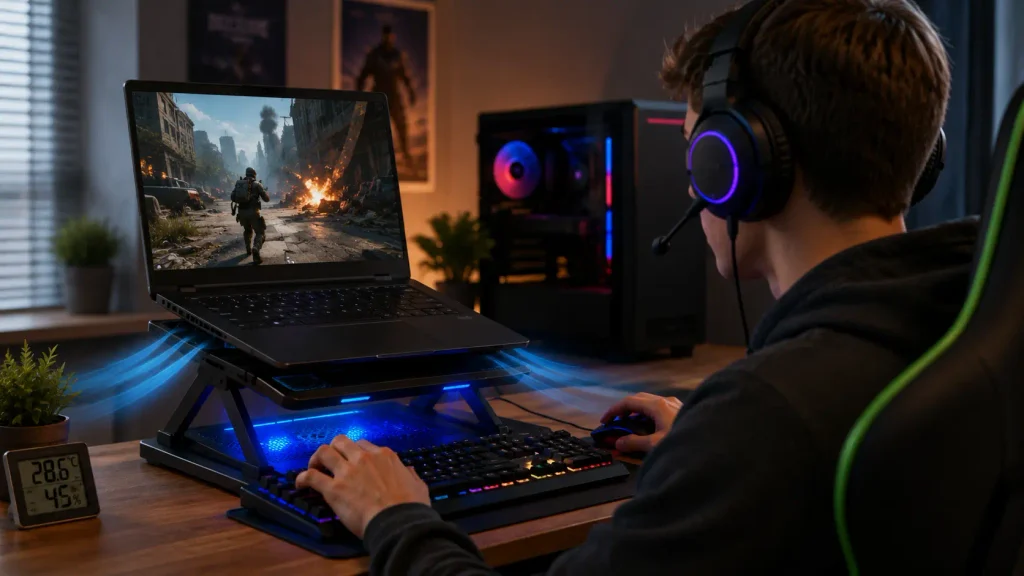
How To Improve Laptop Airflow?. Gaming creates much more heat than simple browsing or typing because the CPU and GPU may work hard for long periods.
You can improve cooling by combining better physical airflow with settings that reduce unnecessary heat.
Use a Cooling Pad or Laptop Stand
A cooling pad can provide extra airflow during long gaming sessions. A simple stand can also help by creating more space under the laptop.
If your laptop already has good airflow and the intake vents are exposed, a stand may be enough.
Keep the Laptop Elevated During Gaming
Don’t place a gaming laptop directly on a bed or soft surface. Keep it on a hard desk and, when suitable for its design, raise the rear slightly.
This gives the bottom intake vents more space and helps the cooling fans draw air more easily.
Reduce CPU and GPU Load
Higher CPU and GPU usage usually means more heat. Higher CPU and GPU usage usually means more heat. Your laptop’s RAM capacity can also affect how well it handles multiple apps at once. You can reduce unnecessary load by closing programs you don’t need while gaming.
Lowering graphics settings can also reduce GPU workload. Dell recommends lowering game settings and closing unused background applications when dealing with overheating during gaming.
Limit FPS in Games
If your game is producing far more frames than your display can show, limiting FPS can reduce unnecessary GPU work.
For example, if your display runs at 60 Hz, an FPS limit around 60 may reduce workload compared with allowing the GPU to render hundreds of frames.
Use a Balanced Performance Mode
Maximum performance isn’t always necessary. Balanced power settings can reduce heat during normal gaming or less demanding tasks.
The exact options depend on your laptop. Dell recommends balanced power settings as one way to reduce heat and fan activity.
How To Improve Laptop Airflow Without a Cooling Pad
You don’t need a cooling pad to improve laptop airflow. In many cases, basic placement and cleaning should come first.
Elevate the Back of the Laptop
Raise the rear slightly if your laptop takes air from the bottom. This creates more room for air to reach the intake vents.
Avoid covering the front or bottom vents while doing this.
Use a Hard and Flat Surface
A desk or table is usually better than a bed or sofa. It keeps the underside of the laptop open and stable.
This simple change costs nothing and can be more useful than buying an unnecessary cooling accessory.
Clean the Air Vents
Check the bottom, side, and rear vents for visible dust. Clean the outside vents carefully with compressed air.
If dust is heavily packed inside the fan or heatsink, external cleaning may not solve the problem.
Reduce Background CPU Usage
Open Task Manager and check which programs are using a lot of CPU. Close apps you don’t need, especially during demanding work.
Lower CPU usage means less heat is produced, although this doesn’t physically increase airflow.
Keep the Room Cool
Room temperature affects how easily the laptop can remove heat. A laptop working in a very hot room has less cool air available for its cooling system.
Keep the laptop away from direct sunlight and use it in a well-ventilated room.
Do Laptop Cooling Pads Improve Airflow?
Yes, a good cooling pad can improve airflow around some laptops, but it isn’t a guaranteed fix for every model.
The result depends on the laptop’s intake location, the pad’s fan position, and how easily air can enter the laptop.
How Does a Laptop Cooling Pad Work?
A cooling pad normally has fans that push air toward the bottom of the laptop. This can provide additional airflow around the intake area.
Some laptops benefit more than others because cooling systems have different designs. Check where your laptop takes in air before choosing a pad.
When Should You Use a Cooling Pad?
A cooling pad makes the most sense when your laptop gets hot during long gaming sessions, video editing, rendering, or other heavy work.
It is less important for simple browsing, writing, or watching videos if the laptop already stays at a normal temperature.
Are Laptop Cooling Pads Worth It?
They can be worth buying if basic improvements aren’t enough. But don’t expect every cooling pad to produce the same result.
Start with a clean laptop, clear vents, and good placement. If the laptop still gets hot under heavy load, an active cooling pad may be useful.
Cooling Pad vs Laptop Stand
| Feature | Cooling Pad | Laptop Stand |
|---|---|---|
| Raises laptop | Yes | Yes |
| Adds fans | Usually | No |
| Improves space under laptop | Yes | Yes |
| Needs power | Usually | No |
| Best for | Heavy workloads | Everyday airflow |
| Noise | May add fan noise | Silent |
For many users, a stand is enough. A cooling pad is more useful when additional active airflow is needed.
How To Improve Laptop Airflow When It Gets Hot
If your laptop suddenly becomes very hot, check the simple causes first. Don’t immediately assume that the laptop needs a new fan or thermal paste.
Check Whether the Vents Are Blocked
Look at the bottom, sides, and rear of the laptop. Make sure nothing is covering the intake or exhaust openings.
A blocked vent can make the cooling system work harder.
Check for Dust Buildup
Dust around the vents or fan area can restrict airflow. Turn the laptop off and clean the external vents carefully.
If you see heavy internal dust, consider professional cleaning if you’re not comfortable opening the laptop.
Check Background Processes
Open Task Manager in Windows and check CPU and GPU activity. A program running heavily in the background can create extra heat.
Close unnecessary programs and check whether the temperature improves.
Change Windows Power Settings
Windows power settings can affect how much power the processor uses. For everyday work, Balanced or a power-saving mode can reduce heat compared with maximum performance settings.
Dell also recommends balanced power settings as part of overheating troubleshooting.
Check CPU and GPU Temperatures
Use a trusted hardware monitoring tool to see what is actually getting hot.
Don’t judge the laptop only by how warm the keyboard feels. CPU and GPU temperatures can be very different, and safe limits vary by hardware model.
Can Cleaning a Laptop Improve Airflow?
Yes. Cleaning can improve airflow when dust is restricting vents, fans, or the heatsink.
Dust doesn’t automatically mean a laptop will overheat, but heavy buildup can make heat removal harder. Regular cleaning helps keep the cooling path open.
How Dust Affects Laptop Airflow
A laptop fan needs to move air through a relatively small cooling system. Dust buildup around the intake, fan, or heatsink can reduce that airflow.
When less air moves through the heatsink, heat can build up faster. The fans may then run harder and become louder.
How Often Should You Clean Laptop Vents?
There isn’t one perfect schedule for every laptop. Dusty rooms, pets, carpets, and heavy daily use can make cleaning necessary more often.
A practical approach is to inspect the vents every few months and clean them when you see visible buildup or notice unusual fan noise.
How To Clean Laptop Vents Safely
Follow these basic steps:
- Shut down the laptop.
- Disconnect the charger and external devices.
- Check the intake and exhaust vents.
- Use short bursts of compressed air to remove loose dust.
- Keep the can upright and follow its instructions.
- Wipe the outside with a dry microfiber cloth.
- Restart the laptop and check its cooling.
Avoid using a household vacuum directly on laptop components because static electricity can create a risk of damage.
When Should You Clean the Internal Fan?
Consider internal cleaning when the laptop has heavy dust buildup, loud fans, rising temperatures, or reduced cooling even after external cleaning.
Opening a laptop can be risky if you don’t know the correct procedure. If the device is under warranty, check the manufacturer’s service instructions first.
Can Software Settings Improve Laptop Cooling?
Software cannot physically improve airflow. It can only reduce the amount of heat the laptop produces.
This distinction is important. Better airflow requires physical changes such as clearing vents, improving placement, or adding cooling equipment. Software mainly helps lower the workload.
Close Unnecessary Background Apps
Background applications can use CPU resources even when you’re not actively using them.
Close programs you don’t need, especially before gaming or running another demanding application.
Use Windows Balanced Power Mode
Balanced mode can reduce unnecessary power use during normal tasks. This can lower heat and fan activity on supported systems.
The exact names and available options can vary between Windows versions and laptop manufacturers.
Reduce CPU Performance When Necessary
If your laptop becomes too hot during a workload, reducing processor performance can lower heat generation.
This can help when maximum performance isn’t needed. However, it may also reduce application performance, so use it when cooling is more important than speed.
Limit FPS While Gaming
An FPS limit can stop your GPU from working harder than necessary. This is especially useful when the GPU is producing many more frames than your display can show.
It can reduce power use and heat while still giving you smooth gameplay.
Control Fan Speed Carefully
Some laptops provide manufacturer software for thermal or fan control. Use these options carefully and follow the settings recommended for your model.
Don’t install unknown fan control tools just to force the fan to maximum speed. If the fan behaves strangely, hardware diagnostics may be more useful.
Does Raising a Laptop Improve Airflow?
Yes, raising a laptop can improve airflow when the laptop uses bottom intake vents. More space underneath gives air a clearer path toward those openings.
This doesn’t mean raising every laptop will produce the same temperature drop. Cooling designs differ, and some laptops have intake areas that don’t benefit much from rear elevation.
A stand is a simple way to create this space without covering the vents. Intel also recommends keeping notebooks elevated and well ventilated.
What Temperature Is Too Hot for a Laptop?
There is no single temperature that is automatically too hot for every laptop. CPU model, GPU model, workload, cooling design, room temperature, and manufacturer limits all matter.
A gaming laptop may run much hotter under heavy load than it does while browsing. What matters most is whether the temperature stays within the component’s designed operating limits and whether the laptop shows signs of thermal problems.
| Temperature | General meaning |
|---|---|
| Around 40°C to 60°C | Often seen during light workloads, depending on the laptop |
| Around 60°C to 80°C | Can be normal during moderate or heavy workloads |
| Around 80°C to 90°C | High, but may still occur during demanding tasks |
| Around 90°C or higher | Very hot and worth checking, especially if sustained |
These ranges are general guidance, not universal limits. Always check the specifications for your exact CPU and GPU.
Is 70°C Too Hot for a Laptop?
Usually, 70°C is not automatically too hot for a laptop CPU or GPU. During gaming or another demanding task, this temperature can be reasonable for many systems.
However, if the laptop reaches 70°C during very light use, check for background processes, dust, poor airflow, or another cooling issue.
Is 80°C Too Hot for a Laptop?
80°C is a high temperature, but it isn’t automatically dangerous. Many laptop processors and graphics chips can operate at temperatures around this level during heavy workloads.
The important question is whether the temperature is expected for your specific hardware and whether performance remains stable.
Is 90°C Too Hot for a Laptop?
90°C is quite hot and deserves attention, especially if it remains there for long periods during normal tasks.
Some laptop CPUs can reach temperatures around this level under heavy workloads, but sustained high temperatures combined with throttling, shutdowns, or poor performance should be investigated.
Why Gaming Laptops Run Hotter
Gaming laptops have powerful CPUs and GPUs packed into a small space. Games can keep both chips busy for long periods, producing significant heat.
That is why higher temperatures during gaming aren’t automatically a sign of failure. Look for sustained extreme temperatures, throttling, crashes, or unusual fan behavior.
What To Do If Your Laptop Still Overheats After Improving Airflow?

If you’ve cleaned the vents, improved placement, reduced unnecessary workload, and the laptop still overheats, the problem may be inside the cooling system. Laptop design, hardware quality, and cooling systems can also vary between models.
At this point, don’t keep adding cooling accessories without finding the cause.
Check the Cooling Fan
Listen for unusual grinding, rattling, or buzzing. Also check whether the fan behaves normally when the laptop becomes hot.
A damaged or failing fan cannot move enough air, even when the vents are clean.
Check the Heatsink for Dust
Heavy dust can form a layer over the heatsink fins. This can prevent hot air from leaving efficiently.
If the heatsink is difficult to access, professional cleaning may be safer than opening the laptop yourself.
Consider Replacing Old Thermal Paste
Thermal paste helps transfer heat between the processor and heatsink. Over time, old paste can lose effectiveness, although it isn’t something every laptop needs replaced on a fixed schedule.
If the laptop is several years old and temperatures remain unusually high, a qualified technician can check whether the thermal interface needs attention.
Check for Thermal Throttling
Thermal throttling happens when the system reduces performance to control excessive heat. You may notice sudden FPS drops, slower performance, or reduced processor speed.
If temperatures rise and performance falls at the same time, monitor the CPU and GPU to see whether thermal limits are being reached. Dell describes thermal throttling as a protective response to excessive temperatures.
When Should You Take Your Laptop to a Technician?
Get professional help if the laptop:
- Shuts down because of heat
- Shows repeated thermal warnings
- Has a fan that makes grinding or rattling sounds
- Remains extremely hot after cleaning
- Has visible internal dust that you cannot safely remove
- Shows serious performance loss from thermal throttling
A technician can inspect the fan, heatsink, thermal paste, sensors, and other cooling parts.
Common Laptop Airflow Mistakes To Avoid
Small mistakes can make an otherwise healthy laptop run much hotter than necessary.
Using a Laptop on a Bed or Blanket
This is one of the most common mistakes. Soft fabric can cover bottom vents and reduce the air entering the cooling system.
Use a desk, table, or suitable laptop tray instead.
Blocking the Bottom Vents
Don’t place books, papers, clothing, or other objects under the laptop if they cover intake openings.
If the laptop needs bottom airflow, keep that area open.
Ignoring Dust Buildup
A laptop may continue working even when dust is slowly reducing cooling performance. Waiting until it becomes extremely hot can make the problem harder to fix.
Inspect the vents regularly and clean visible dust safely.
Buying the Wrong Cooling Pad
More fans don’t automatically mean better cooling. If the pad’s airflow doesn’t match your laptop’s intake design, the improvement may be small.
Check your laptop’s bottom layout before buying a cooling pad.
Using Unsafe Cleaning Methods
Don’t spray liquids into vents or use aggressive tools inside the laptop.
Turn the computer off before cleaning and use proper compressed air according to the manufacturer’s instructions.
Frequently Asked Questions
1. Can a Laptop Get Hot Even When Its Airflow Is Good?
Yes, a laptop can still get hot even when its airflow is good. Heavy gaming, high CPU usage, dust inside, or demanding apps can create extra heat even with proper airflow.
2. Does Room Temperature Affect Laptop Cooling?
Yes, room temperature can affect laptop cooling. A hot room makes it harder for the laptop to release heat, while a cooler room can help it stay at a safer temperature during heavy use.
3. Should You Monitor Laptop Temperature During Heavy Use?
Yes, you should monitor laptop temperature during heavy use. Checking temperatures while gaming or running demanding apps can help you spot overheating early and protect your laptop from heat-related problems.
4. What Are the Signs That Your Laptop Needs Better Airflow?
Common signs include very hot surfaces, loud fans, slow performance, sudden shutdowns, or frequent temperature spikes. If your laptop shows these signs, check the vents, clean dust, and improve airflow around it.
5. How Much Space Should You Leave Around a Laptop for Cooling?
Leave enough open space around your laptop’s air vents so air can move freely. Avoid pressing it against walls or objects, and keep the bottom vents clear for better cooling during heavy use.
Conclusion
How To Improve Laptop Airflow?.Improving laptop airflow doesn’t have to be difficult. Keep vents clean, use a hard surface, raise the laptop slightly, and avoid soft surfaces. A cooling pad can help during heavy tasks. If your laptop still overheats after these steps, check the fan, heatsink, and thermal paste or contact a technician.
Written by: Sahil Ansari