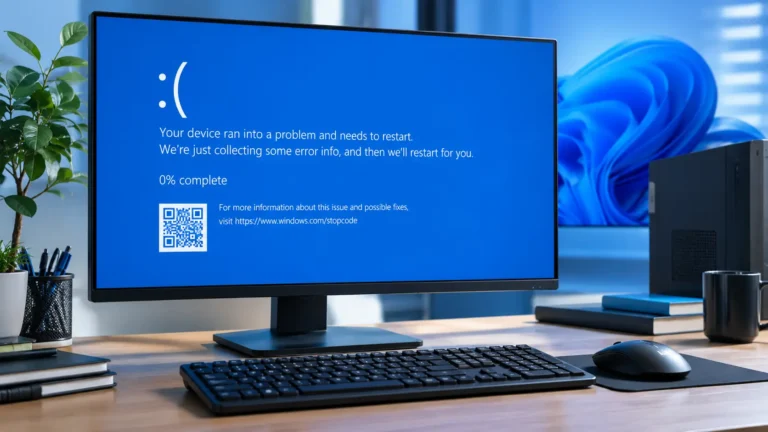
How to Fix a Computer That Won’t Turn On: 10 Safe Fixes
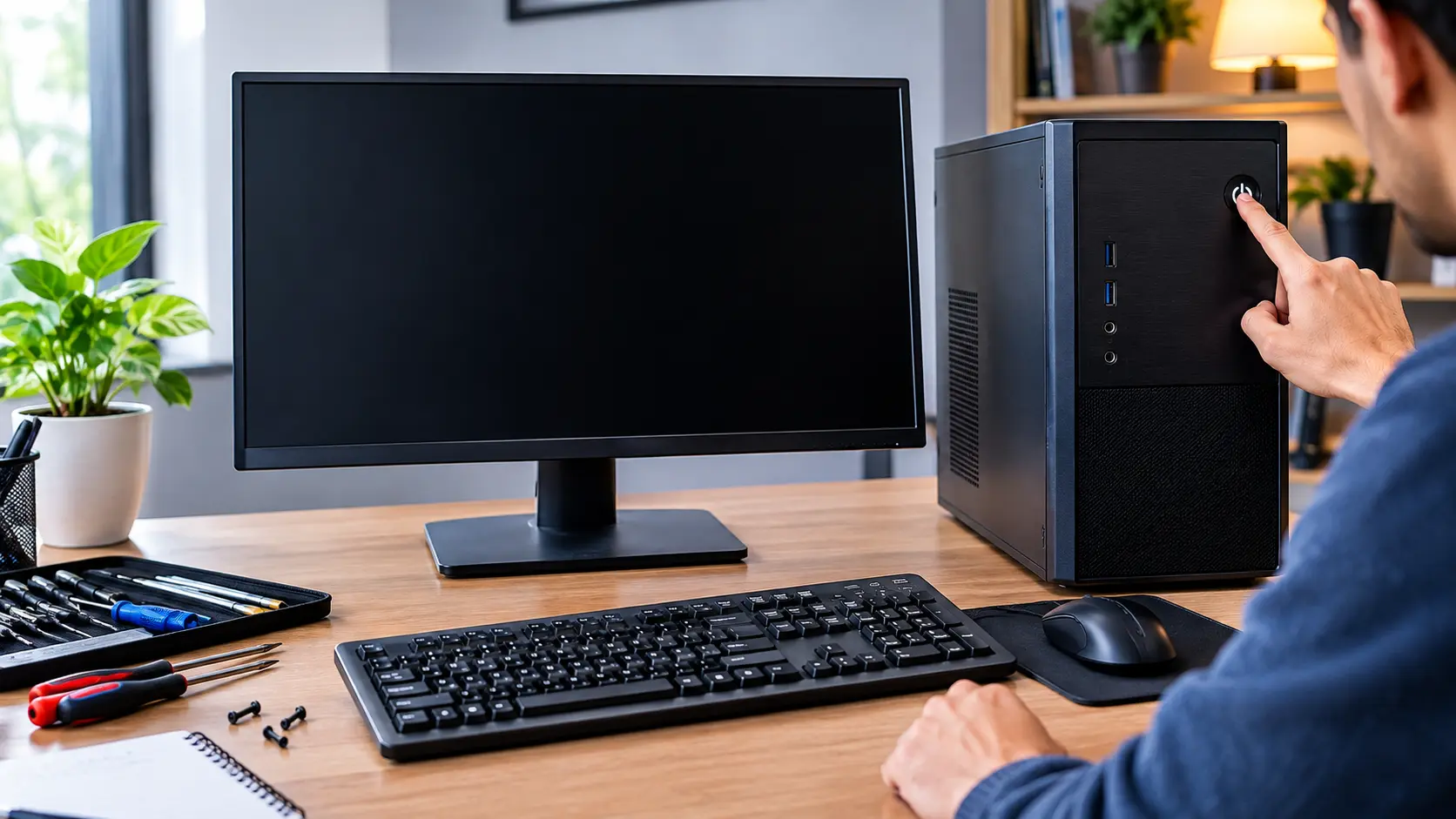
How to Fix a Computer That Won’t Turn On: Check the outlet, cable, charger, and power button first. Remove USB devices and try again. For desktops, check the PSU. If lights or fans work but there is no display, check the RAM.
Quick Diagnosis
Before trying any fix, look at what happens when you press the power button. The symptom can help you find the problem faster.
| What you see | What to check first |
|---|---|
| No lights or fans | Outlet, power cable, charger, battery, or PSU |
| Lights or fans but no screen | Monitor, display cable, RAM, graphics card, or POST |
| Computer starts then shuts off | Overheating, PSU, RAM, or other hardware |
| Laptop charging light stays off | Charger, charging port, or battery |
| Fans run but screen stays black | Monitor, display cable, RAM, or graphics card |
If nothing happens at all, start with the power source. If the computer has lights or running fans but no picture, focus on the display and startup hardware.
Before You Start
Before opening your computer, start with the simple checks first. Most basic power checks do not require any tools.
Time needed: About 10 to 30 minutes
Difficulty: Easy to moderate
Tools: Usually none
Risk: Low for checking power, cables, and accessories. Higher when opening the computer case.
Important: Never open a power supply. If you notice smoke, sparks, liquid damage, or a burning smell, unplug the computer and get professional help.
In this guide, you will learn how to fix a Computer That Won’t Turn On using safe and practical steps. We will check the power source, cables, screen, battery, hardware, and other common causes. Follow each step carefully to find the problem and get your computer working again.
Why Won’t My Computer Turn On?
A computer may fail to turn on for several reasons. The first thing to notice is what happens when you press the power button.
If there are no lights, fan sounds, or other signs of life, start with the power source, cable, charger, battery, or power supply. If the fans or lights work but the screen stays black, the problem may be related to the display, RAM, graphics card, or startup hardware.
Computer support guides commonly separate these problems into no power, no POST, no video, and no boot because each one needs a different troubleshooting approach.
Turn On vs Boot: What’s the Difference?
Won’t turn on: The computer shows no normal signs of power, such as lights, fans, or charging activity.
Won’t boot: The computer turns on, but it cannot complete startup or reach Windows.
This difference matters because a computer with no power needs different troubleshooting than a computer that has power but cannot boot.
Common Reasons a Computer Won’t Turn On
Common causes include:
- A faulty wall outlet or power strip
- A loose or damaged power cable
- A faulty laptop charger
- A drained or failed battery
- A switched-off desktop PSU
- A damaged power button
- Loose RAM or internal connections
- A faulty power supply
- A motherboard problem
- A connected USB device causing startup trouble
Do not start by opening the computer. First, check the outlet, cable, charger, power strip, and USB devices. These checks take only a few minutes and can prevent unnecessary hardware repairs.
What Happens When You Press the Power Button?
The computer’s behavior gives you an important clue. Watch and listen carefully when you press the power button.
Nothing Happens at All
If there are no lights, fans, sounds, or screen activity, the computer may not be receiving power.
Check the wall outlet, power cable, charger, battery, and desktop power supply first. For a laptop, check whether the charging light appears when the charger is connected.
Lights or Fans Turn On, but Nothing Appears
If the fans spin or indicator lights turn on, the computer may actually be receiving power.
If your computer starts and then shuts off, check for overheating, power problems, RAM issues, or other hardware faults.
The problem could instead be related to the monitor, display cable, RAM, graphics card, or POST process. POST is the basic hardware check that happens when a computer starts.
If your computer turns on but nothing happens, the problem may be related to the display, RAM, graphics hardware, or the startup process.
If your computer won’t turn on but the fans spin, the computer may have power but fail during its startup hardware check. Check the monitor, display cable, RAM, graphics card, and motherboard diagnostic lights.
Dell also separates no power from no video and no POST because a computer that has power but no picture needs different checks.
Computer Starts Then Shuts Off
A computer that starts and quickly shuts down can have a power supply, RAM, overheating, or other hardware problem.
If your computer starts and then shuts off, check for overheating, power problems, RAM issues, or other hardware faults.
If this happens repeatedly, don’t keep forcing the computer to start. Move through the basic checks below and stop if you notice burning smells, smoke, sparks, or visible damage.
This can happen because of overheating, a power problem, RAM, or another hardware issue.
If overheating is the cause, learn how to improve laptop airflow to help keep your laptop cooler.
How to Fix a Computer That Won’t Turn On
Follow these fixes in order. Start with the simple checks before opening the computer.
1. Check the Power Outlet
Plug another working device, such as a lamp or phone charger, into the same outlet.
If that device doesn’t work, try another outlet. If you’re using an extension cable or power strip, connect the computer directly to a known working wall outlet for testing.
This simple check can save you from replacing computer hardware unnecessarily.
2. Check the Power Cable or Charger
Make sure the power cable is firmly connected at both ends.
For a desktop, check the cable between the computer and the wall outlet. For a laptop, check the charger at the wall and the laptop’s charging port.
Look for:
- Cuts or damage on the cable
- A loose connector
- A bent charging plug
- A charger that becomes unusually hot
- No charging light when one normally appears
If possible, use the original or manufacturer-approved charger for your laptop. Don’t use a random charger just because its connector fits.
3. Disconnect USB Devices and Accessories
Disconnect unnecessary devices before trying again.
Remove:
- USB drives
- External hard drives
- Printers
- Game controllers
- USB hubs
- Memory cards
- Other external accessories
Then press the power button again.
External devices can sometimes interfere with startup. Lenovo and other manufacturers include disconnecting external devices as part of basic no-power troubleshooting.
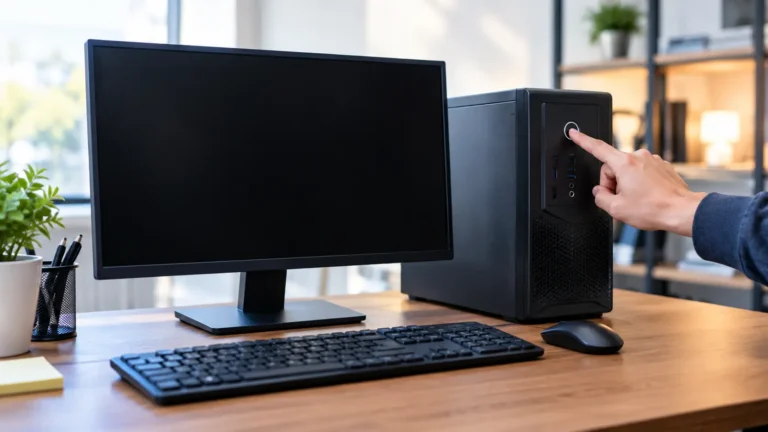
4. Check the Power Button
Press the power button normally and notice how it feels.
If the button feels stuck, unusually loose, or doesn’t click like it normally does, it could be damaged.
On a desktop, a faulty case power button can prevent the computer from starting even when the power supply is working. Don’t repeatedly press a damaged button with force.
5. Check the Desktop Power Supply
If you have a desktop computer, check the switch on the back of the power supply. It should be set to the normal on position.
Also check that the power cable is fully inserted.
Some power supplies have a built-in test feature, but the exact procedure depends on the manufacturer and model. Use the instructions for your specific PSU rather than guessing.
Important: Never open the power supply itself. It can contain dangerous electrical components even after the computer has been unplugged.
If the computer still has no power after you check the outlet, cable, PSU switch, and connections, the PSU may need to be tested with a known good unit or by a technician.
6. Perform a Power Reset
A power reset can clear temporary power or controller problems.
For a laptop:
- Disconnect the charger and external devices.
- If the battery is removable, remove it.
- Press and hold the power button for about 10 to 20 seconds.
- Connect the charger again.
- Try turning on the laptop.
Some laptops use different reset procedures, so follow your manufacturer’s instructions when available. Dell and Lenovo both recommend a form of hard reset for certain no-power situations.
For a desktop, unplug the power cable, disconnect unnecessary accessories, hold the power button for around 30 seconds, reconnect the power cable, and try again.
7. Check the Monitor and Display Cable
If the computer’s fans are running or lights are on, check the display before assuming the computer is completely dead.
Make sure:
- The monitor is powered on.
- The display cable is connected properly.
- The monitor is using the correct input.
- HDMI or DisplayPort connections are secure.
- The cable is not visibly damaged.
If possible, try another cable or monitor.
Microsoft also recommends checking monitor connections and trying another display or cable when dealing with a blank screen.
8. Reseat the RAM
Loose or poorly connected RAM can prevent a computer from completing its startup hardware check.
Only try this if you’re comfortable opening a desktop computer.
- Shut down and unplug the computer.
- Press the power button once after unplugging it.
- Open the case.
- Locate the RAM modules.
- Remove and reinstall them carefully.
- Make sure each module is fully locked into its slot.
- Close the case and test the computer.
Don’t force the RAM into place. If you’re unsure about opening the case, skip this step and ask a qualified technician for help.
9. Check the Motherboard Connections
If the computer still won’t start, check the main internal power connections if you’re comfortable working inside a desktop.
Look for:
- Main motherboard power connector
- CPU power connector
- Loose cables
- Diagnostic LEDs
- Visible burn marks or damage
Don’t remove random components unless you know what they do. A loose connection can be fixed, but forcing a connector into the wrong position can cause more damage.
10. Try a Basic Hardware Test
If the computer still doesn’t start, reduce it to the basic hardware needed for startup.
Disconnect unnecessary internal and external components and test the computer again. Advanced users can use the motherboard’s diagnostic lights, beep codes, or manufacturer hardware diagnostics to narrow down the failed component.
Beginners should avoid risky motherboard testing or shorting pins unless the computer manufacturer specifically provides instructions for that model.
Note: If the computer powers on but cannot reach Windows, this is usually a boot problem rather than a complete power problem
Laptop vs Desktop: What Should You Check?
Laptop and desktop computers have different power systems, so the first checks are not the same.
| Laptop | Desktop |
|---|---|
| Charger | Power cable |
| Battery | Power supply |
| Charging port | PSU switch |
| Power reset | Power button |
| External display | Monitor |
| Battery condition | RAM |
| Motherboard | Motherboard |
If a Laptop Won’t Turn On
Start with the charger, charging port, battery, and power reset.
Connect the charger firmly and check for a charging indicator. If the laptop has a removable battery, the manufacturer’s instructions may allow you to test it with the battery removed.
If the laptop still shows no response, the charging circuit, battery, motherboard, or another internal part may need professional testing.
If a Desktop Won’t Turn On
Start with the wall outlet and power cable. Then check the PSU switch, power supply, power button, and internal connections.
If there are no lights or fan sounds after these checks, the PSU becomes an important suspect, but don’t assume it has failed until the basic power checks have been completed.
What If the Computer Turns On but the Screen Is Black?
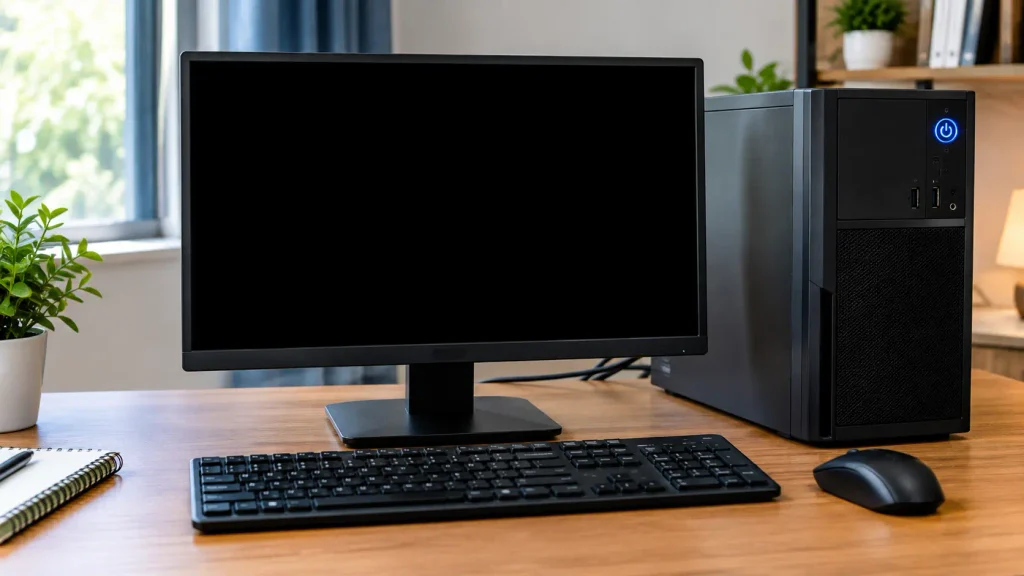
A black screen doesn’t always mean the computer won’t turn on.
If you hear fans, see lights, or notice other signs of activity, the computer may be powered on but unable to show an image.
Check:
- Monitor power
- Display cable
- Correct monitor input
- RAM
- Graphics card
- Motherboard diagnostic lights
For Windows computers, a black screen can also be caused by display settings, graphics drivers, or startup problems. Microsoft recommends checking display connections and, in some cases, resetting the graphics driver with Windows + Ctrl + Shift + B.
How Do You Know if the PSU or Motherboard Is Bad?
Don’t replace an expensive component based on one symptom. Rule out simple causes first.
Signs of a Failing Power Supply
Possible signs include:
- No response when pressing the power button
- Random shutdowns
- Repeated power problems
- Burning smell
- Unusual sounds from the PSU
- Computer failing to receive stable power
A PSU test or manufacturer diagnostic can help confirm the problem.
Signs of a Motherboard Problem
Possible signs include:
- No startup after the outlet and cable have been checked
- Diagnostic LEDs showing an error
- Visible physical damage
- Failed hardware tests
- No response after known good power components are tested
If the motherboard light is on but the computer does not start, power is reaching at least part of the system. Check the power button connection, RAM, CPU power connection, PSU, and any diagnostic lights before assuming the motherboard has failed.
Don’t immediately replace the motherboard. Check the outlet, cable, PSU, power button, RAM, and other basic causes first.
When Should You Stop Troubleshooting?
Stop troubleshooting and get professional help if you notice:
- Burning smell
- Smoke
- Sparks
- Liquid damage
- Burn marks
- Electrical damage
- Repeated power cycling
Unplug the computer if you see smoke, sparks, or signs of electrical damage. Don’t open a power supply or continue testing damaged equipment.
If the computer contains important files, avoid repeated risky repairs. A qualified technician can test the hardware while reducing the chance of causing further damage.
If you are not comfortable opening the computer or checking internal hardware, find a computer repair technician near you for professional help.
Final Verdict
The best way to fix a computer that won’t turn on is to start with the simplest possible cause. Check the outlet, cable, charger, USB devices, power button, and power reset before moving to RAM, PSU, or motherboard checks.
Remember that no power, no display, and no boot are different problems. Identifying what happens when you press the power button can save time and help you choose the right fix. Manufacturer troubleshooting guides also recommend starting with basic power and connection checks before moving to deeper hardware diagnosis.
If none of the safe steps work, professional hardware testing is the right next step.
FAQS:
1. Can a Power Surge Stop a Computer From Starting?
Yes, a power surge can damage a computer’s power supply, motherboard, or other parts and stop it from starting.
Using a good surge protector can help protect your computer from sudden changes in power.
2. Should I Try Turning on My Computer Again After It Shuts Down Suddenly?
Check the power connection first. If the computer was hot, let it cool before trying again.
If it shuts down again, stop using it and check for overheating, power, or hardware problems.
3. Is It Safe to Keep Using a Computer That Turns Off Without Warning?
Continuing to use a computer that repeatedly shuts down without warning can be risky because the cause could be overheating, unstable power, or failing hardware.
4. What Should I Do if My Computer Won’t Turn On After a Power Outage?
If your computer won’t turn on after a power outage, check the wall outlet, power cable, charger, and desktop PSU before trying again.
If you notice sparks, smoke, or a burning smell, unplug it and get professional help.
5. How Can I Tell if My Computer Has a Battery Problem?
If your laptop won’t turn on or charge, and the charging light stays off, the battery or charger may have a problem.
Try the correct charger first, and if it still won’t charge or start, the battery may need to be checked or replaced.
conclusion
A computer that won’t turn on does not always have a serious problem. Start by checking the outlet, cable, charger, USB devices, and power button. Then try a power reset and check basic hardware if needed. If you notice smoke, sparks, burning smells, or repeated shutdowns, stop troubleshooting and get professional help to avoid further damage.